Charalambos Geronikolas Reading Time : 12 minutes Azure
Introduction
When managing hybrid environments, one of the biggest challenges is balancing security and productivity. You want your Helpdesk or Junior Admins to perform routine tasks, like creating users in Active Directory or triggering Microsoft Entra Sync—but you don’t want to grant Domain Admin, Enterprise Admin, or full local admin rights on the sync server. This is where Just Enough Administration (JEA) comes in. JEA allows you to delegate only the exact commands required, nothing more.
In this article, I will show you how I implemented a secure and minimal‑privilege setup that allows a Helpdesk agent to:
- Create new AD users
- Trigger a delta sync using.
Start-ADSyncSyncCycle -PolicyType Delta
Also, for the Admins, I would show you how to create :
- Creating a JEA Endpoint for Microsoft Entra
- Create a PowerShell Role Capability File
- Create a JEA Session Configuration
- Register the JEA Endpoint
Why Not Just Give Admin Access?
Microsoft Entra Connect (formerly Azure AD Connect) runs sensitive services and interacts with both your on-premises AD and your cloud tenant. Giving someone local admin on the sync server means giving them:
- Full control over the server
- The ability to modify sync configuration
- Possible access to the AD Connect service account
- The ability to export or modify directory data
All of these violate the principle of least privilege.
With JEA, we can isolate exactly what the Helpdesk Agent can run.
What Is JEA (Just Enough Administration)?
Just Enough Administration (JEA) is a security technology built into Windows PowerShell. It allows you to delegate only the minimum administrative permissions required to perform a job. It ensures nothing more is permitted.
Think of JEA as a “fine‑grained permission filter” for PowerShell. Instead of giving someone full admin rights to a server or service, you expose only the specific cmdlets, parameters, and actions they actually need. For more information, please visit here
With JEA allowing you to create restricted PowerShell endpoints where users can:
- Run only approved commands
- Use only approved parameters
- Access no file system or registry paths
- Have no visibility into the rest of the server
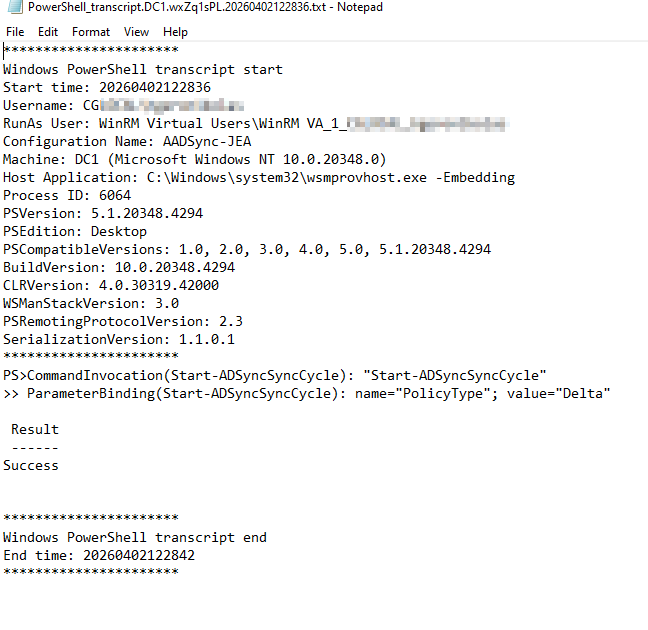
- Leave a full transcript for auditing
It is the principle of least privilege, enforced at the PowerShell layer.
Prerequisites for JEA Implementation
- A Security Group to Assign Permissions
You will need AD security group (e.g.,ADSyncOperators) that contains the users who should have access to the restricted endpoint. - A Supported Version of Windows PowerShell
JEA is baked into Windows PowerShell 5.1, which comes with:
– Windows Server 2016
– Windows Server 2019
– Windows Server 2022
Please note that PowerShell 7 does not support JEA endpoints the same way. - The PowerShell Remoting Feature Enabled (WinRM)
JEA runs on top of PowerShell Remoting, so you must ensure WinRM is enabled and configured. - A Custom PowerShell Module for Hosting JEA Files
Your JEA configuration requires :
– A module folder
– A Role Capability file (.psrc)
– A Session Configuration file (.pssc) - A Transcript Directory With Proper Permissions
JEA requires transcripts for auditing. You must create a directory and assign Read/Write permissions for the JEA users and full control for admins. - Ensure the ADSync PowerShell Module Is Installed
- Firewall/Network Requirements
For remote connections:
– TCP 5985 (HTTP) or 5986 (HTTPS) must be open.
– Only needed if the helpdesk user connects from a workstation.
Please note for local connections don’t require firewall changes
How to implement JEA on your Infrastructure
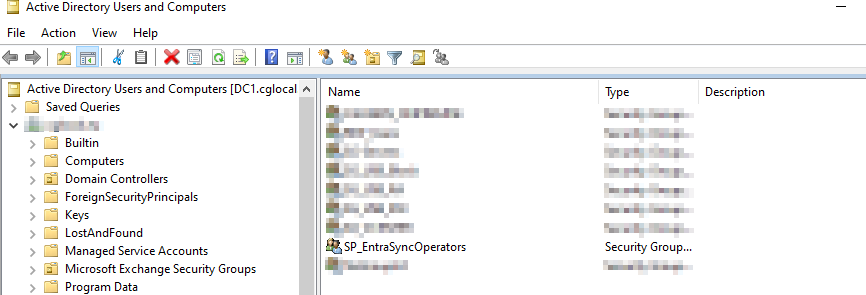
- Create a Security Group to assign permissions
New-ADGroup -Name "SP_EntraSyncOperators" -SamAccountName "SP_EntraSyncOperators" -GroupCategory Security -GroupScope Global -Path "OU=Groups,DC=yourdomain,DC=com"
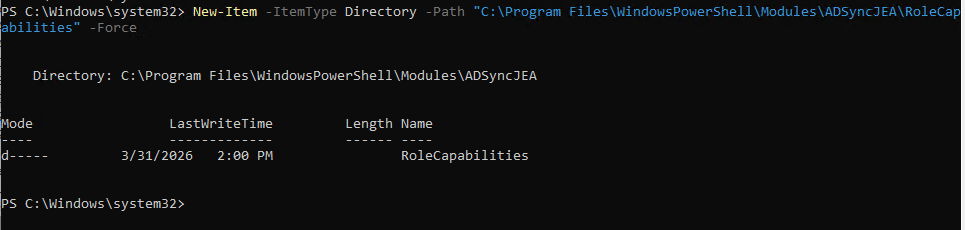
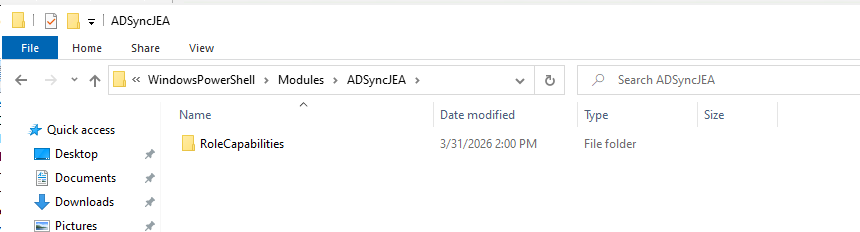
- Create the Role Capability Folder.
New-Item -ItemType Directory -Path "C:\Program Files\WindowsPowerShell\Modules\ADSyncJEA\RoleCapabilities" -Force
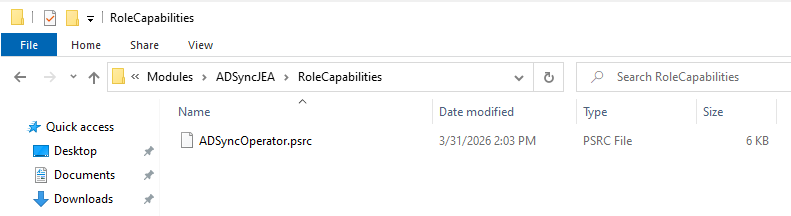
- Create the Role Capability file. This file defines which commands a user is allowed to run
New-PSRoleCapabilityFile -Path "C:\Program Files\WindowsPowerShell\Modules\ADSyncJEA\RoleCapabilities\ADSyncOperator.psrc"

- Create a new JEA Session Configuration File. This file defines who can use the endpoint and what they can do.
New-PSSessionConfigurationFile -Path "C:\Program Files\WindowsPowerShell\Modules\ADSyncJEA\ADSyncJEA.pssc"

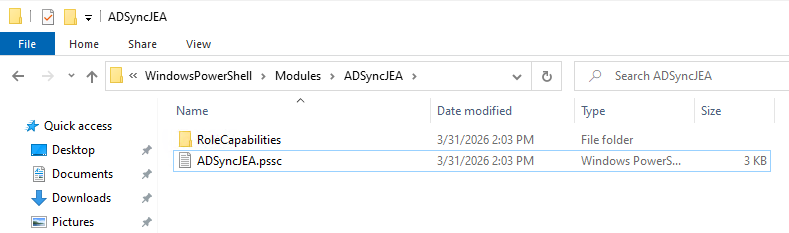
Now you will need to make some configuration changes to the files you have created.
Edit the file
@{

# Version number of the schema used for this document
SchemaVersion = '2.0.0.0'

# ID used to uniquely identify this document
GUID = 'your-GUID-ID'

# Author of this document
Author = 'youraccount'

# Description of the functionality provided by these settings
# Description = ''

# Session type defaults to apply for this session configuration. Can be 'RestrictedRemoteServer' (recommended), 'Empty', or 'Default'
SessionType = 'Default'

# Directory to place session transcripts for this session configuration
# TranscriptDirectory = 'C:\Transcripts\'

# Whether to run this session configuration as the machine's (virtual) administrator account
# RunAsVirtualAccount = $true

# Scripts to run when applied to a session
# ScriptsToProcess = 'C:\ConfigData\InitScript1.ps1', 'C:\ConfigData\InitScript2.ps1'

# User roles (security groups), and the role capabilities that should be applied to them when applied to a session
# RoleDefinitions = @{ 'CONTOSO\SqlAdmins' = @{ RoleCapabilities = 'SqlAdministration' }; 'CONTOSO\SqlManaged' = @{ RoleCapabilityFiles = 'C:\RoleCapability\SqlManaged.psrc' }; 'CONTOSO\ServerMonitors' = @{ VisibleCmdlets = 'Get-Process' } }

}
You will need to modify the following
# Session type defaults to apply for this session configuration. Can be 'RestrictedRemoteServer' (recommended), 'Empty', or 'Default'
SessionType = 'RestrictedRemoteServer'

# Directory to place session transcripts for this session configuration. It will export the logs at the domain controlloer
TranscriptDirectory = 'C:\Transcripts\'

# Whether to run this session configuration as the machine's (virtual) administrator account
RunAsVirtualAccount = $true
RunAsVirtualAccountGroups = 'BUILTIN\Administrators'

# User roles (security groups), and the role capabilities that should be applied to them when applied to a session
RoleDefinitions = @{'yourdomain.com\SP_EntraSyncOperators' = @{RoleCapabilities = 'ADSyncOperator'}}
So, the final file will be like the below
@{

# Version number of the schema used for this document
SchemaVersion = '2.0.0.0'

# ID used to uniquely identify this document
GUID = 'your-GUID-ID'

# Author of this document
Author = 'youraccount'

# Description of the functionality provided by these settings
# Description = ''

# Session type defaults to apply for this session configuration. Can be 'RestrictedRemoteServer' (recommended), 'Empty', or 'Default'
SessionType = 'RestrictedRemoteServer'

# Directory to place session transcripts for this session configuration
TranscriptDirectory = 'C:\Transcripts\'

# Whether to run this session configuration as the machine's (virtual) administrator account
RunAsVirtualAccount = $true
RunAsVirtualAccountGroups = 'BUILTIN\Administrators'

# Scripts to run when applied to a session
# ScriptsToProcess = 'C:\ConfigData\InitScript1.ps1', 'C:\ConfigData\InitScript2.ps1'

# User roles (security groups), and the role capabilities that should be applied to them when applied to a session
RoleDefinitions = @{'yourdomain.com\SP_EntraSyncOperators' = @{RoleCapabilities = 'ADSyncOperator'}}

}
Now, you will need to edit the ADSyncOperator.psrc with Notepad
@{

# ID used to uniquely identify this document
GUID = 'your-GUI-ID'

# Author of this document
Author = 'youraccount'

# Description of the functionality provided by these settings
# Description = ''

# Company associated with this document
CompanyName = 'Unknown'

# Copyright statement for this document
Copyright = '(c) 2026 youraccount. All rights reserved.'

# Modules to import when applied to a session
# ModulesToImport = 'MyCustomModule', @{ ModuleName = 'MyCustomModule'; ModuleVersion = '1.0.0.0'; GUID = '4d30d5f0-cb16-4898-812d-f20a6c596bdf' }

# Aliases to make visible when applied to a session
# VisibleAliases = 'Item1', 'Item2'

# Cmdlets to make visible when applied to a session
# VisibleCmdlets = 'Invoke-Cmdlet1', @{ Name = 'Invoke-Cmdlet2'; Parameters = @{ Name = 'Parameter1'; ValidateSet = 'Item1', 'Item2' }, @{ Name = 'Parameter2'; ValidatePattern = 'L*' } }

# Functions to make visible when applied to a session
# VisibleFunctions = 'Invoke-Function1', @{ Name = 'Invoke-Function2'; Parameters = @{ Name = 'Parameter1'; ValidateSet = 'Item1', 'Item2' }, @{ Name = 'Parameter2'; ValidatePattern = 'L*' } }

# External commands (scripts and applications) to make visible when applied to a session
# VisibleExternalCommands = 'Item1', 'Item2'

# Providers to make visible when applied to a session
# VisibleProviders = 'Item1', 'Item2'

# Scripts to run when applied to a session
# ScriptsToProcess = 'C:\ConfigData\InitScript1.ps1', 'C:\ConfigData\InitScript2.ps1'

# Aliases to be defined when applied to a session
# AliasDefinitions = @{ Name = 'Alias1'; Value = 'Invoke-Alias1'}, @{ Name = 'Alias2'; Value = 'Invoke-Alias2'}

# Functions to define when applied to a session
# FunctionDefinitions = @{ Name = 'MyFunction'; ScriptBlock = { param($MyInput) $MyInput } }

# Variables to define when applied to a session
# VariableDefinitions = @{ Name = 'Variable1'; Value = { 'Dynamic' + 'InitialValue' } }, @{ Name = 'Variable2'; Value = 'StaticInitialValue' }

# Environment variables to define when applied to a session
# EnvironmentVariables = @{ Variable1 = 'Value1'; Variable2 = 'Value2' }

# Type files (.ps1xml) to load when applied to a session
# TypesToProcess = 'C:\ConfigData\MyTypes.ps1xml', 'C:\ConfigData\OtherTypes.ps1xml'

# Format files (.ps1xml) to load when applied to a session
# FormatsToProcess = 'C:\ConfigData\MyFormats.ps1xml', 'C:\ConfigData\OtherFormats.ps1xml'

# Assemblies to load when applied to a session
# AssembliesToLoad = 'System.Web', 'System.OtherAssembly, Version=4.0.0.0, Culture=neutral, PublicKeyToken=b03f5f7f11d50a3a'

}
You will need to modify the following
# Cmdlets to make visible when applied to a session
VisibleCmdlets = @(
    @{ Name = 'Start-ADSyncSyncCycle'; Parameters = @(
        @{ Name = 'PolicyType'; ValidateSet = 'Delta','Initial' }
    ) }
)
So, the final file will be like the below
@{

# ID used to uniquely identify this document
GUID = 'your-GUI-ID'

# Author of this document
Author = 'youraccount'

# Description of the functionality provided by these settings
# Description = ''

# Company associated with this document
CompanyName = 'Unknown'

# Copyright statement for this document
Copyright = '(c) 2026 youraccount. All rights reserved.'

# Modules to import when applied to a session
# ModulesToImport = 'MyCustomModule', @{ ModuleName = 'MyCustomModule'; ModuleVersion = '1.0.0.0'; GUID = '4d30d5f0-cb16-4898-812d-f20a6c596bdf' }

# Aliases to make visible when applied to a session
# VisibleAliases = 'Item1', 'Item2'

# Cmdlets to make visible when applied to a session
VisibleCmdlets = @(
    @{ Name = 'Start-ADSyncSyncCycle'; Parameters = @(
        @{ Name = 'PolicyType'; ValidateSet = 'Delta','Initial' }
    ) }
)

# Functions to make visible when applied to a session
# VisibleFunctions = 'Invoke-Function1', @{ Name = 'Invoke-Function2'; Parameters = @{ Name = 'Parameter1'; ValidateSet = 'Item1', 'Item2' }, @{ Name = 'Parameter2'; ValidatePattern = 'L*' } }

# External commands (scripts and applications) to make visible when applied to a session
# VisibleExternalCommands = 'Item1', 'Item2'

# Providers to make visible when applied to a session
# VisibleProviders = 'Item1', 'Item2'

# Scripts to run when applied to a session
# ScriptsToProcess = 'C:\ConfigData\InitScript1.ps1', 'C:\ConfigData\InitScript2.ps1'

# Aliases to be defined when applied to a session
# AliasDefinitions = @{ Name = 'Alias1'; Value = 'Invoke-Alias1'}, @{ Name = 'Alias2'; Value = 'Invoke-Alias2'}

# Functions to define when applied to a session
# FunctionDefinitions = @{ Name = 'MyFunction'; ScriptBlock = { param($MyInput) $MyInput } }

# Variables to define when applied to a session
# VariableDefinitions = @{ Name = 'Variable1'; Value = { 'Dynamic' + 'InitialValue' } }, @{ Name = 'Variable2'; Value = 'StaticInitialValue' }

# Environment variables to define when applied to a session
# EnvironmentVariables = @{ Variable1 = 'Value1'; Variable2 = 'Value2' }

# Type files (.ps1xml) to load when applied to a session
# TypesToProcess = 'C:\ConfigData\MyTypes.ps1xml', 'C:\ConfigData\OtherTypes.ps1xml'

# Format files (.ps1xml) to load when applied to a session
# FormatsToProcess = 'C:\ConfigData\MyFormats.ps1xml', 'C:\ConfigData\OtherFormats.ps1xml'

# Assemblies to load when applied to a session
# AssembliesToLoad = 'System.Web', 'System.OtherAssembly, Version=4.0.0.0, Culture=neutral, PublicKeyToken=b03f5f7f11d50a3a'

}
The final step is to create a JEA Endpoint. You will run the below PowerShell command.
Register-PSSessionConfiguration -Name 'AADSync-JEA' -Path "C:\Program Files\WindowsPowerShell\Modules\ADSyncJEA\ADSyncJEA.pssc" -Force
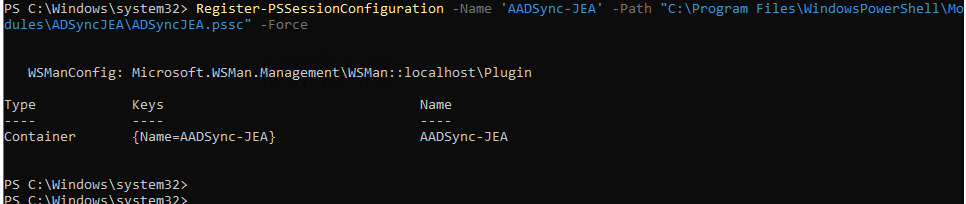
With the JEA configuration finalized, we can move on to delegating the necessary permissions in Active Directory.
Please note that any time you modify the ADSyncOperator.psrc files, you must re‑run the registration command to apply the changes.
How to Delegate permission on Active Directory
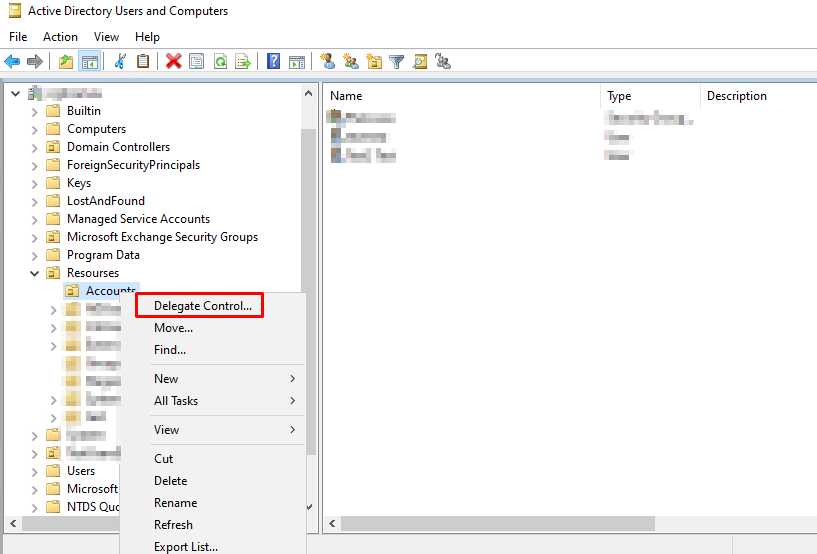
Open Active Directory Users and Computer. Select the Organization Unit (OU) that would you like to delegate and right click Delegate Control
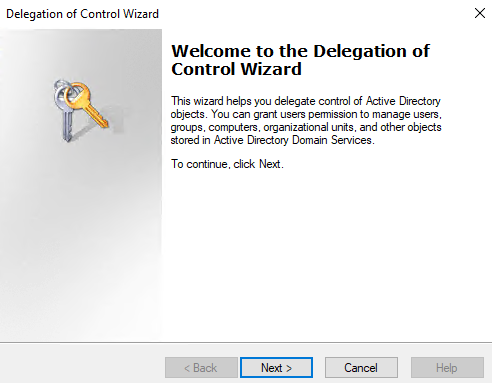
Select the User or Security Group for the delegation.
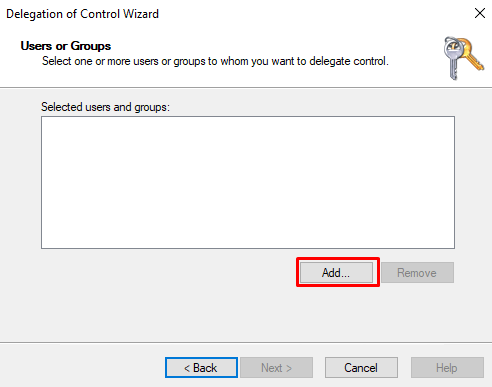
In this case study, the helpdesk agent requires delegated permissions to create, modify, and delete user accounts within the specified Organizational Unit in Active Directory.
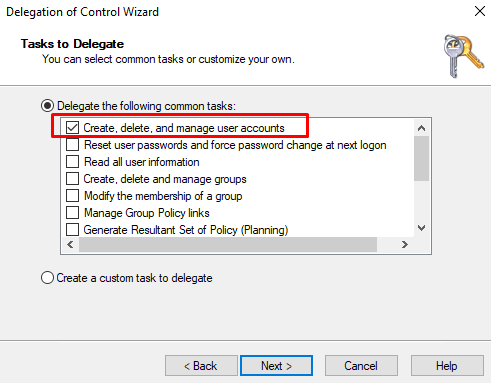
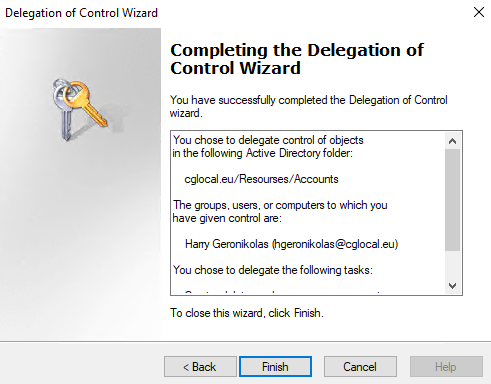
With the configuration complete, the next step is to verify that both the Active Directory delegation and the JEA endpoint are functioning correctly
Register-PSSessionConfiguration -Name 'AADSync-JEA' -Path "C:\Program Files\WindowsPowerShell\Modules\ADSyncJEA\ADSyncJEA.pssc" -Force
Test the Case Study
In this test scenario, the helpdesk agent will perform three key tasks:
- Create user accounts
- Delete user accounts
- Trigger a delta synchronization using the JEA‑restricted endpoint
The helpdesk agent will not have access to a Domain Controller. Instead, they will use a separate management server that has Remote Server Administration Tools (RSAT) installed. From this server, the agent will import the required Active Directory module to manage users and a PowerShell script that connects to the JEA endpoint to run the Start-ADSyncSyncCycle -PolicyType Delta command
This setup ensures the agent has just enough administration: the ability to manage user lifecycle tasks and initiate delta syncs, without gaining elevated access to domain controllers or the Entra Connect server itself.
How to Add the Role of Remote Server Administration Tools on Management Server
Open the Server Management and select Add roles and features.
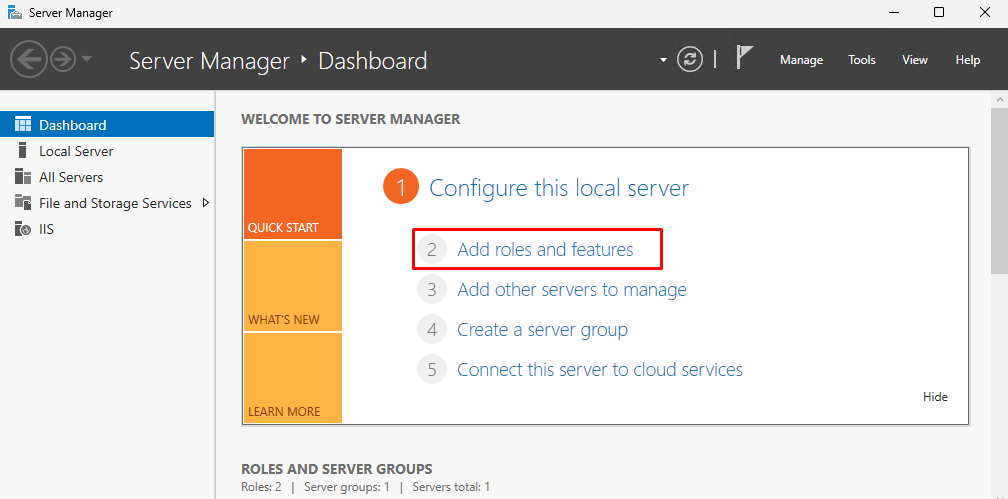
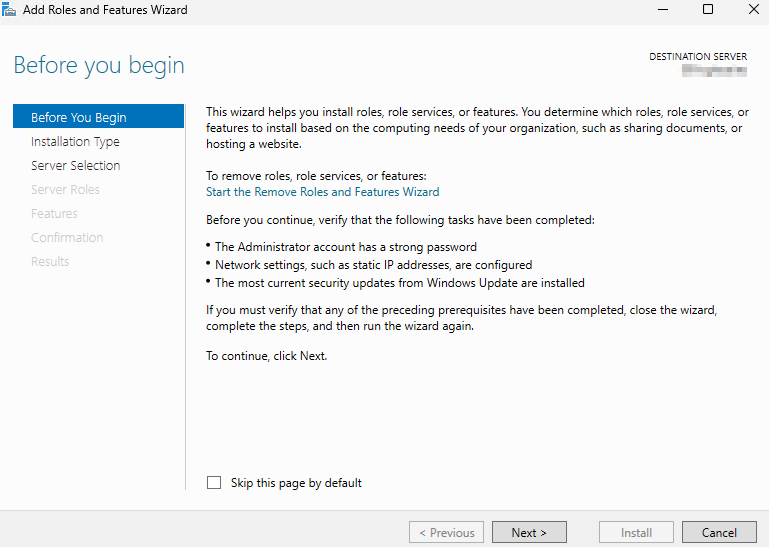
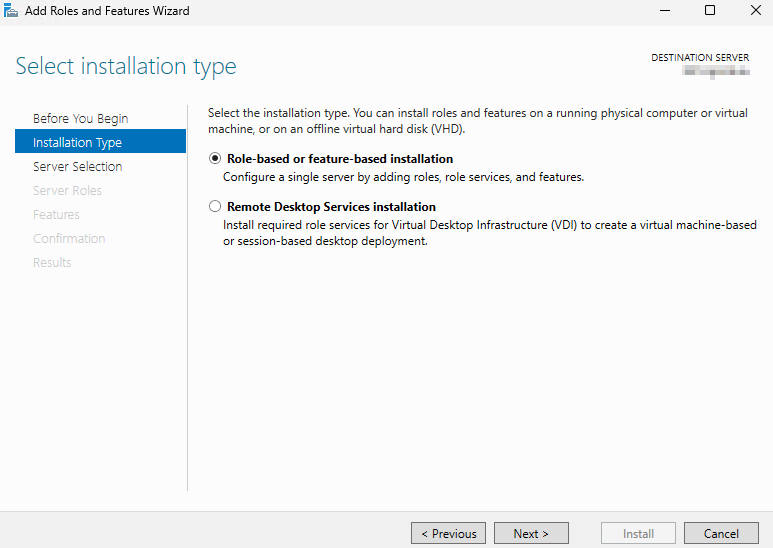
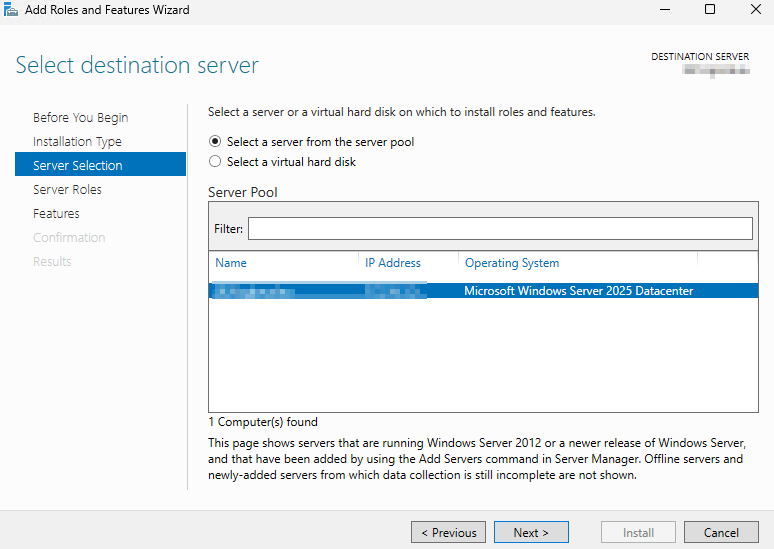
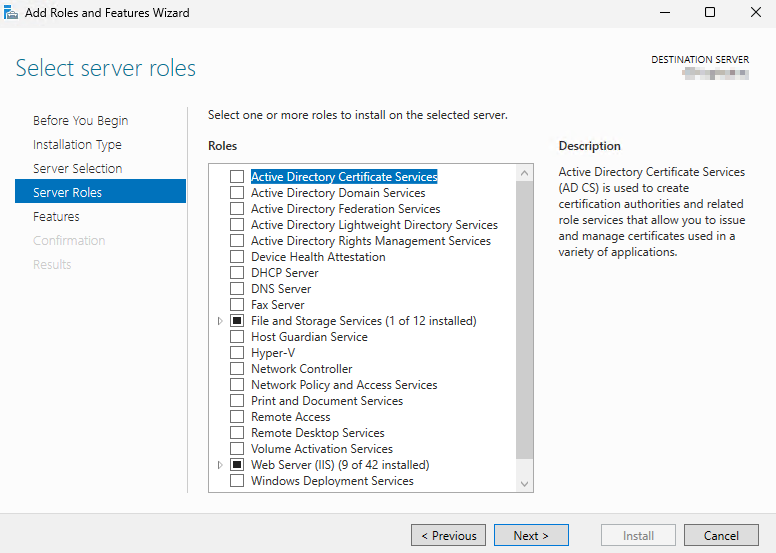
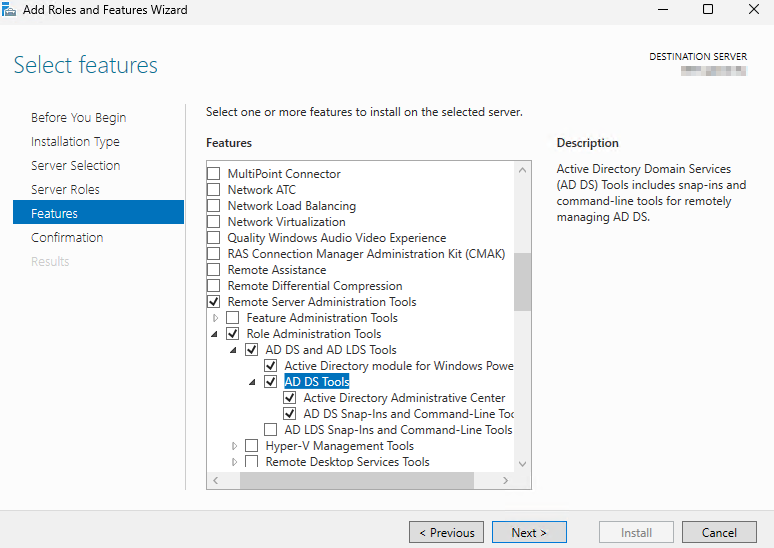
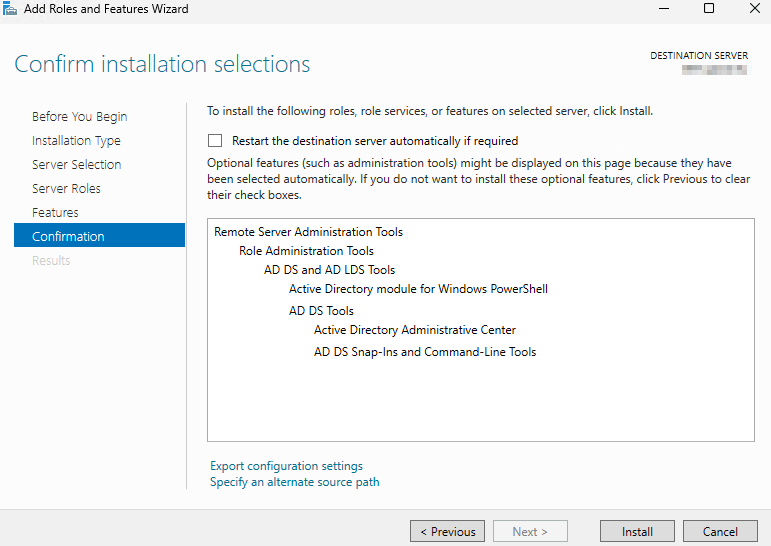
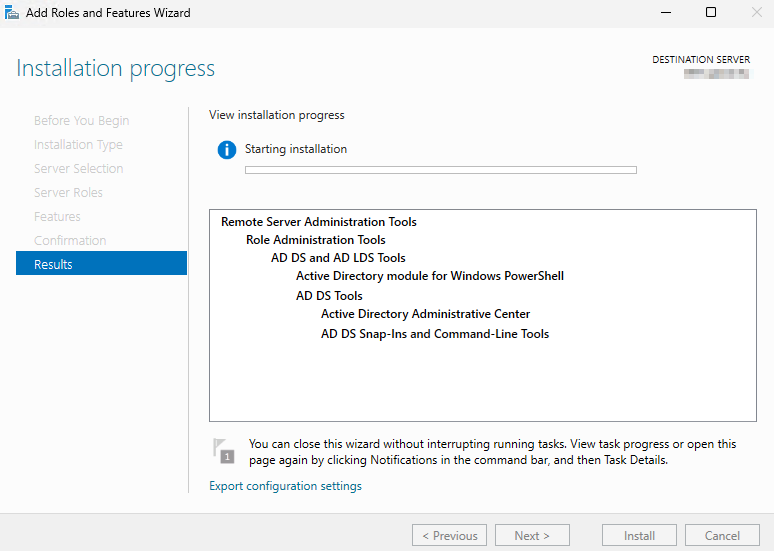
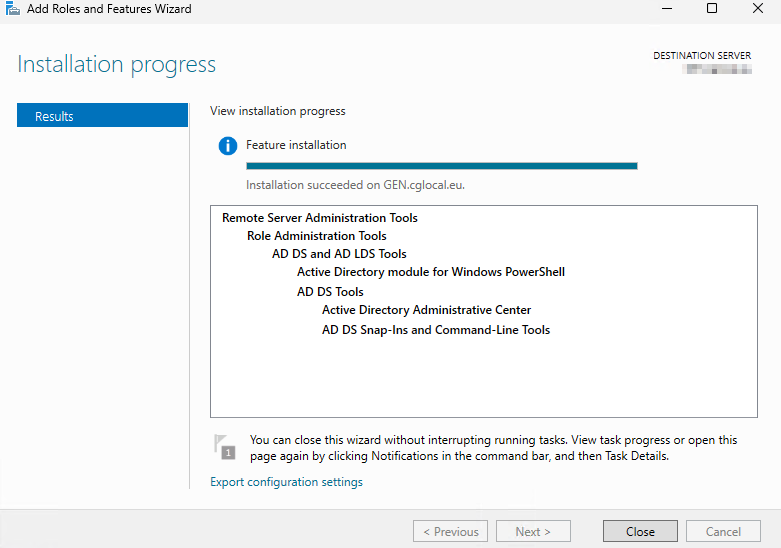
With RSAT now set up on the management server, we can proceed to test the JEA endpoint. Use the PowerShell commands below to confirm that the Helpdesk agent can successfully connect to the restricted session and run the delta synchronization command
Enter-PSSession -ComputerName domaincontroller -ConfigurationName AADSync-JEA
Start-ADSyncSyncCycle -PolicyType Delta
You can also automate the delta synchronization by using the Run-DeltaSync.ps1 script that I created. This script connects to the JEA endpoint and runs the delta sync command without requiring the helpdesk agent to type anything manually. An example is provided below:
# Simple delta sync runner for standard users via JEA
# No elevation required

$ComputerName   = 'yourdomaincontroller'
$Configuration  = 'AADSync-JEA'
$PreDelaySecs   = 2      # small pause before running the sync (optional)
$CloseDelaySecs = 15     # keep the window open at the end

$ErrorActionPreference = 'Stop'

Write-Host "Connecting to $ComputerName using endpoint '$Configuration'..." -ForegroundColor Cyan

try {
    # Create a non-interactive JEA session (Kerberos; no credentials prompt if domain-joined)
    $sess = New-PSSession -ComputerName $ComputerName -ConfigurationName $Configuration

    if ($PreDelaySecs -gt 0) {
        Start-Sleep -Seconds $PreDelaySecs
    }

    Write-Host "Running: Start-ADSyncSyncCycle -PolicyType Delta" -ForegroundColor Cyan

    # Execute remotely and capture the result object
    $result = Invoke-Command -Session $sess -ScriptBlock {
        # Returns a Microsoft.DirectorySyncResult object (Result: Success/Failure)
        Start-ADSyncSyncCycle -PolicyType Delta
    }

    # ---- Overview for the user ----
    $ts = Get-Date -Format 'yyyy-MM-dd HH:mm:ss'
    Write-Host ""
    Write-Host "===== ADSync Delta Sync Overview =====" -ForegroundColor Green
    Write-Host "Time       : $ts"
    # Safely print properties if present
    if ($result) {
        # Common properties are Result and SyncCycleId (varies by build)
        $props = $result | Get-Member -MemberType NoteProperty | Select-Object -ExpandProperty Name
        foreach ($p in $props) {
            "{0,-12}: {1}" -f $p, ($result.$p) | Write-Host
        }
    } else {
        Write-Host "Result     : No output returned (check JEA/module configuration)"
    }
    Write-Host "======================================" -ForegroundColor Green
    Write-Host ""

    Write-Host "Delta sync request sent." -ForegroundColor Green
}
catch {
    Write-Host "[ERROR] $($_.Exception.Message)" -ForegroundColor Red
}
finally {
    if ($sess) { Remove-PSSession $sess }
}

Write-Host "This window will close in $CloseDelaySecs second(s). Press Ctrl+C to keep it open." -ForegroundColor Yellow
Start-Sleep -Seconds $CloseDelaySecs
I saved the Run-DeltaSync.ps1 script in C:\Scripts, and then created another script, EntraSync.ps1, on the desktop to call the main script and run the delta synchronization automatically. However, using this additional script is optional.
powershell.exe -NoLogo -NoProfile -ExecutionPolicy Bypass -File C:\Scripts\Run-DeltaSync.ps1
Please be aware that the script does not require elevated permissions to run. It can be executed from a standard user PowerShell session, as all privileged operations are handled through the JEA endpoint.
Script Execution Output
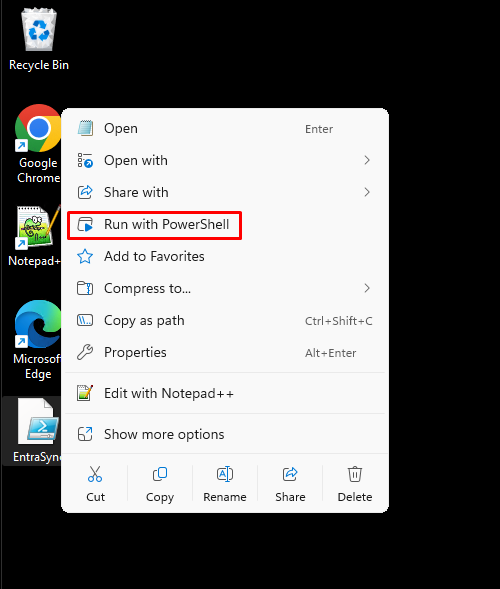
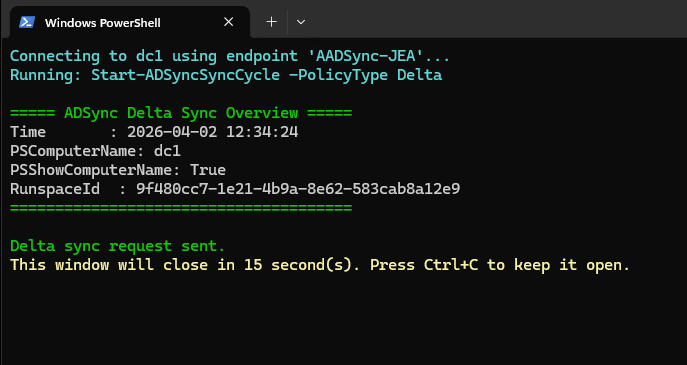
JEA Log Details
- You can check the logs from the Transcript folder.
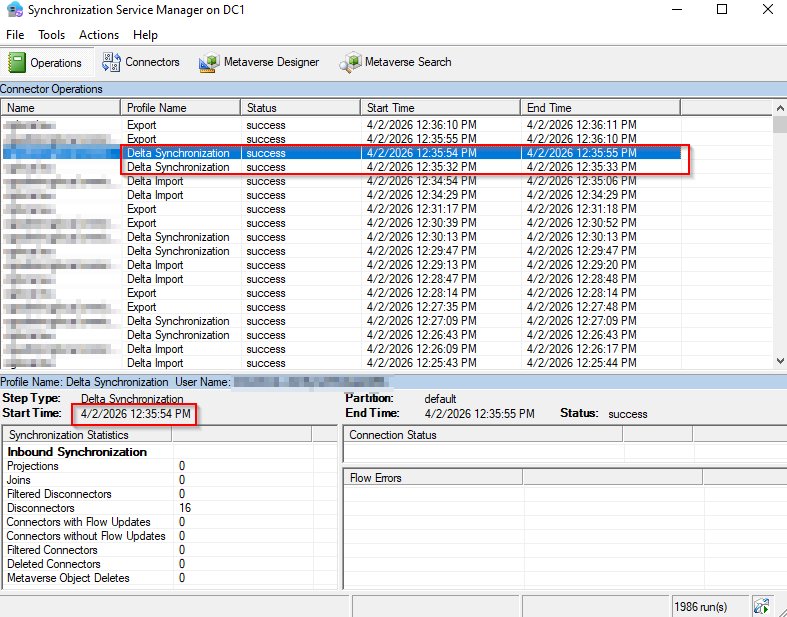
2. You can use Synchronization Service from the Azure AD Connect
Conclusion
By combining JEA with delegated permissions in Active Directory, we’ve created a secure and efficient way for a helpdesk agent to manage user accounts and trigger delta synchronizations—without granting unnecessary administrative access. This setup delivers exactly the level of control needed while maintaining strong security boundaries across your hybrid environment.
I hope you found this article helpful. Let me know your thoughts or questions in the comments below.