Charalambos Geronikolas Reading Time : 3 minutes windows-server
What is Windows Admin Center?
Imagine having access to your resources like CPU, RAM, and Hard Disk usage without using a VPN connection. This includes access to the firewall, networking, file exploring, and certificates, and much more. Imagine that you can configure Local GPO Policies or even more you can have RDP connection.
All of these, you can have it from your Internet Browser.
To be more specific, Windows Admin Center is a tool you can use in your web browser to manage your Windows computers and servers. It works without needing an internet connection making it perfect for managing devices on private networks which gives you complete control over your server setup. Also, Windows Admin Center Gateway uses Remote Powershell and WMI over WinRM.
All the information for the Windows Admin Center you can find here and you can download the .msi file from here
Installation Steps :
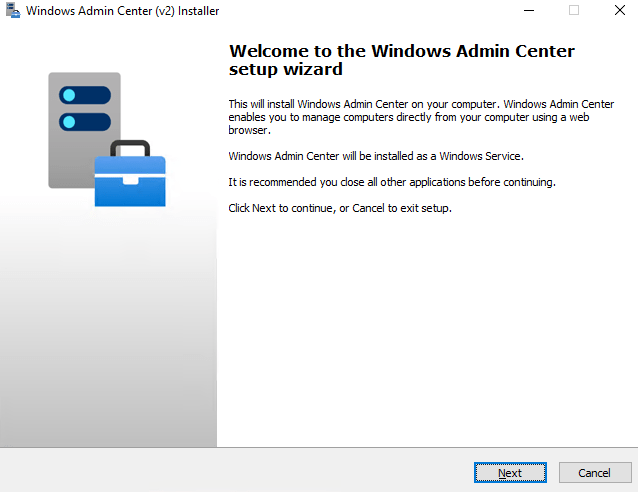
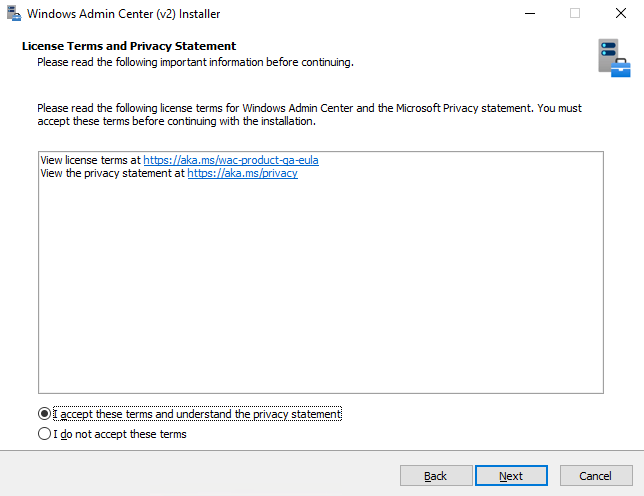
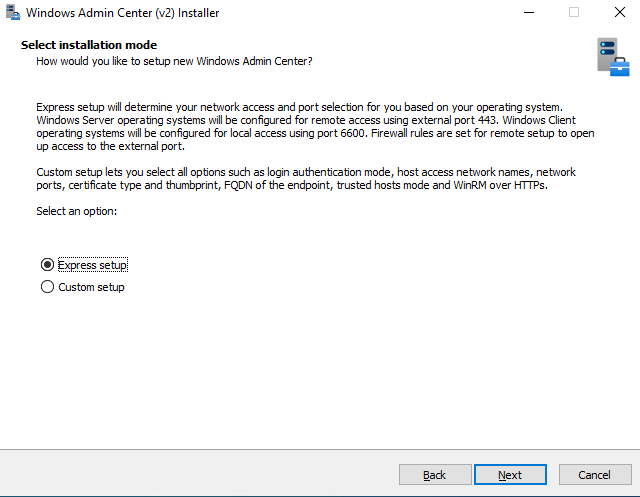
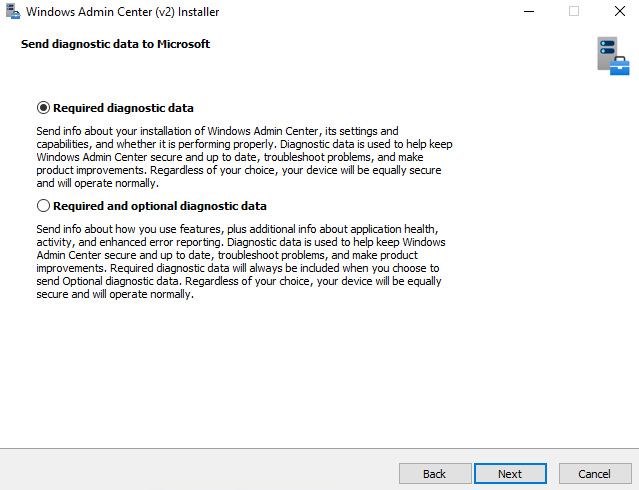
By default, the Windows Admin Center uses the 443 port for external uses and 6600 port for local access. You can see also this from the below screenshot!!!
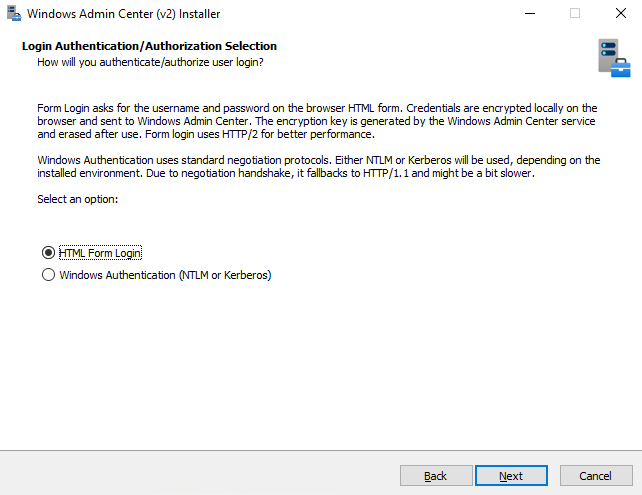
If you continue with the Custom Setup you can set the authentication mode, the network access etc. In my scenario I would use the Custom Setup.
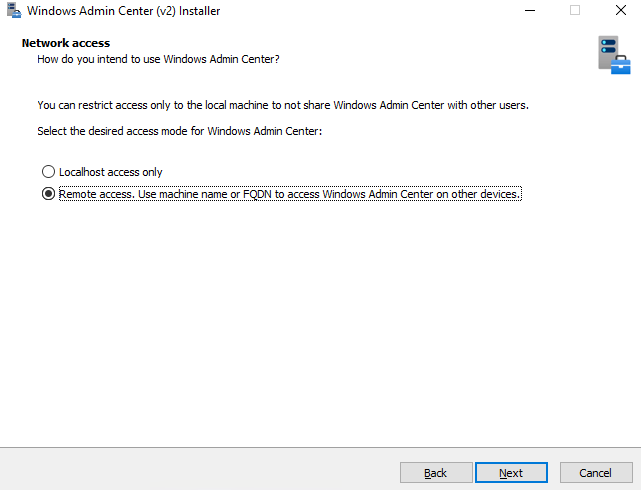
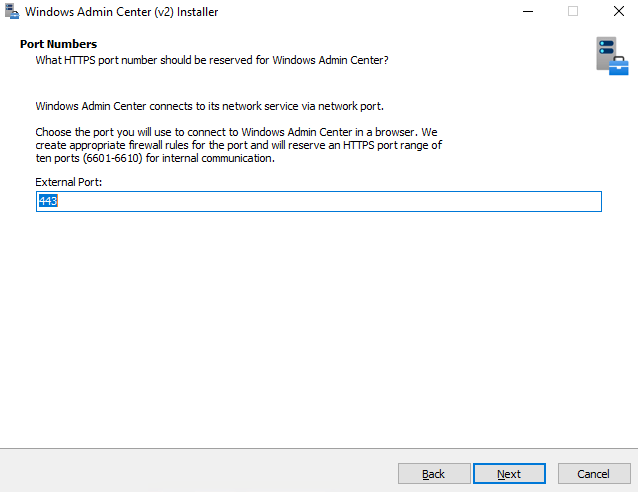
You can generally use the default port, which is 443. For a better security perspective, you can use a non well-known port. In my case I will use 18443
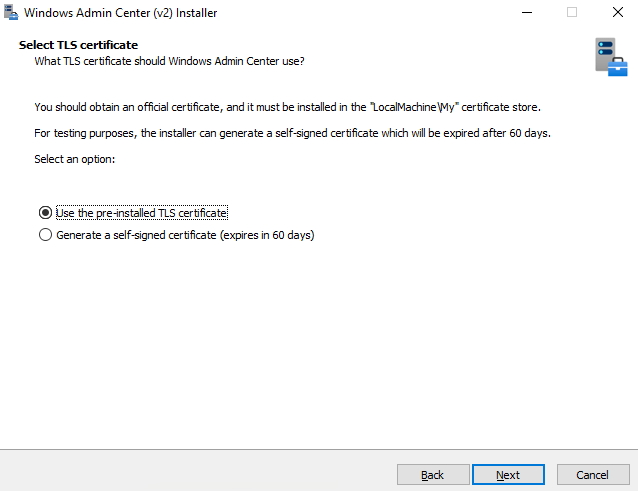
You can use pre-installed TLS Certificate or you can generate a self signed certificate. In this scenario we will continue with TLS Certificate. In case that you have not a certificate, choose the second choice.
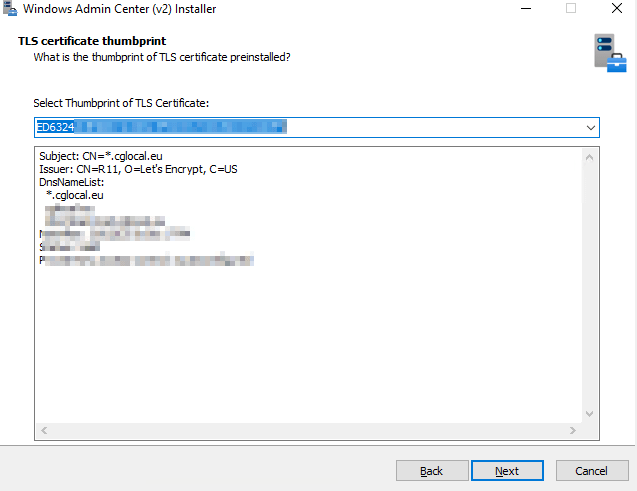
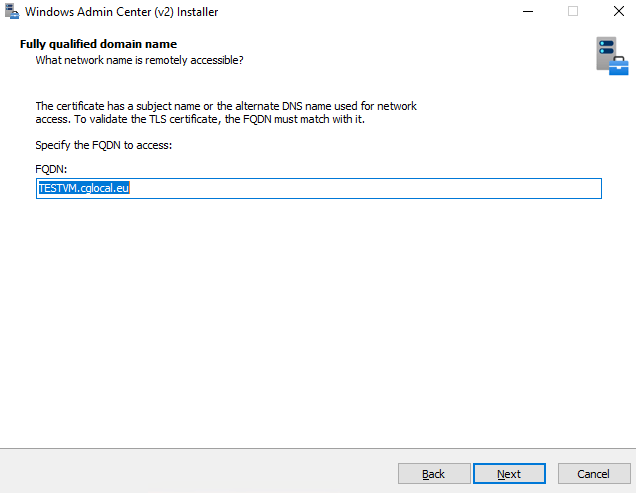
You need specifies the FQDN to access the Windows Admin Center. In my scenario, I want access from anywhere. In that case, you will create an A record on your DNS Provider as well as you will need open the port on your home router (port forward). Otherwise, you can use the FQDN name of the machine for a local access (from the above steps select the localhost access instead of remote access.)
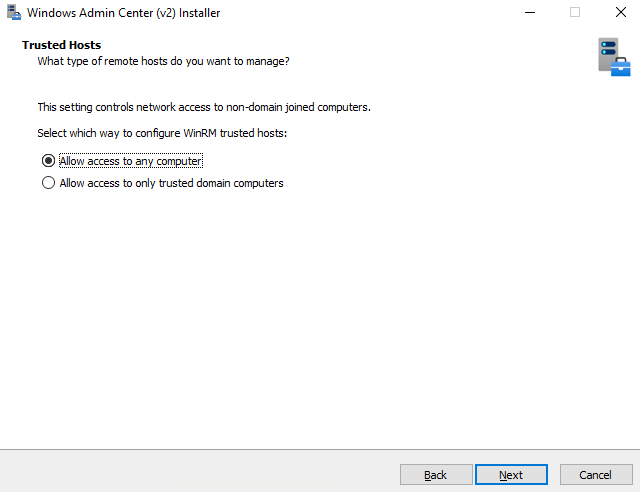
In case you want to manage machine out of side of your domain (e.g., workgroup) you can select the first choice.
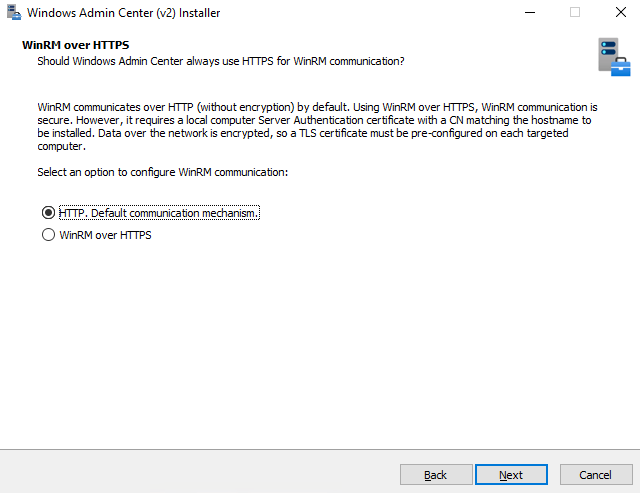
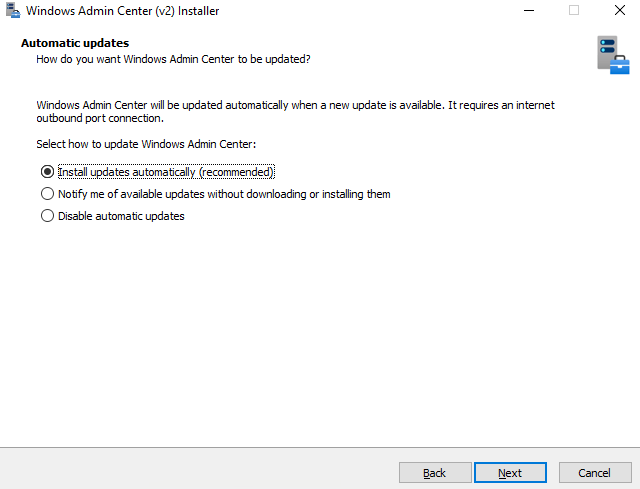
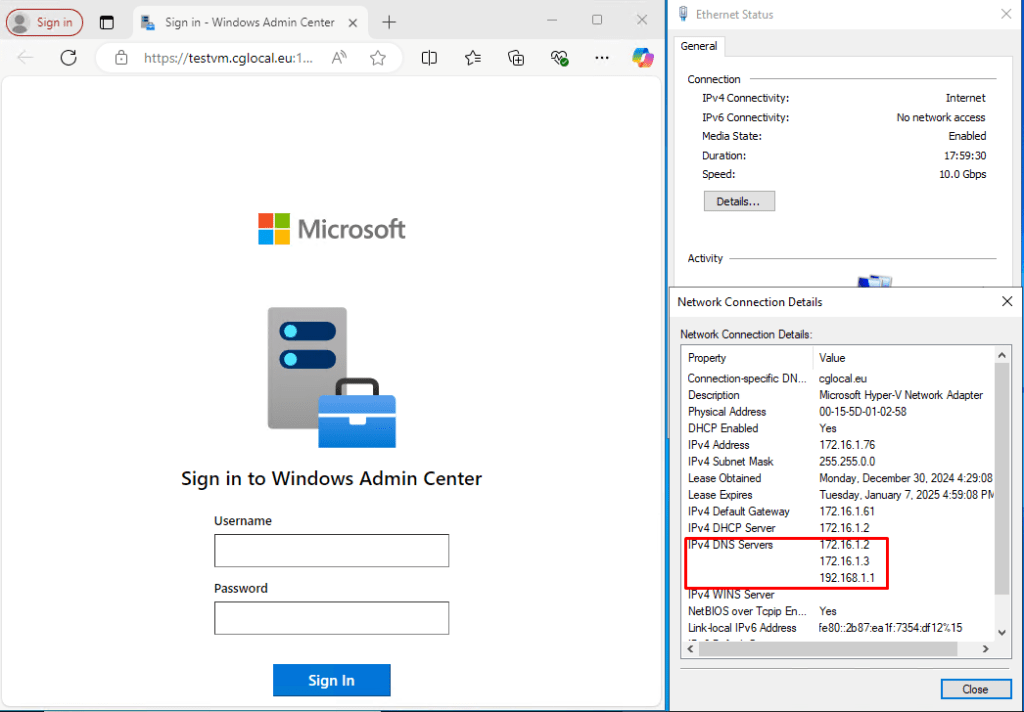
Let’s check the access of Windows Admin Center from internal network. I use the internal DNS of my Lab
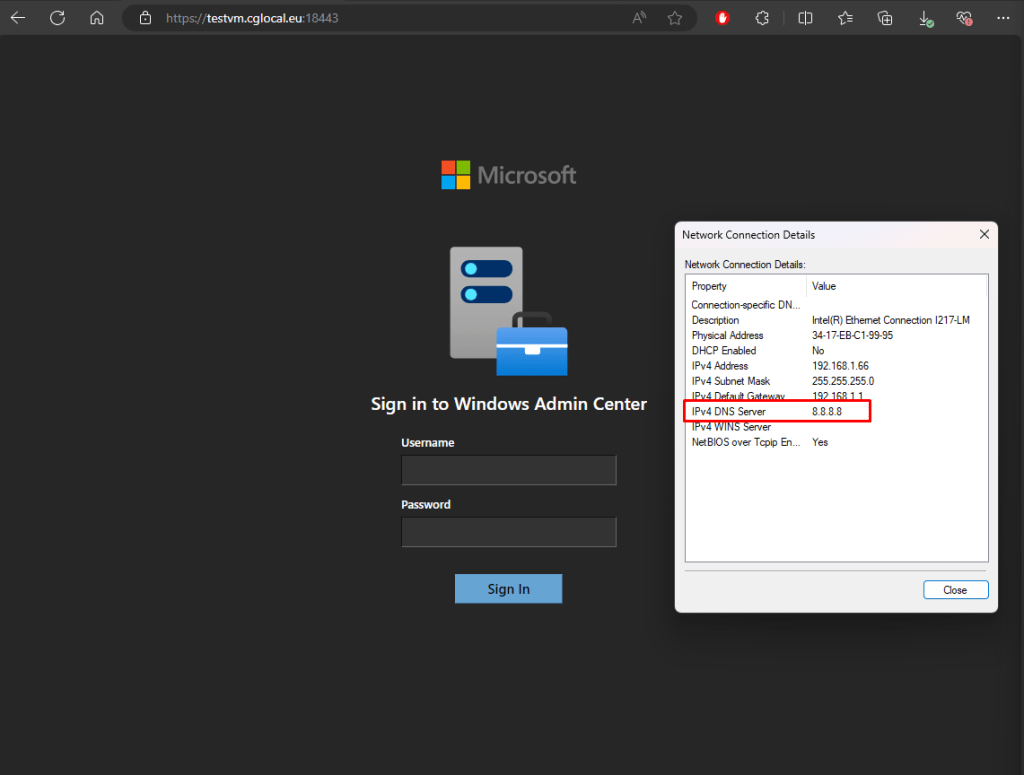
Let’s check the access of Windows Admin Center from external network. I use the Google Dns.
So we can have access to Windows Admin Center from both networks (internal-external).
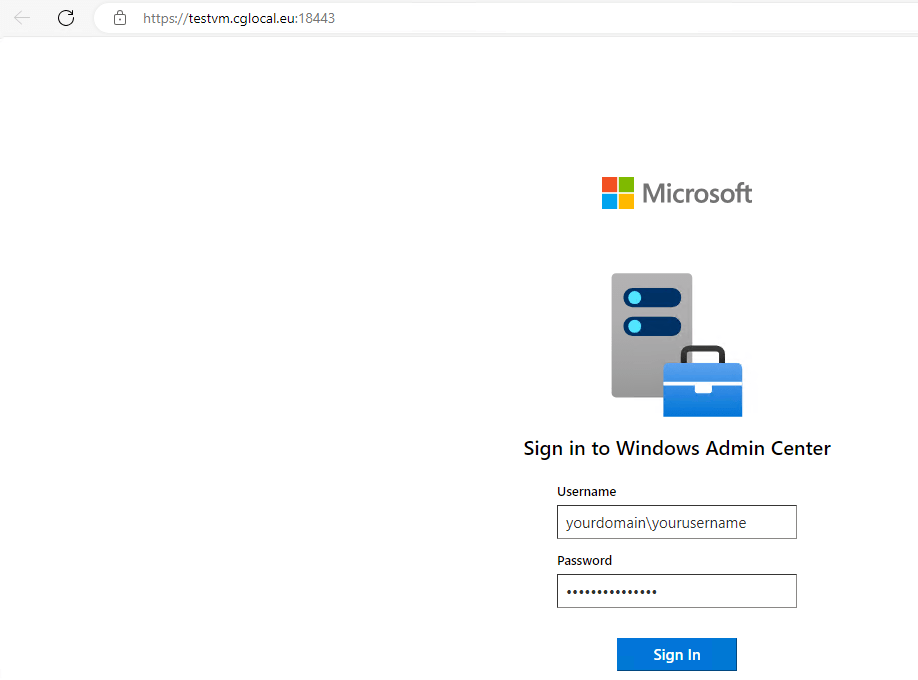
On the earlier step we select the access all computers which mean that I can connect via my domain user credential (for domain computer) or my local user credential (for a non domain computer, workgroup)
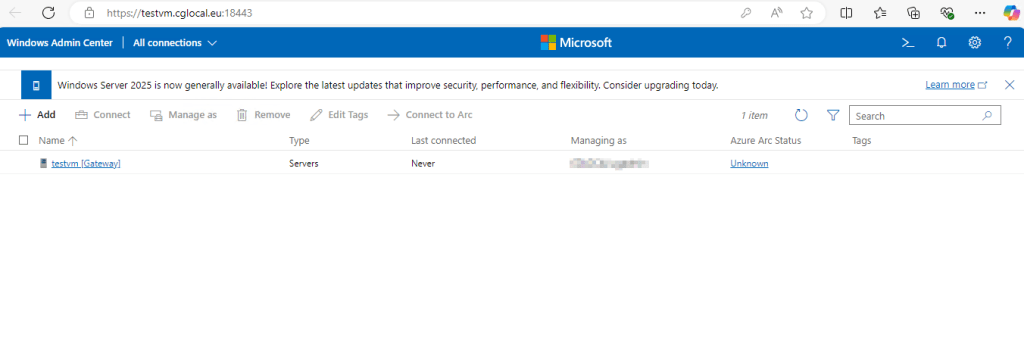
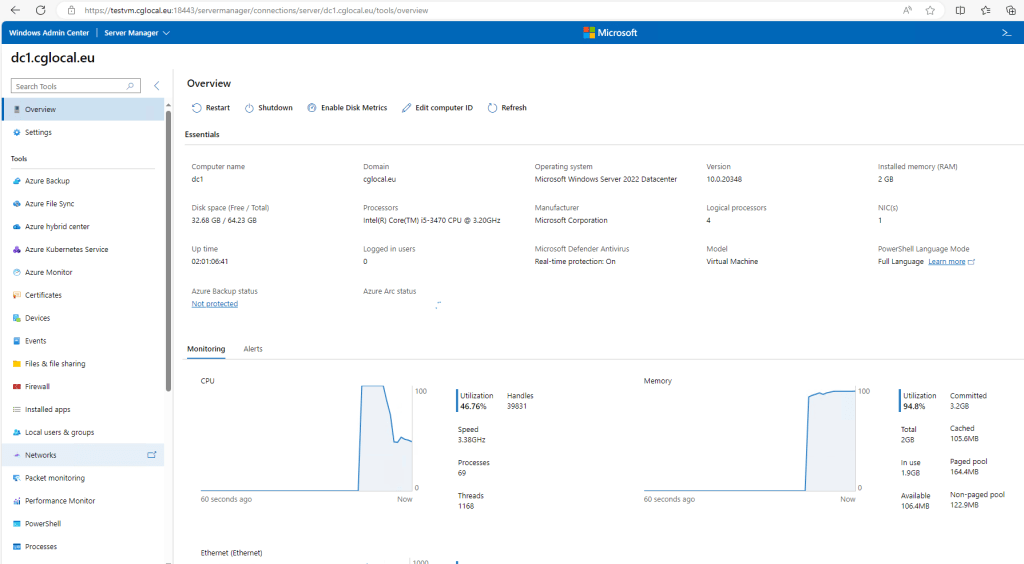
Now we have setup the Windows Admin Center, but we can see only the gateway. Let’s add servers which are joined to the domain but also can add a non domain computers. In my scenario I will add servers and workstations.
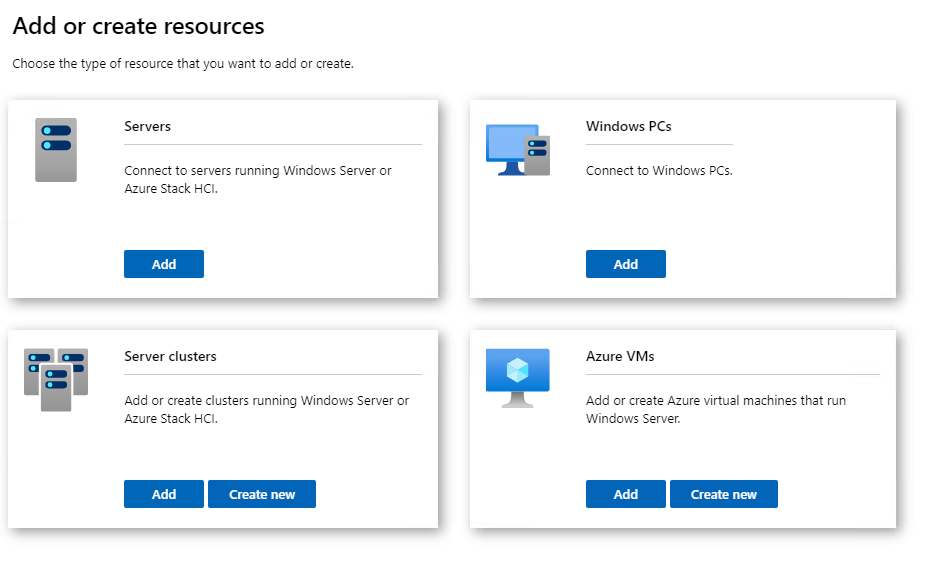
You have three ways to import one of the above. You can add manually, from .csv file and from the Active Directory.
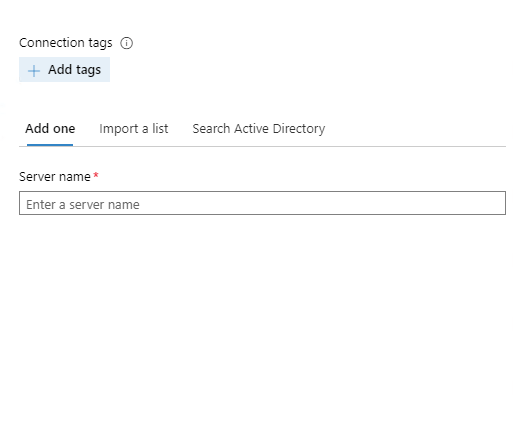
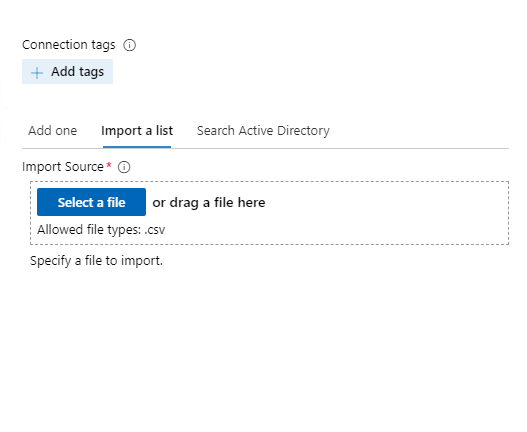
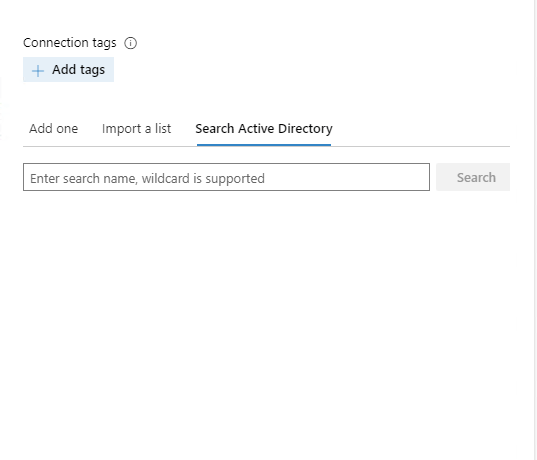
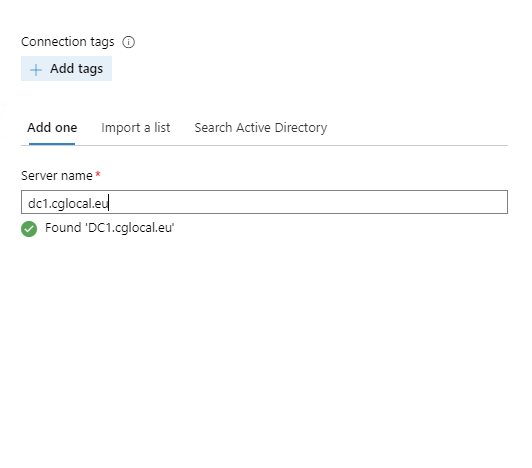
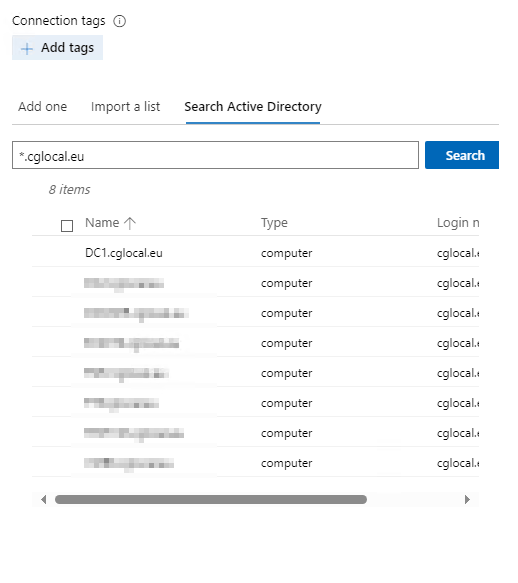
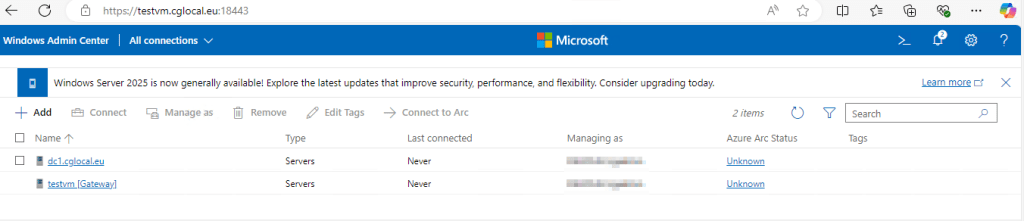
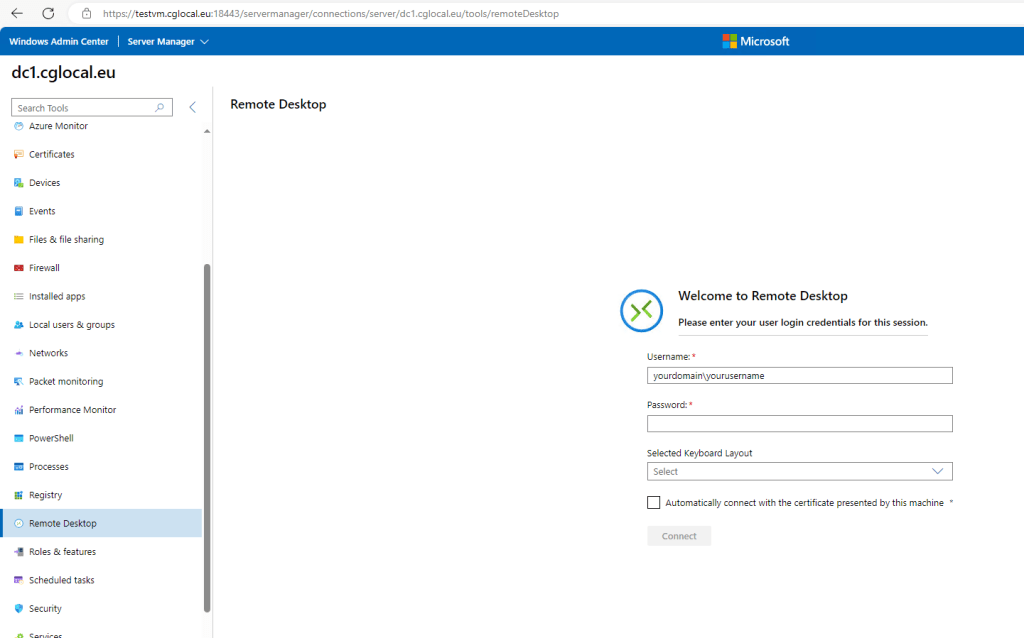
You can also have access via RDP Connection. As prerequisite, you will need to allow the RDP connection from your firewall as well as from the local group policy.
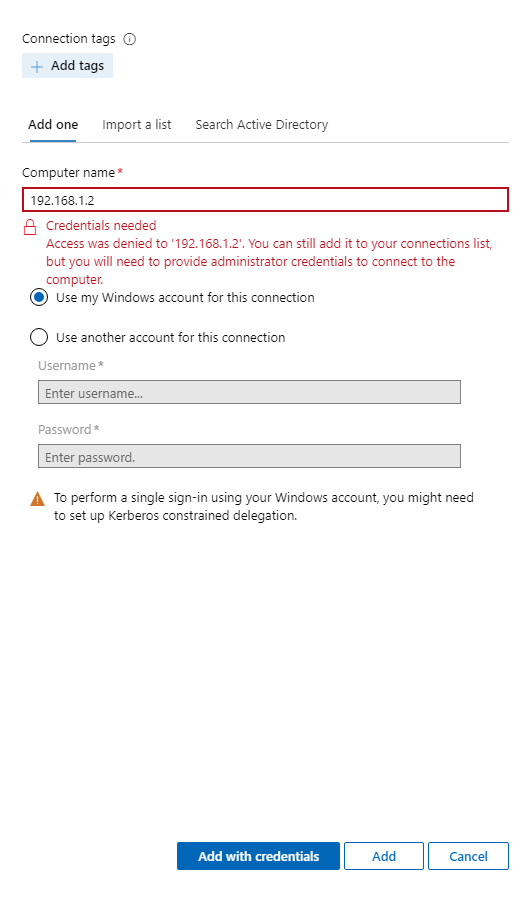
Let’s add also a Windows 11 machine. In my scenario, this workstation is joined to my Azure Tenant via Intune (not hybrid-joined machine). So I will use the IP instead of hostname.
Conclusion
The Windows Admin Center is a great tool to manage your environments and infrastructure. It allows you to perform many actions remotely. Also, you can register your Windows Admin Center gateway on Azure and manage your on-premise and Azure Servers.
Hope you are enjoying my article.