Charalambos Geronikolas Reading Time : 6 minutes Active Directory
In this article, we will discuss what the KRBTGT account is. We will also explain how you can reset this account if your active directory is compromised.
What is KRBTGT Account
The KRBTGT account is a built-in account in Active Directory that works with the Kerberos authentication service, the default protocol used in Active Directory.
Kerberos is a network authentication method that uses secret-key cryptography to help users and services trust each other. It uses cryptographic entities called tickets to authenticate users or services without sending passwords over the network.. Here’s a simplified overview of how it works:
- Initial Login:
- When a user logs in, they enter their username and password.
- The client sends a request to the Authentication Service (AS), which is part of the Key Distribution Center (KDC).
2. Ticket Granting Ticket (TGT):
- The AS verifies the user’s credentials against the database.
- If the credentials are correct, the AS issues a Ticket Granting Ticket (TGT), which is encrypted and sent back to the client.
3. Service Request:
- The client presents the Service Ticket to the service server.
- The service server verifies the ticket and grants access to the user.
4. Accessing the Service:
- The client presents the Service Ticket to the service server.
- The service server verifies the ticket and grants access to the user.
Regarding the KRBGT Account, here are some key features associated with it:
- Purpose: It secures Kerberos tickets for safe authentication in the domain.
- Creation: This account is automatically created when a new domain is set up
- Security: It’s crucial to secure this account because if its password is compromised, attackers can forge authentication tickets (known as Golden Ticket attacks) and gain unauthorized access to resources in the domain.
- Management: Regularly changing the KRBTGT account password is essential to maintain security.
Recommendation before reset KRBTGT Account
- Prior to resetting the KRBTGT password, it is important to verify the replication and health status of all domain controllers to ensure that the new password is replicated across all domain controllers in your domain. You can find how to do that on this article
- The KRBTGT password should be reset two times, allowing for a 10-hour delay between resets. However, I suggest waiting at least one week before performing the second reset. One week is generally adequate to ensure that the first reset is properly replicated across all domain controllers without affecting your production environment.
For additional information pertaining to this matter, please refer to the following link here.
How to check the KRBTGT Account last set password
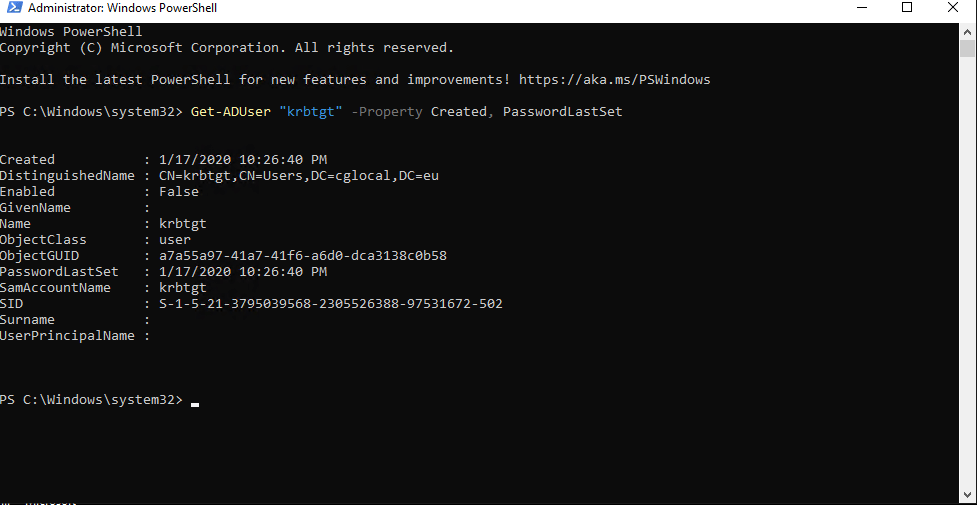
- You execute the following PowerShell command:
Get-ADUser "krbtgt" -Property Created, PasswordLastSet
In my lap, the krbtgt account has been created 17/1/20.
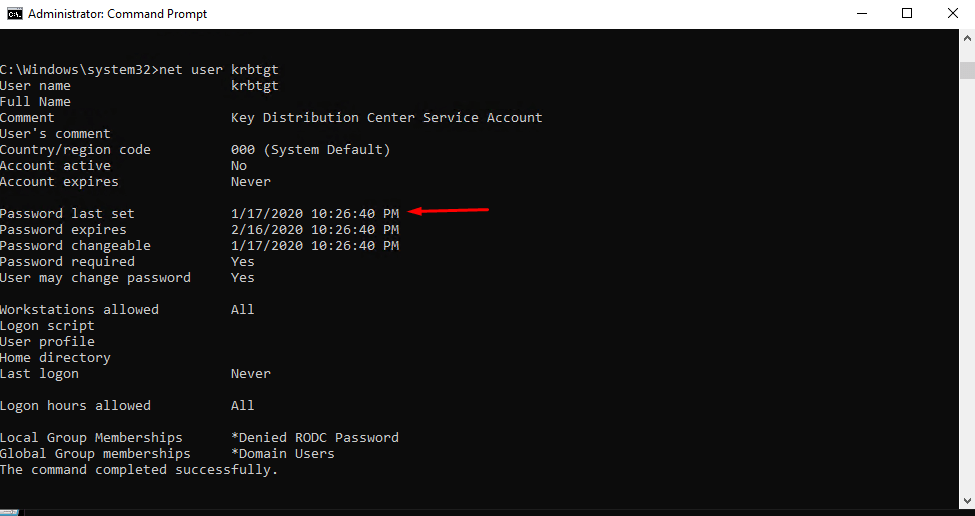
- You execute the followng cmd command:
net user krbtgt
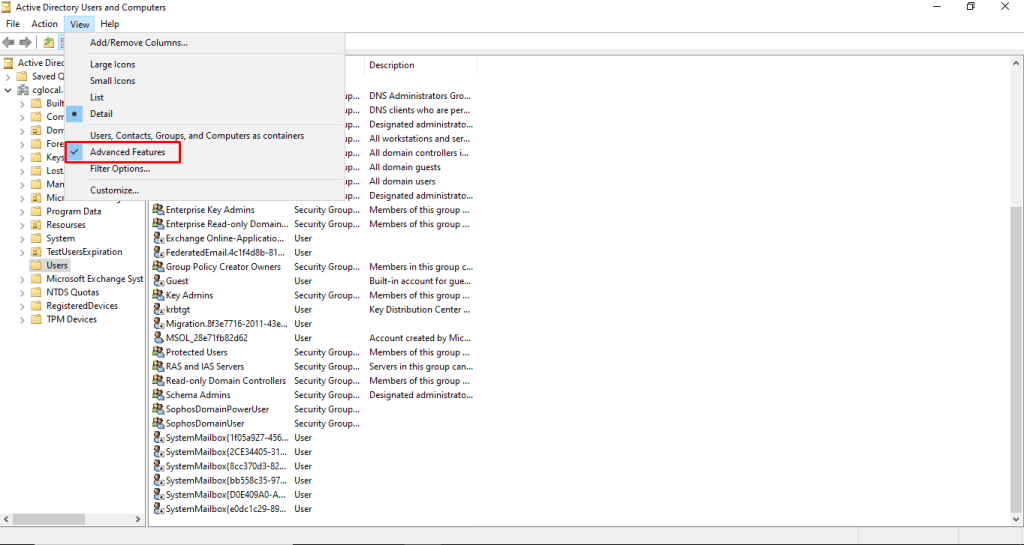
- You can see the password last set from the Active Directory Users and Computers.
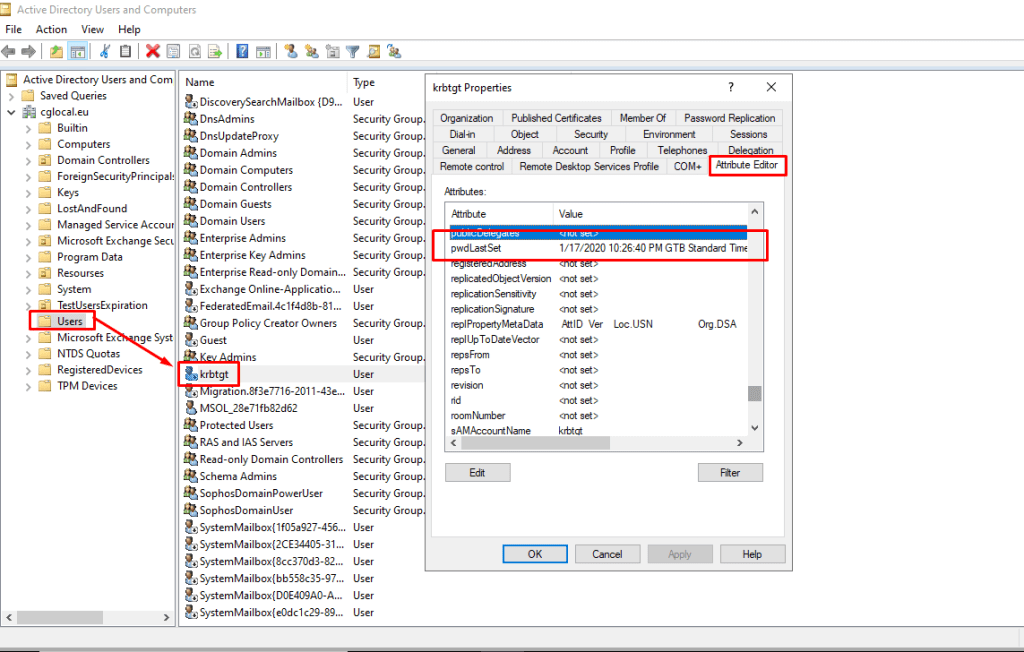
To access the Attributes, it is imperative that you first activate the Advanced Features within the View panel.
Find the krbtgt account from the OU Users. Then right click and select properties.
How to reset KRBTGT Account
The krbgt account can be reset in two ways :
- You can reset via Powershell Script.
- You can reset using Active Directory Users and Computers (ADUC). This is a Microsoft tool for managing Active Directory (AD), where you can control users, computers, Organizational Units (OU), and their attributes.
Reset KRBGT account via Powershell Script
Regarding the following link, you can download the PowerShell script from GitHub here. Also the latest version of the PowerShell script you can find here.
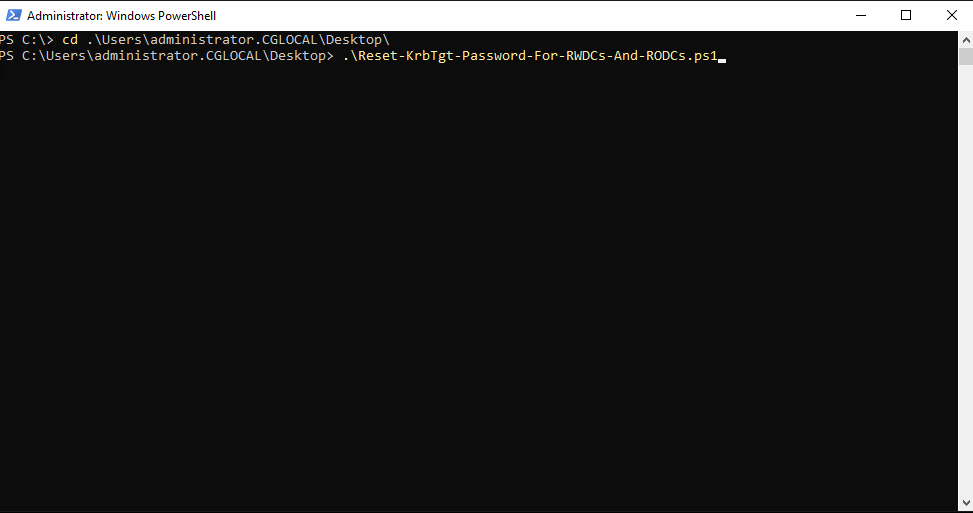
- Open PowerShell with elevated privileges and run the script
If your are not familiar with the script, please read the information, behavior and the impact.
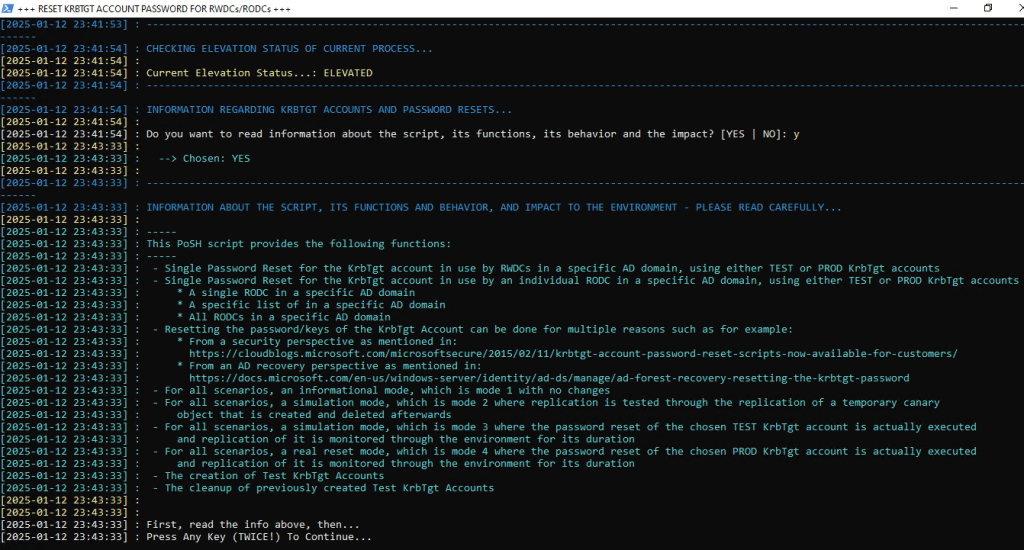
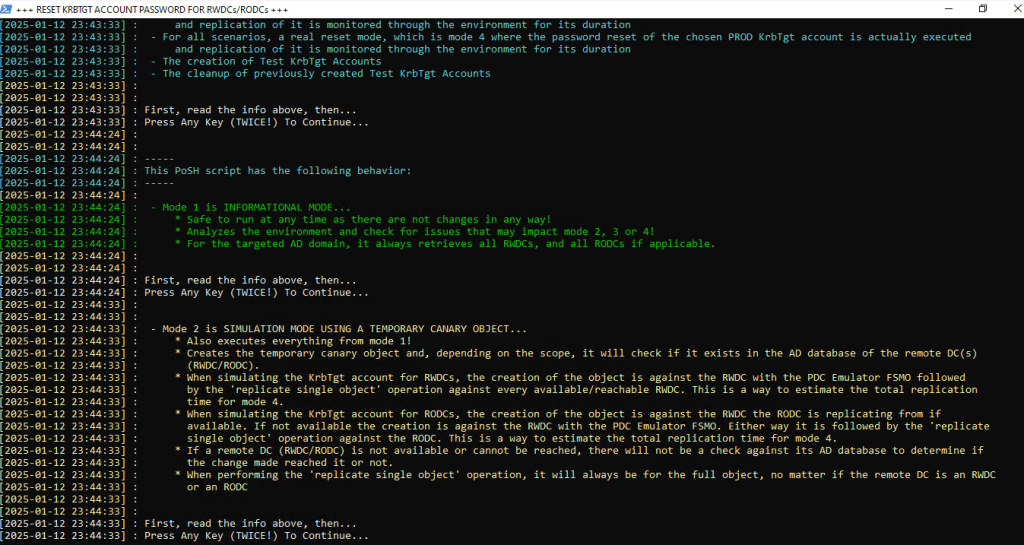
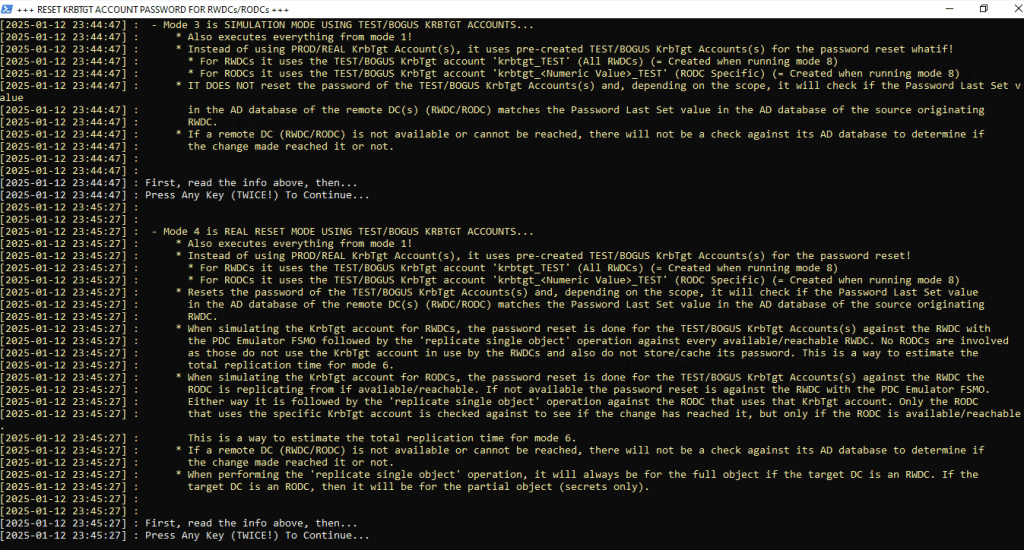
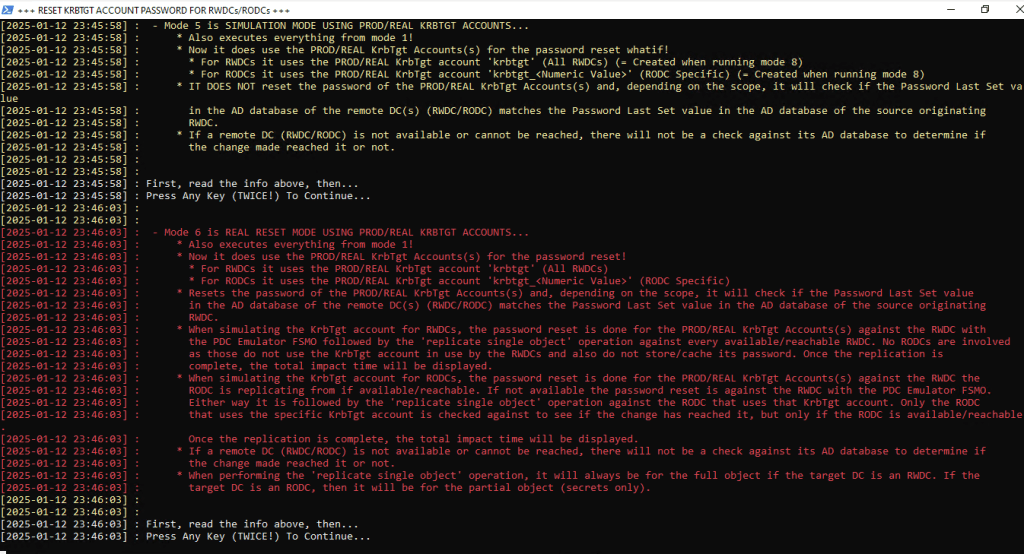
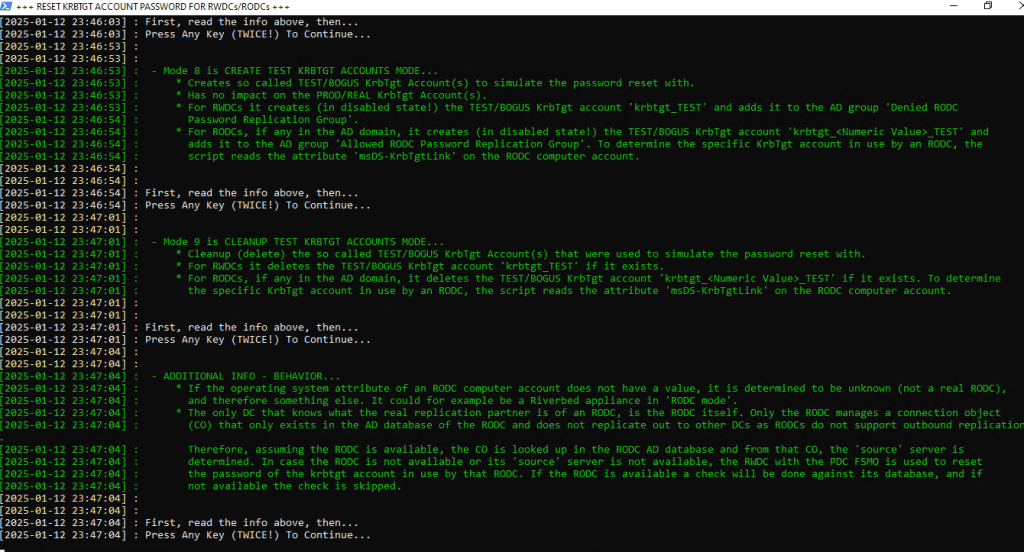
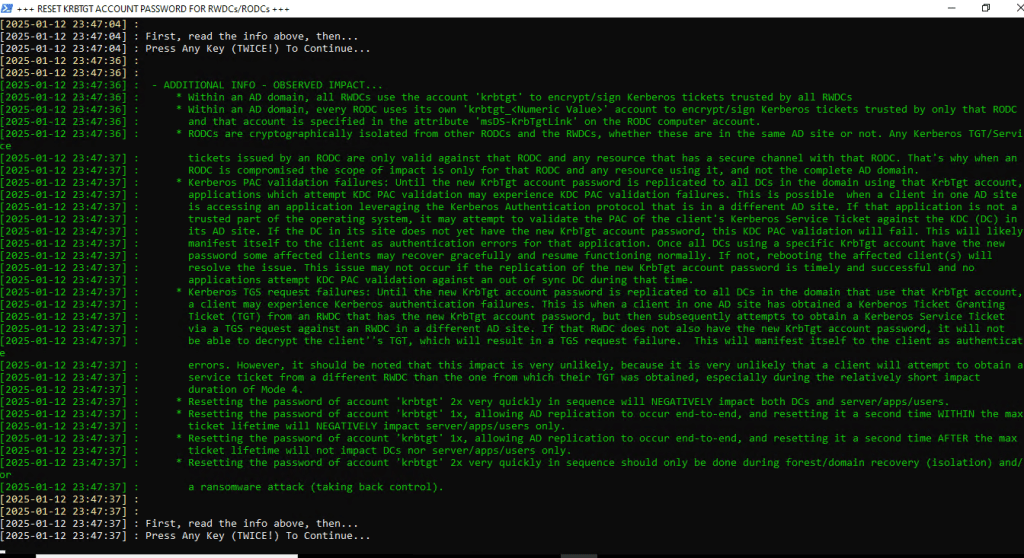
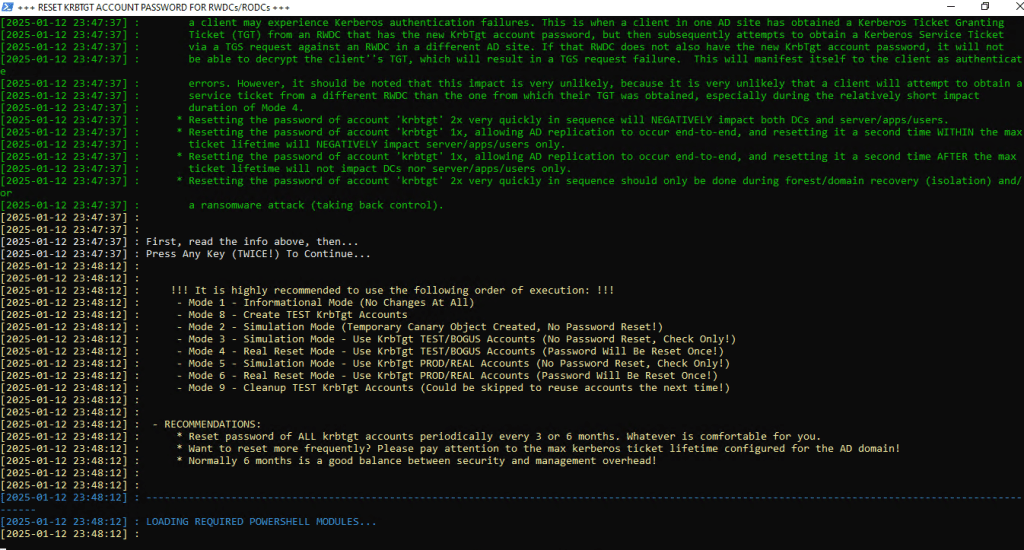
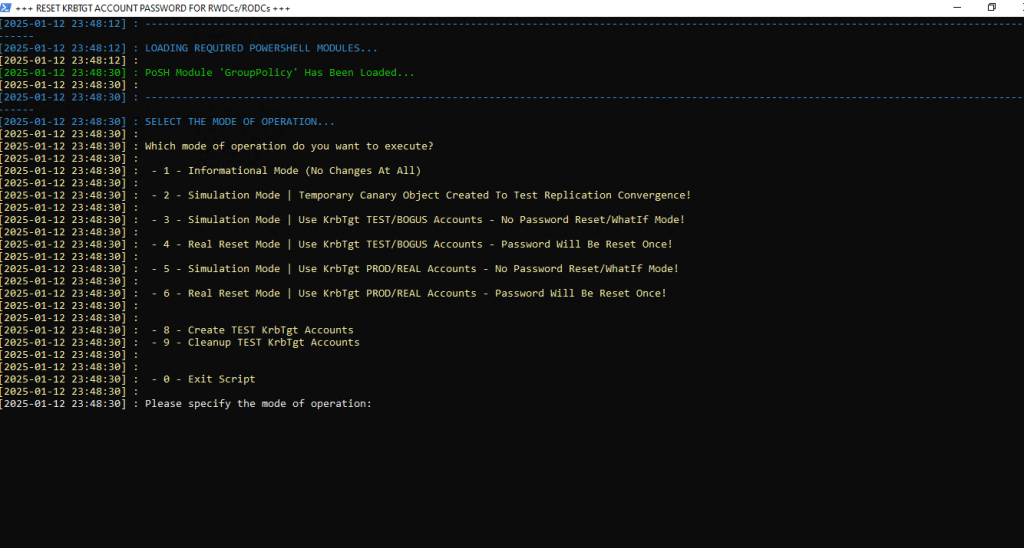
To summarize all the above screenshots, you have the following modes :
- Informational Mode (No Changes At All) – Mode 1
- Simulation Mode | Temporary Canary Object Created To Test Replication Convergence – Mode 2
- Simulat ion Mode | Use KrbTgt TEST/BOGUS Accounts – No Password Reset/WhatIf – Mode 3
- Real Reset Mode | Use KrbTgt TEST/BOGUS Accounts – Password Will Be Reset Once – Mode 4
- Simulation Mode | Use KrbTgt PROD/REAL Accounts – No Password Reset/WhatIf Mode – Mode 5
- Real Reset Mode | Use KrbTgt PROD/REAL Accounts – Password Will Be Reset Once – Mode 6
- Create TEST KrbTgt Accounts – Mode 8
- Cleanup TEST KrbTgt Accounts – Mode 9
Be careful, guys! Make sure to check out the info in the script before you do anything in your production environment!
In my scenario, I will proceed with following steps.
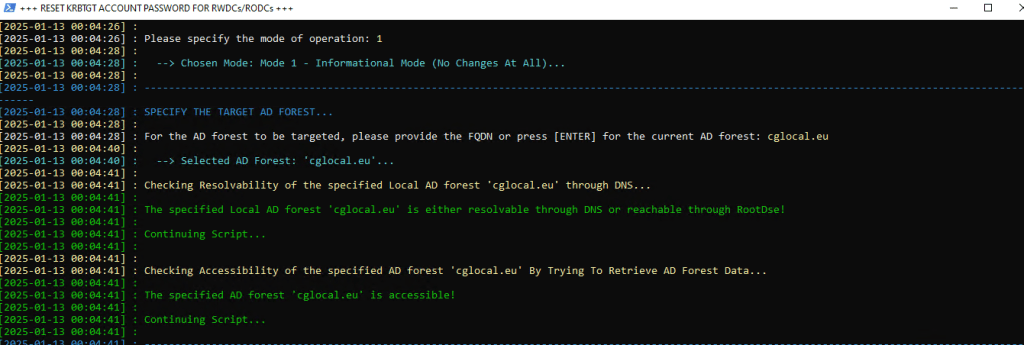
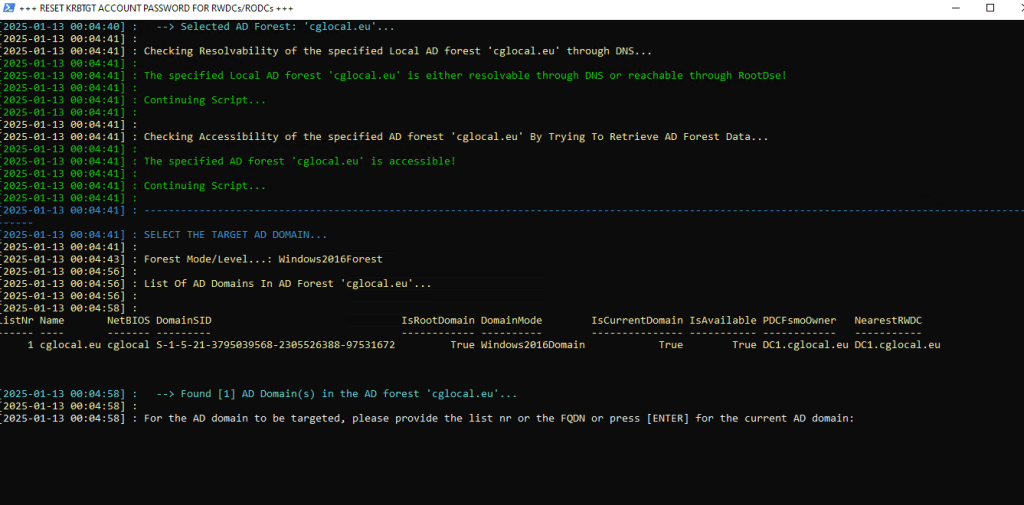
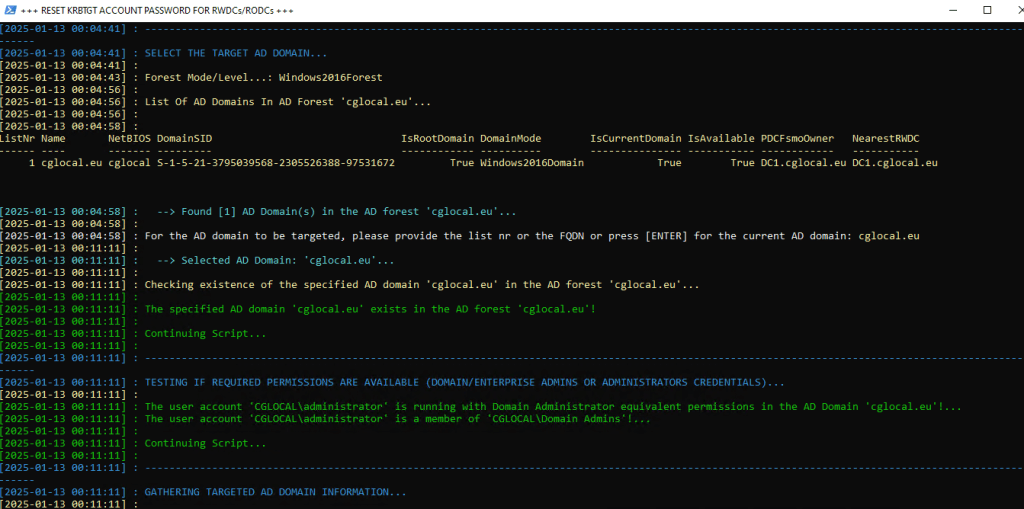
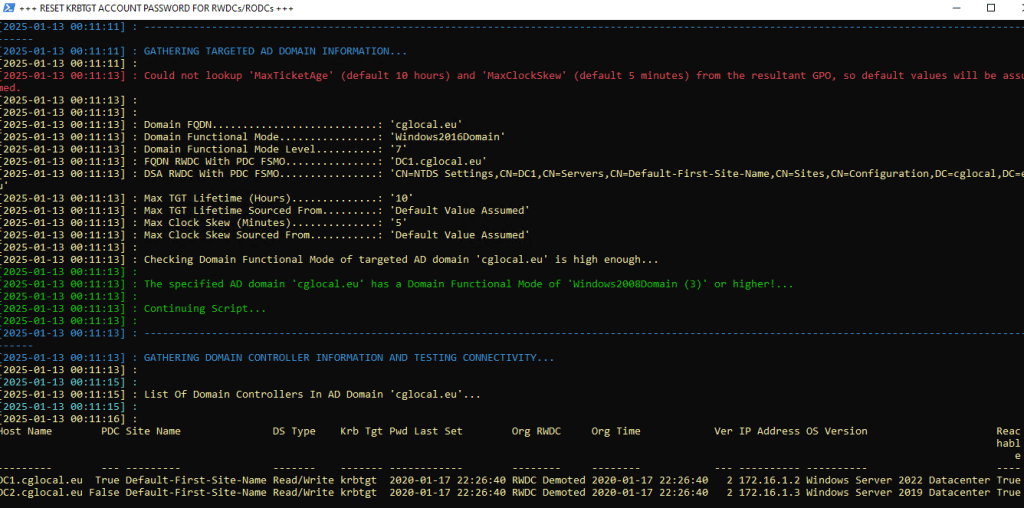
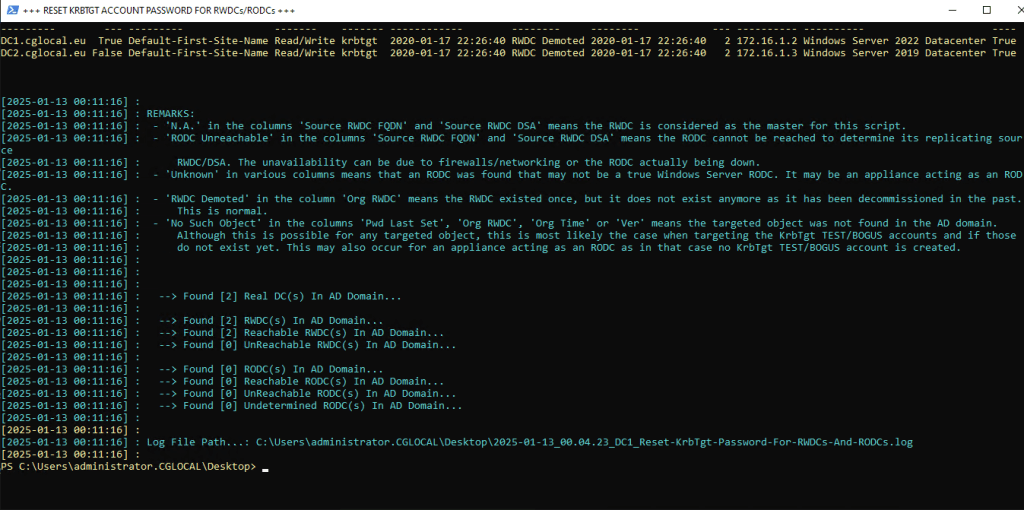
Mode 1 Informational Mode:
Feel free to run this anytime! It’s super safe since it doesn’t mess with anything. Basically, it takes a good look at the environment and points out any issues that might mess with modes 2, 3, or 4! When you target an AD domain, it always grabs all the RWDCs and any RODCs if they’re around.
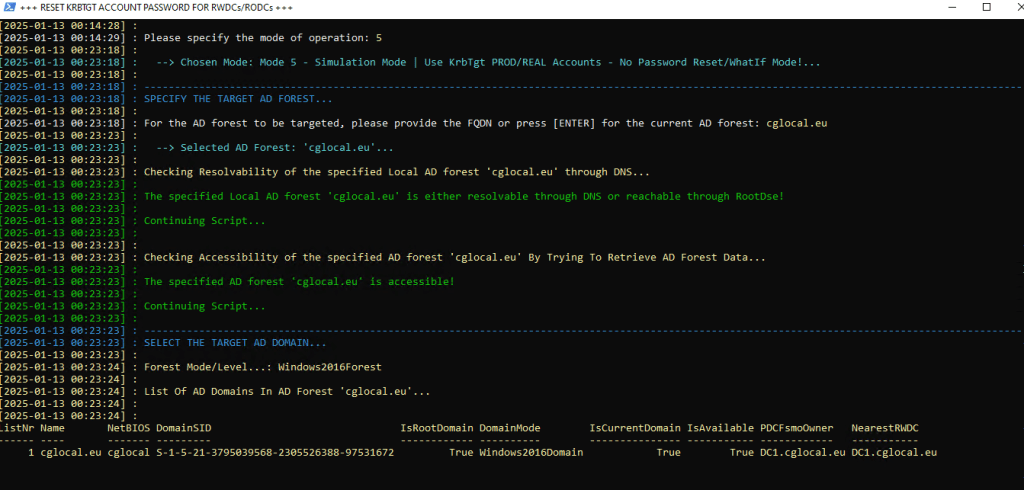
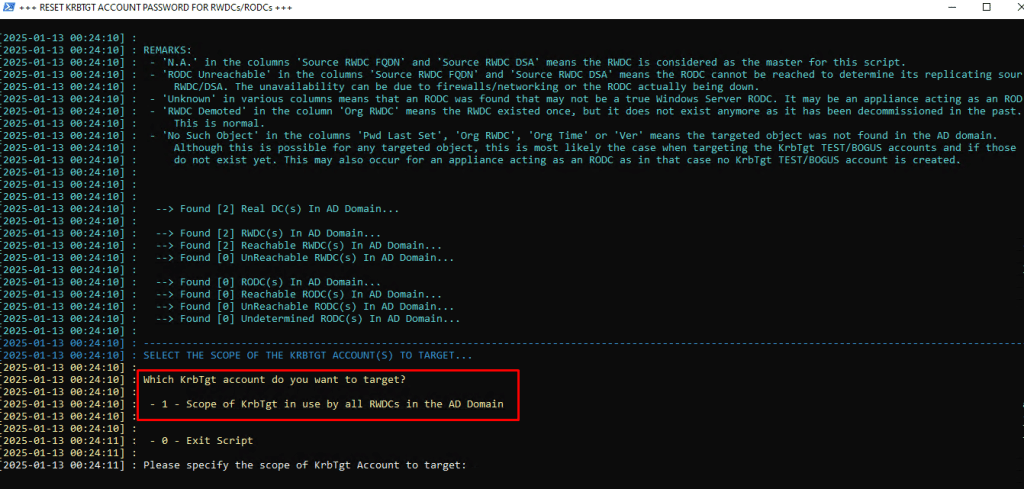
Re-run the PowerShell Script and this time select the Mode 5.
Mode 5 is Simulation mode using PROD/REAL KRBTGT accounts. Also executes everything from mode 1 (so you can avoid my previous step).
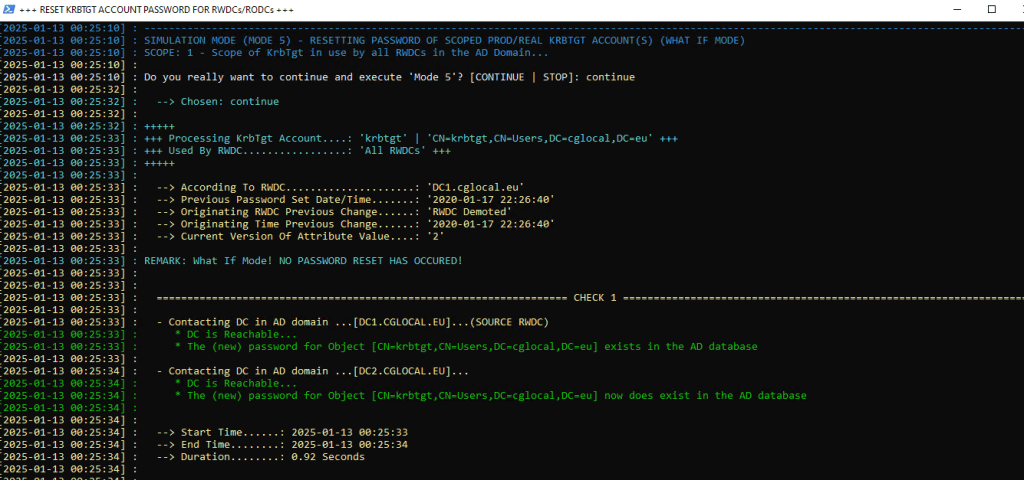
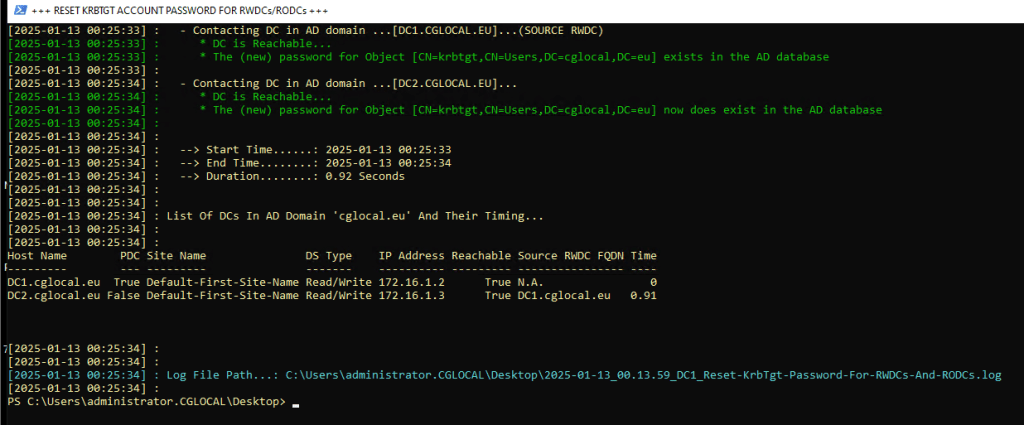
Re-run the PowerShell Script and select the Mode 6 | Real Reset Mode.
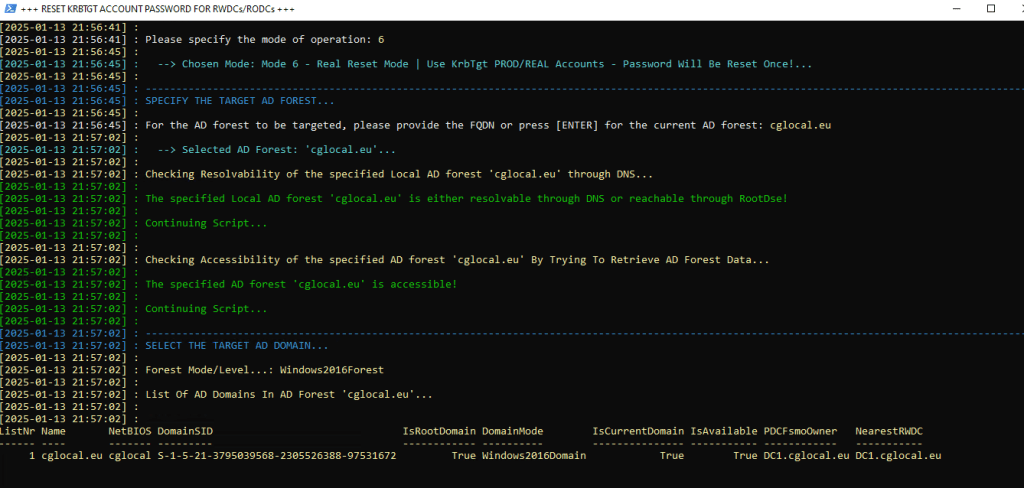
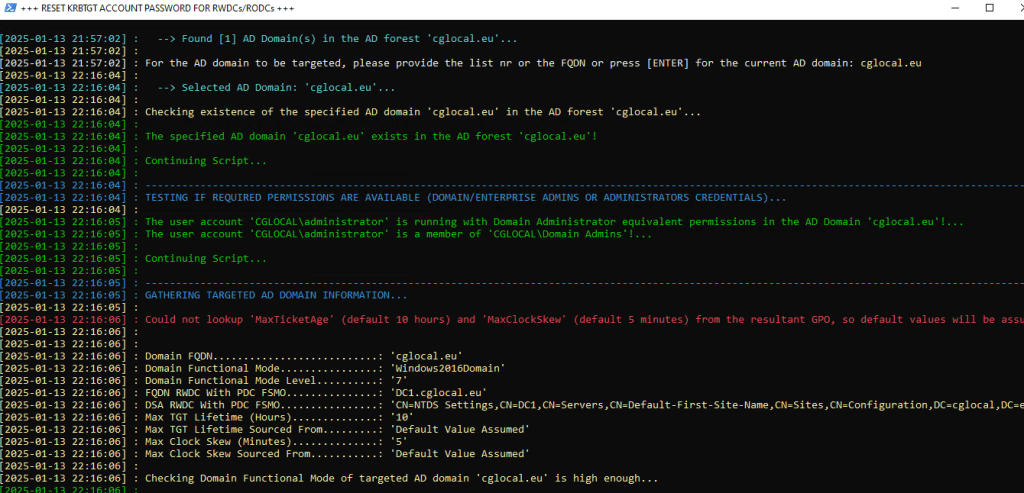
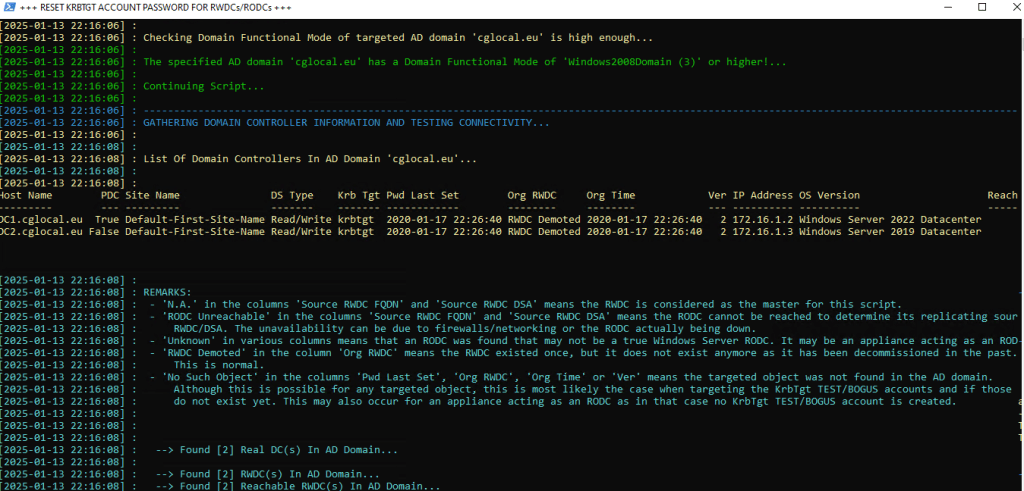
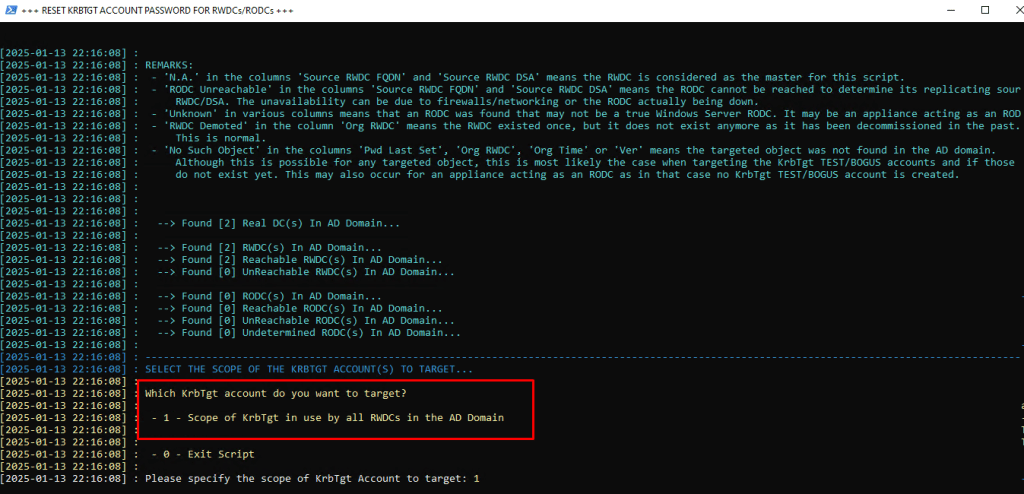
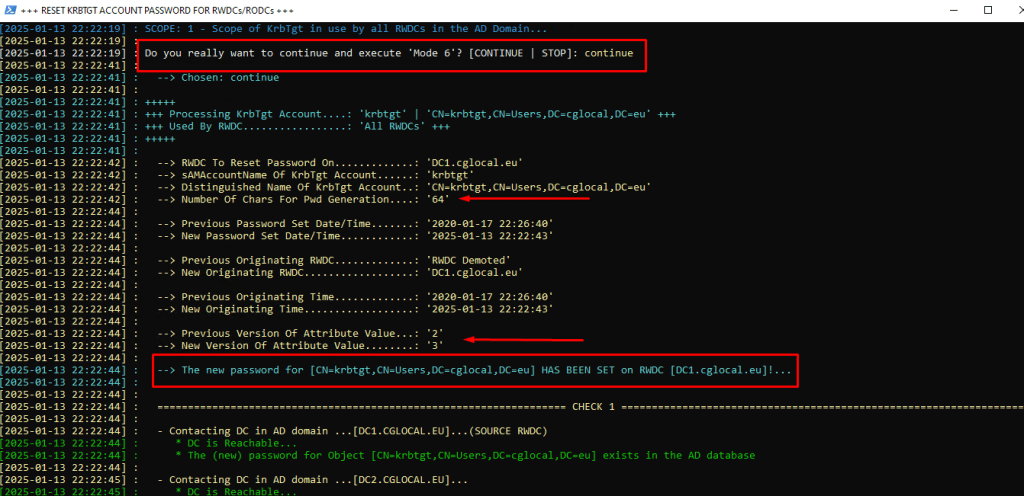
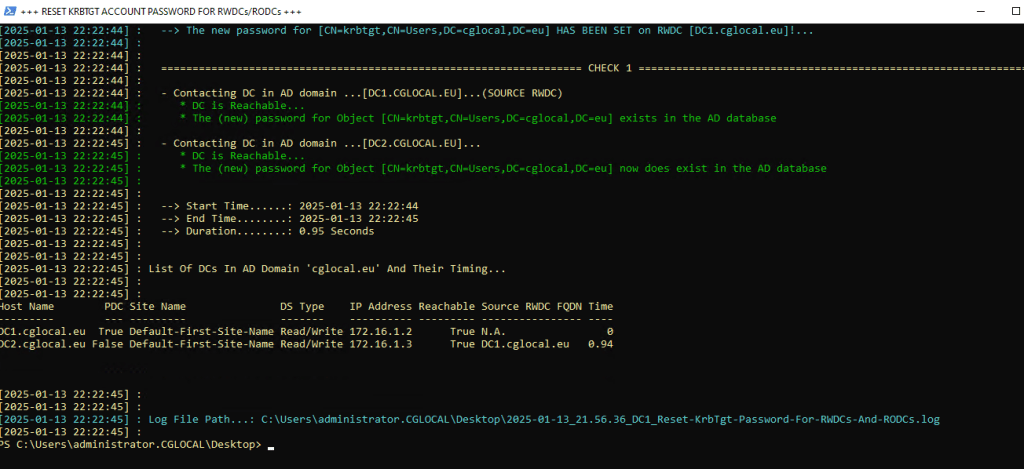
The krbtgt account has been reset successfully! Now, let’s check out the pwdLastSet Attribute to verify.
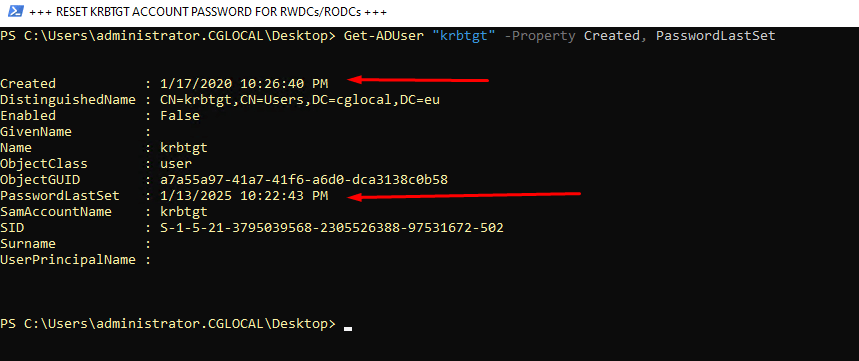
Regarding Microsoft best-practise, you should reset the krbtgt account twice.
Once AD replication is done, just go ahead and run the process again to update the KRBTGT password. If you’re in a multi-site setup and want to wait for replication to wrap up, that’s totally cool and even suggested. Then, take a break for a day before you run the script to change that KRBTGT password again. The reason for changing the password twice is to wipe the password history, making sure you lower the chance of running into any issues.
And don’t forget to check the pwdLastSet attribute of the krbtgt account after you reset it the second time.
Reset KRBTGT Account via Active Directory Users and Computers (ADUC)
- Open the Active Directory Users and Computers (ADUC)
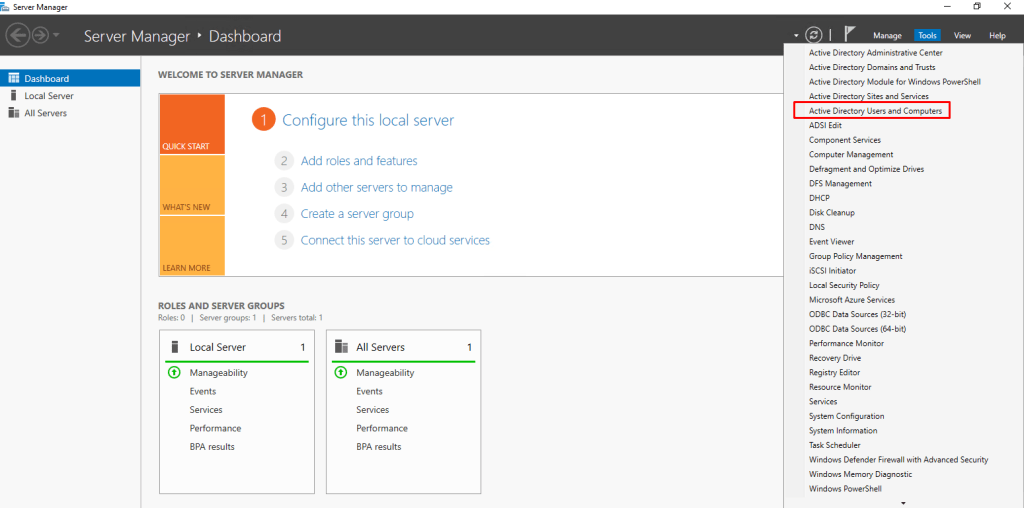
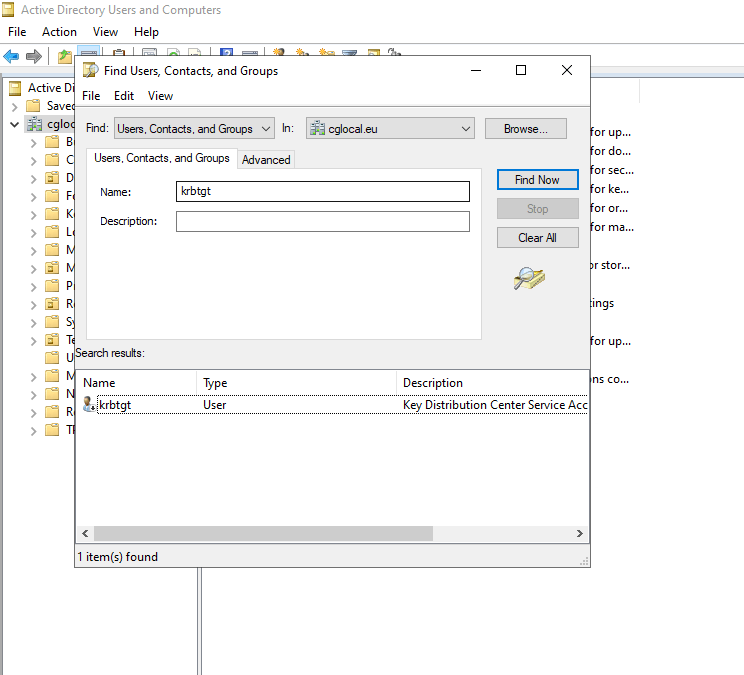
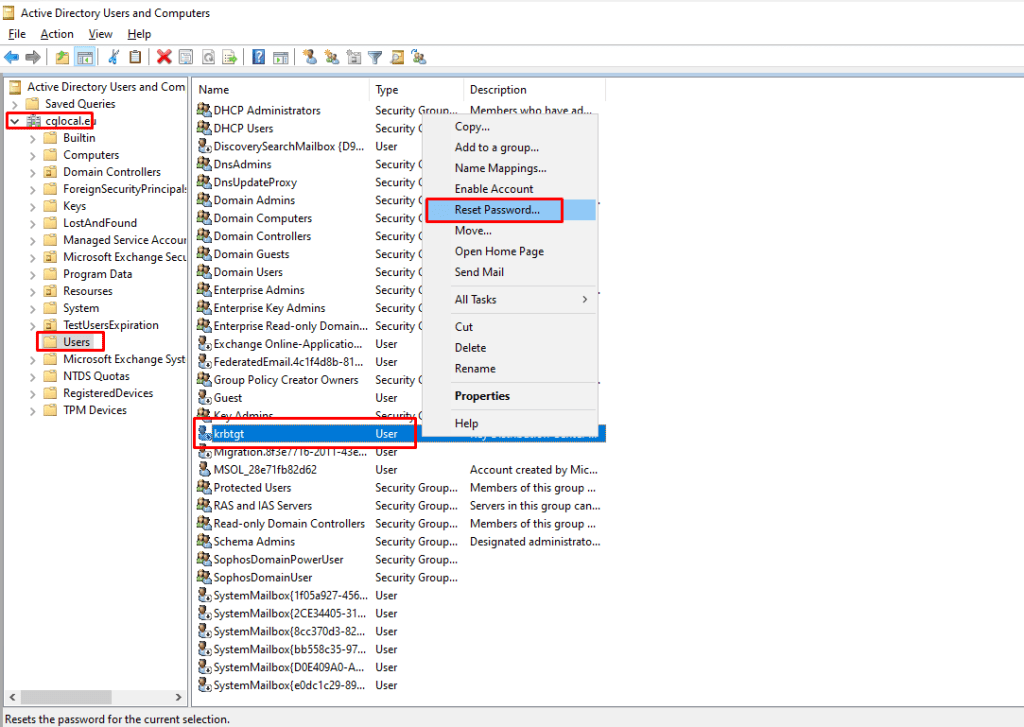
You can search on your domain for the KRBTGT Account, or you can find under the following Organization Unit (OU) Users (CN=Users,DC=cglocal,DC=eu). The right click and select “Reset Password”
Conclusion
In this article, we explore and clarify the scope of the krbtgt account and provide instructions via PowerShell on how to reset its password.
I really hope you’re enjoying my article!