Charalambos Geronikolas Reading Time : 5 minutes Azure
In contemporary scenarios, a significant portion of attacks arises from the compromise of the Local Administrator on either workstations or servers. One effective solution to mitigate this threat is the Local Administrator Password Solution (LAPS).
What is the Local Administrator Password Solution (LAPS)
The Windows Local Administrator Password Solution (Windows LAPS) is a feature designed to automatically manage and back up the passwords of local administrator accounts on devices joined to Microsoft Entra or Windows Server Active Directory.
For more information you can visit here.
Except the legacy LAPS, which most of us still utilize through Active Directory Domain Services, there is now the opportunity to leverage more modern solutions. You can seamlessly integrate these services via Microsoft Entra ID and Intune, expanding your management capabilities significantly.
What are the benefits of using Windows LAPS?
The Local Administrator Password Solution (LAPS) offers several key benefits that make it a valuable tool for system administrators. Here are some of the main advantages:
- Enhanced Security: LAPS automatically generates unique and complex passwords for each local administrator account on every computer. This process significantly mitigates the risk of unauthorized access and makes it considerably more challenging for attackers to compromise multiple systems.
- Automated Password Management: By automating the processes of password generation and updates, LAPS obviates the necessity for manual intervention. This not only conserves time but also ensures that passwords are routinely changed and never reused.
- Centralized Storage: LAPS securely archives passwords within Active Directory, thus permitting authorized personnel to retrieve them as required. This centralized methodology simplifies password management and guarantees accessibility exclusively to individuals possessing the appropriate permissions.
- Compliance and Auditing: LAPS assists organizations in fulfilling compliance mandates by instituting robust password policies and preserving an audit trail of password modifications. This capability is vital for successfully navigating security audits and demonstrating adherence to industry standards.
- Reduced Attack Surface: By guaranteeing that each computer possesses a unique local administrator password, LAPS diminishes the overall attack surface. This approach complicates the efforts of attackers seeking to move laterally within the network upon compromising a single machine.
- Ease of Implementation: LAPS is relatively straightforward to deploy and configure, rendering it an appealing choice for organizations of all sizes. It seamlessly integrates with existing Active Directory environments, facilitating a smooth implementation process.
How to enable Windows LAPS on Microsoft Entra ID
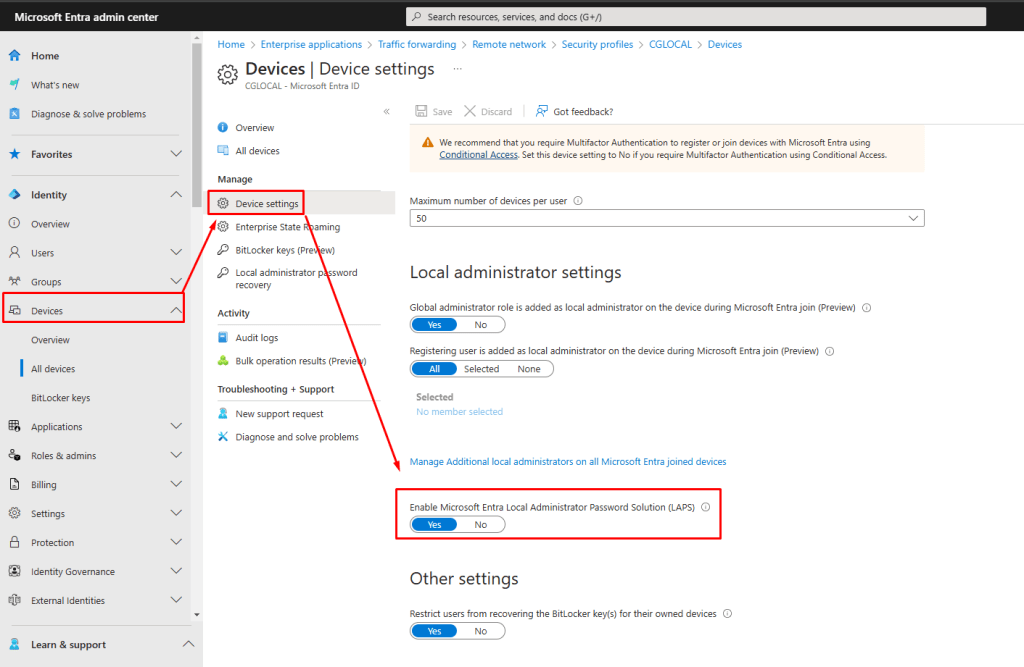
Go to Microsoft Entra Admin Center and then select the Devices -> Device Settings and you will need to enable Microsoft Entra Local Administrator Password Solution (LAPS)
How to create the Policy on the Microsoft Intune
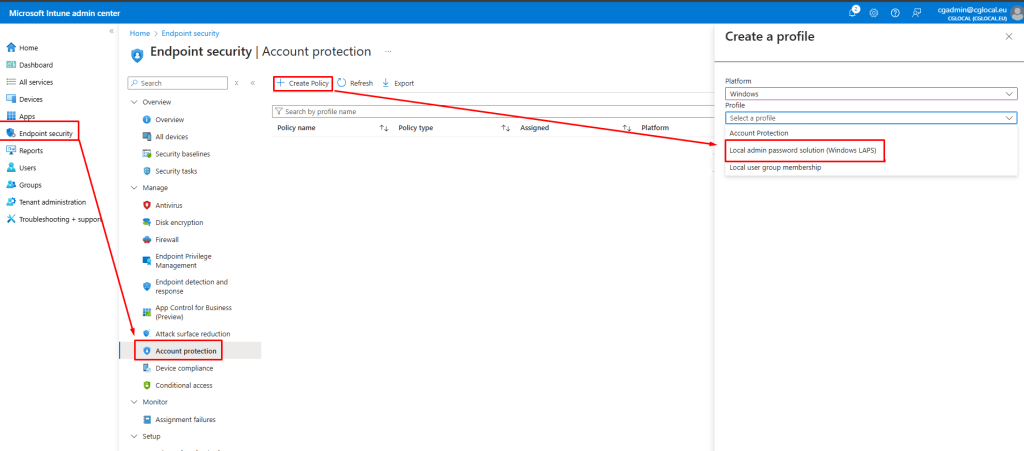
You will need to go to Microsoft Intune and select the Endpoint Security -> Account Protection and then to create the policy.
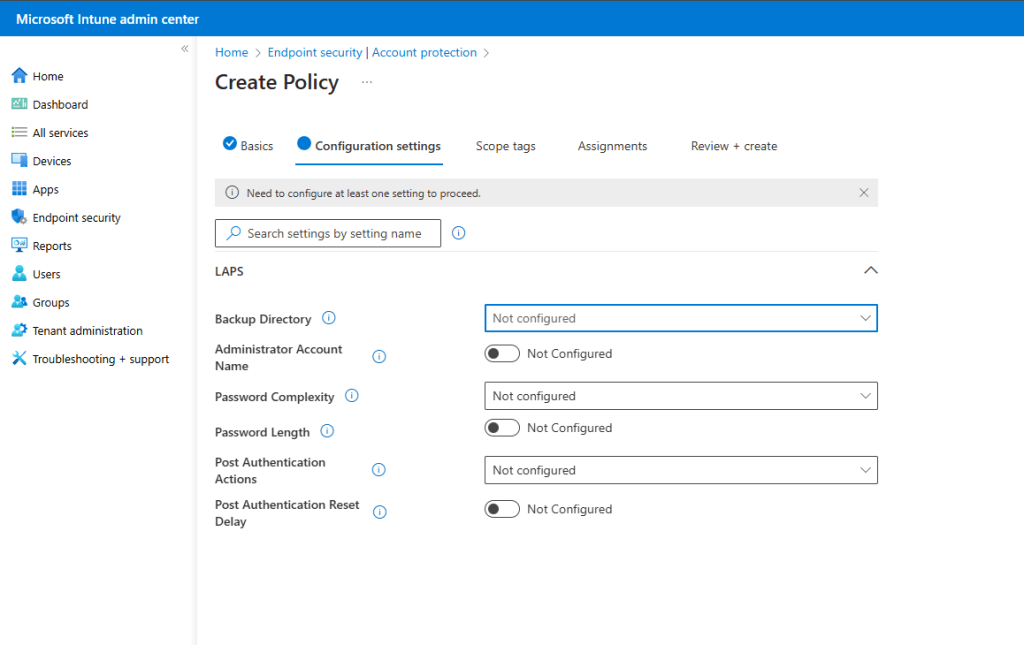
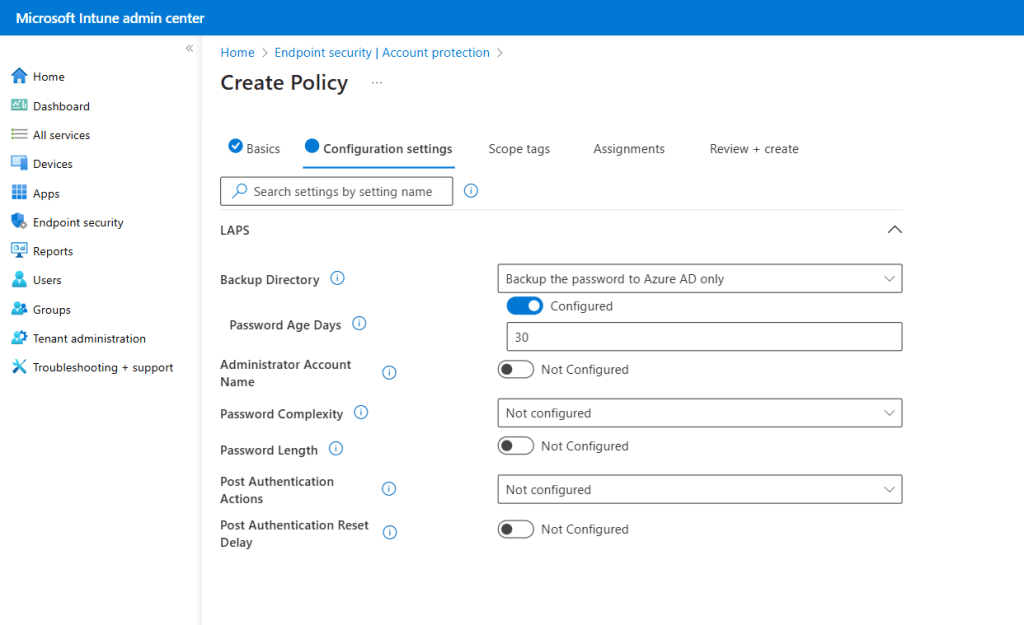
Backup Directory:
You can choose on which Directory you want to Backup the passwords. Either at your Active Directory or to you Microsoft Entra ID Directory. Unfortunately, you can not have both in case you use Hybrid Environment.
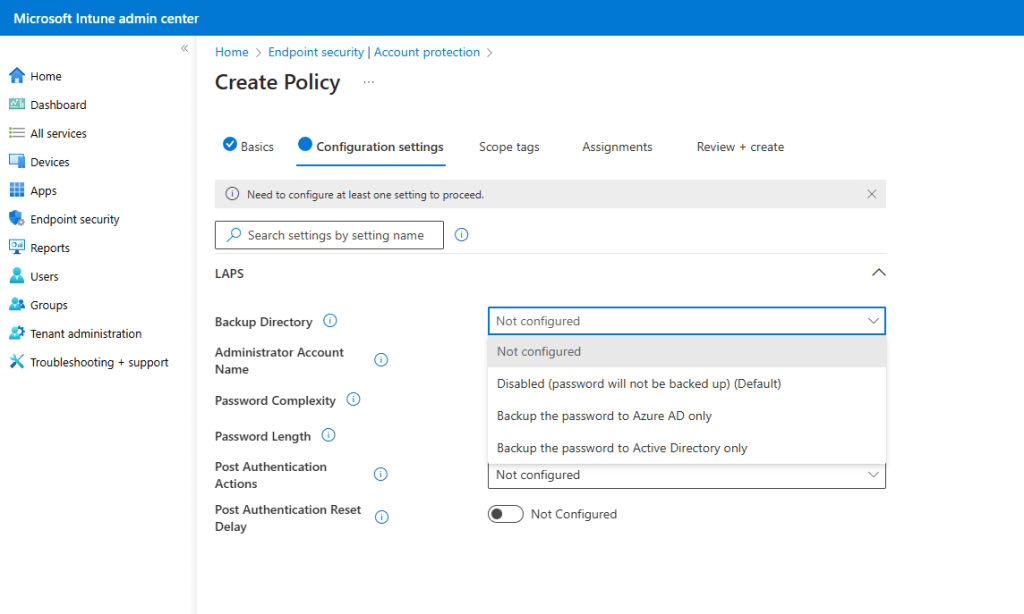
In my scenario, I will use the “Backup the password to Azure AD only“.
You can also select the Password Age Days which configure the maximum password age for the managed local administrator account. By default, it is 30 days, but for Azure AD, the minimum that you can use is 7 days and for on-premise AD, it is 1 day.
Administrative Account Name:
It is a common practice among administrators to modify the local admin account name for security purposes through Group Policy. Alternatively, some administrators opt to disable the existing local administrator account and establish a new account with a distinct name, ensuring it is also a member of the Administrator Group.
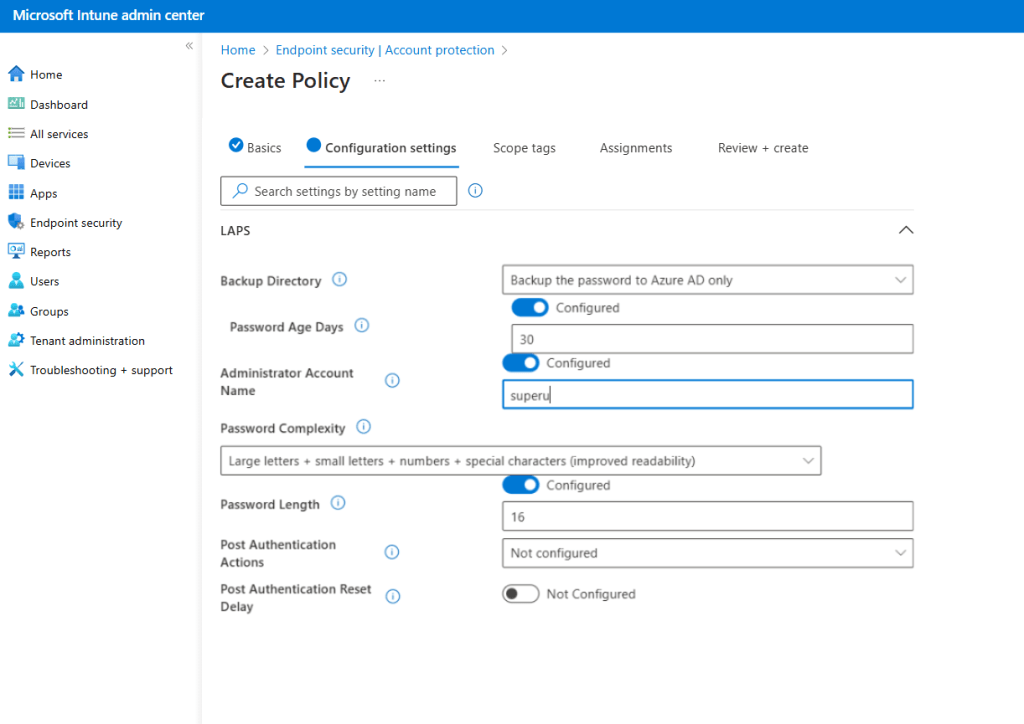
Password Complexity – Password Length
In accordance with the National Institute of Standards and Technology (NIST), the recommended practice for password length is between 12 to 16 characters. For those seeking enhanced security, it is advisable to extend this length to 32 characters; however, it is important to acknowledge that such an increase may impose additional burdens on Helpdesk personnel.
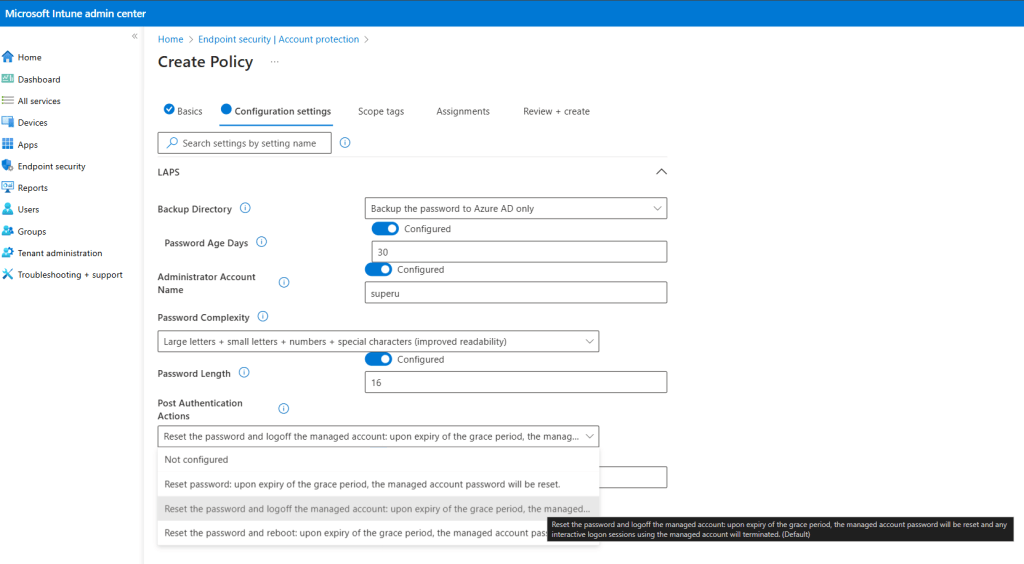
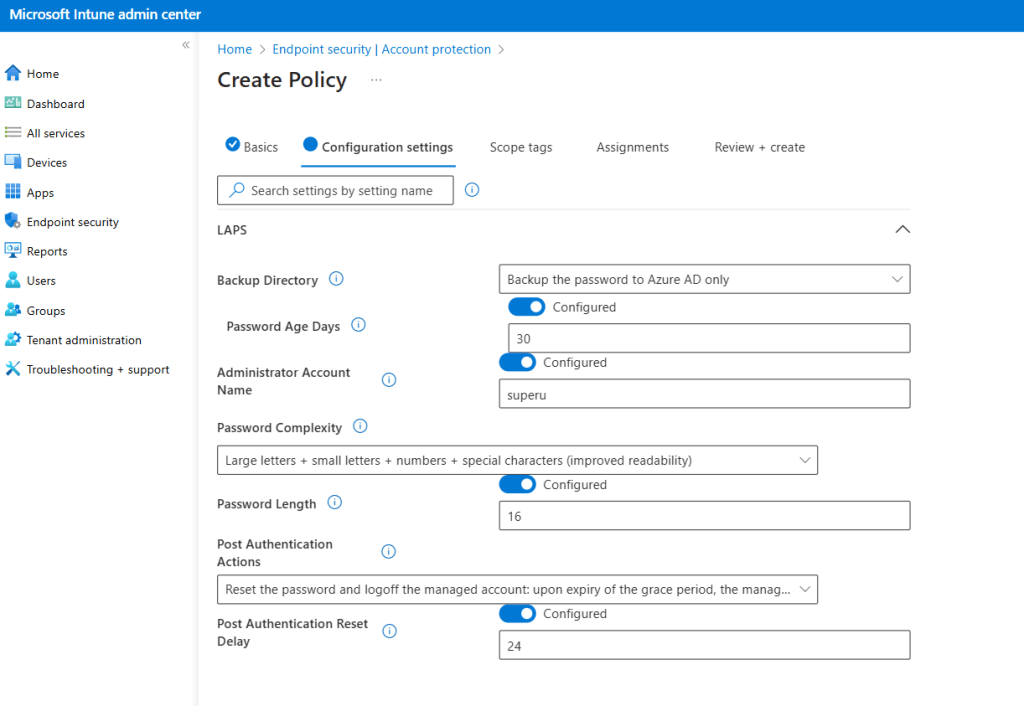
Post Authentication Actions
These are the things that happen after you use the local admin account password:
- Reset the Password: The password gets changed to a new, secure one.
- Log Off the Account: The account gets logged off from the device.
- Shut Down the Device: The device powers down after logging off.
- Mix and Match: You can combine actions, like resetting the password and then logging off the account.
Post Authentication Delays
This is the wait time before the post-authentication actions kick in. It’s usually set in hours. For example, if you set a delay of 24 hours, the actions will happen 24 hours after you use the local admin account.
These settings help keep things secure by making sure the local admin accounts aren’t left vulnerable after use. It’s like having a security guard that locks everything up after you leave.
Upon completion of the Windows LAPS Policy creation, it is essential to assign this policy to your designated security group.
How can you retrieve the Windows LAPS from the Intune
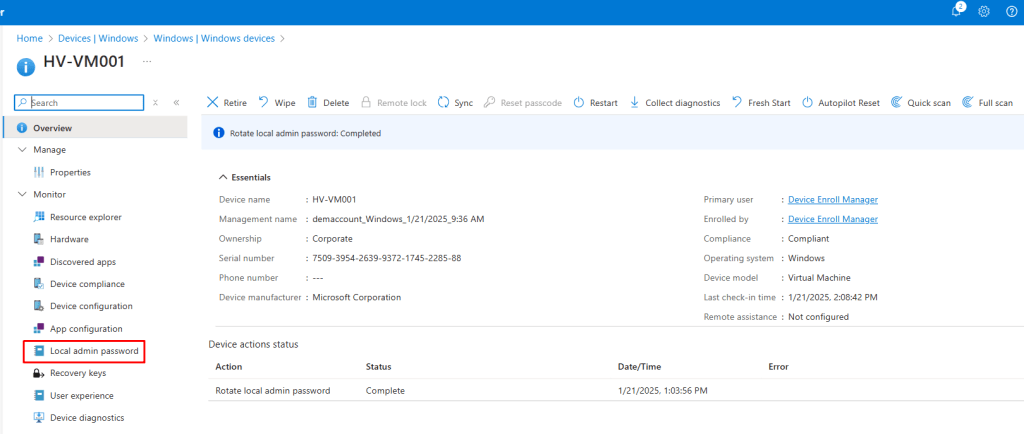
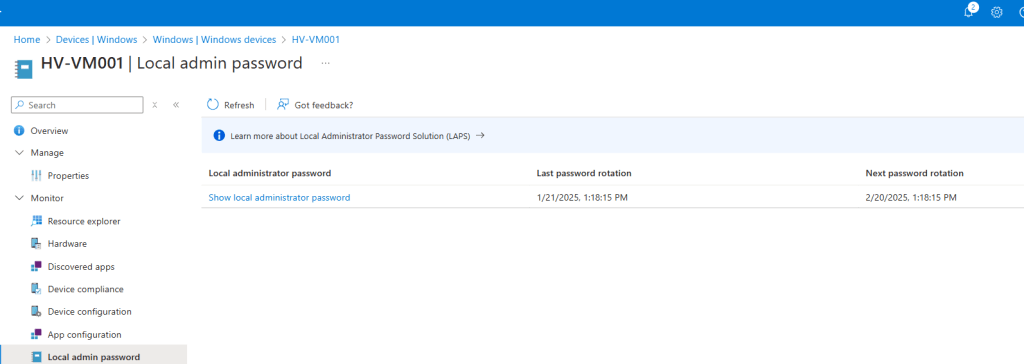
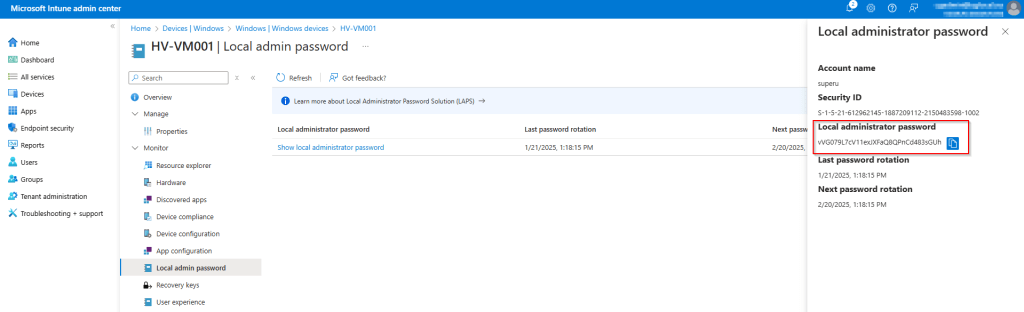
In this instance, I will retrieve the Windows LAPS password from my test workstation. To accomplish this, please follow the steps outlined below:
- Go to Microsoft Intune
- Go to Devices
- Select your platform, in my case is Windows
- Select your Device
- Select the Local Admin Password
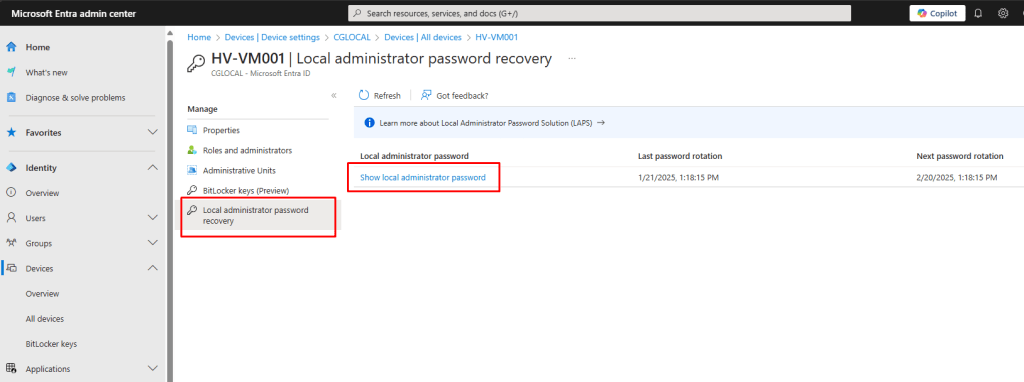
How can you retrieve the Windows LAPS from the Microsoft Entra ID
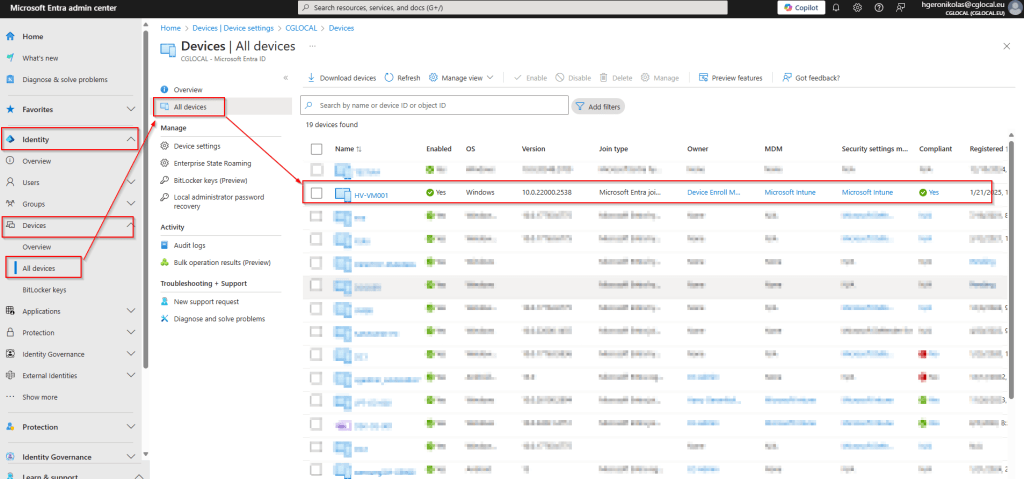
- Go to Microsoft Entra Admin Center
- Go to Identity and select Devices -> All Devices
- Select your Device
Conclusion
Windows LAPS enhances security, simplifies password management, and helps organizations maintain compliance—all while reducing the workload for system administrators. It’s a win-win solution that brings order to the often chaotic world of IT security.
Hope you’re finding this article interesting!