Charalambos Geronikolas Reading Time : 3 minutes Azure
What is AZUREADSSOACC Computer account
The AZUREADSSOACC computer account is established when Microsoft Entra seamless single sign-on (Seamless SSO) is enabled via Microsoft Entra Connect. This account is created within your on-premises Active Directory (AD) for each AD forest synchronized with Microsoft Entra ID.
Key points regarding the AZUREADSSOACC account include
- Purpose: It enables the Seamless SSO feature, allowing users to automatically sign in when using corporate desktops connected to the corporate network.
- Security: The account’s Kerberos decryption key is securely shared with Microsoft Entra ID. It is imperative to protect this account by ensuring that only Domain Administrators can manage it and by disabling Kerberos delegation.
- Management: The account should be stored in an Organizational Unit (OU) where it is safeguarded against accidental deletions and where only Domain Administrators have access. It is recommended to regularly roll over the Kerberos decryption key, ideally every 30 days.
You will also notice a warning in Azure AD when the Kerberos decryption key has not been updated in the last 30 days.
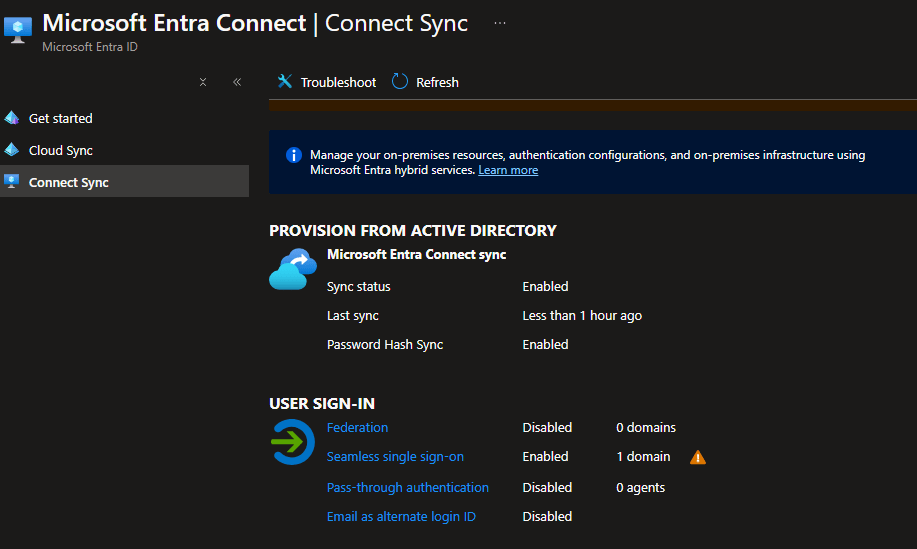
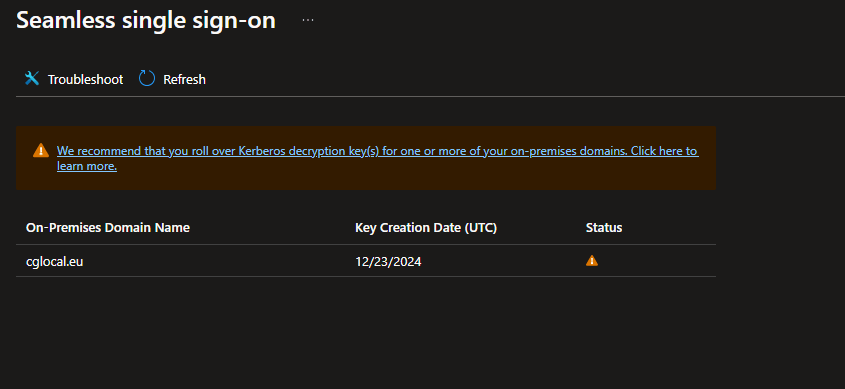
How to Roll Over Kerberos Decryption Key
The Kerberos decryption key rollover is executed using Windows PowerShell, with the necessary module available on the Microsoft Entra Connect server. Consequently, these commands should be performed while logged onto the Microsoft Entra Connect server.
For more information, you can visit here
Please note that you will require a Global Administrator account to connect to Microsoft Entra ID and a Domain Administrator account in the forest root domain in order to update the Kerberos Dectryption Key.
Follow the below steps:
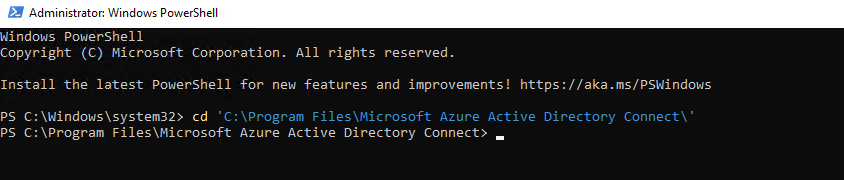
1. Open Windows Powershell with elevate permissions and navigate to the following path -> C:\Program Files\Microsoft Azure Active Directory Connect\
cd "C:\Program Files\Microsoft Azure Active Directory Connect\"
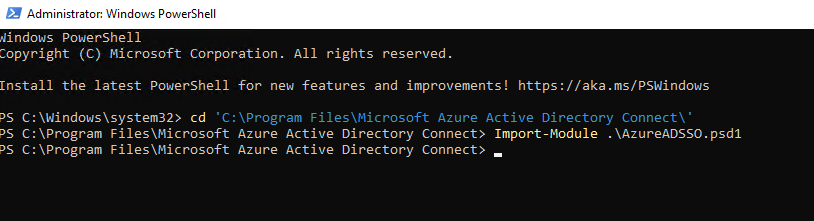
2. Import the Seamless SSO Powershell Module
Import-Module .\AzureADSSO.psd1
3. Run the below command to authenticate with Microsoft Entra ID using your Global Administrator account. It will pop up a Microsoft Login page and you will add your credentials.
New-AzureADSSOAuthenticationContext
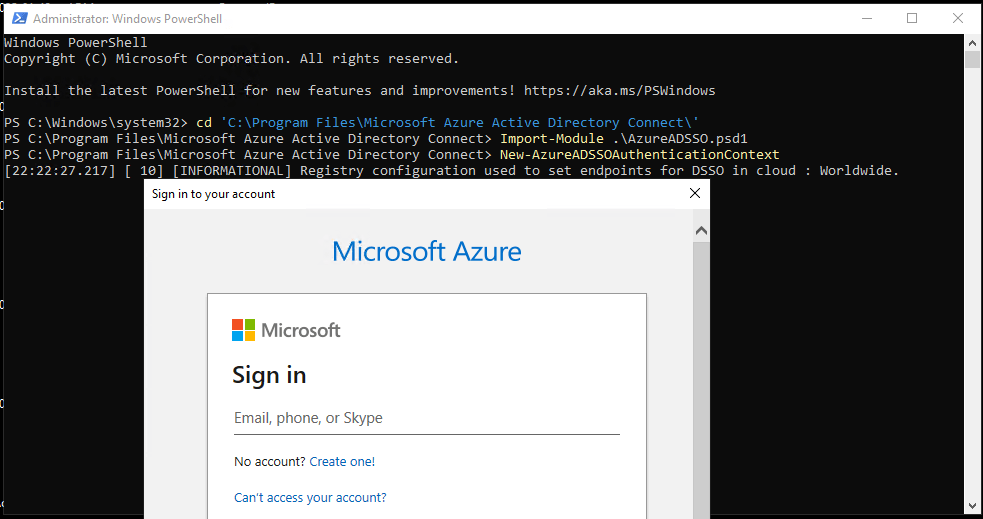
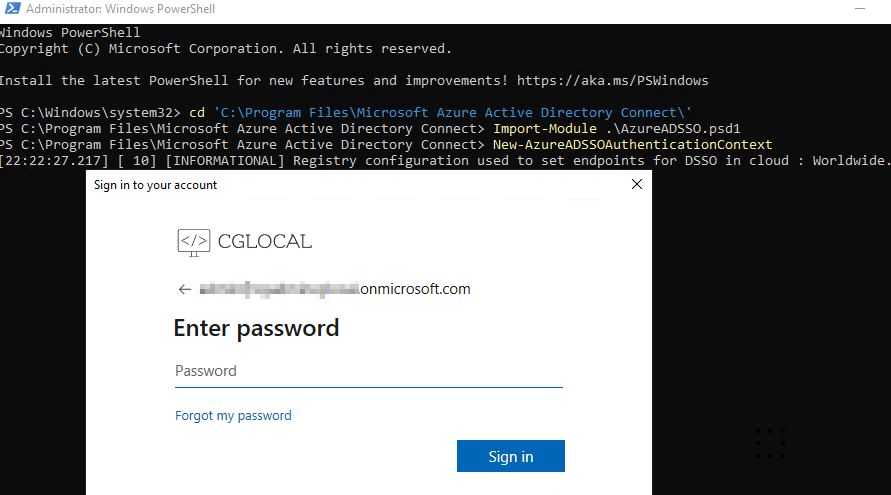
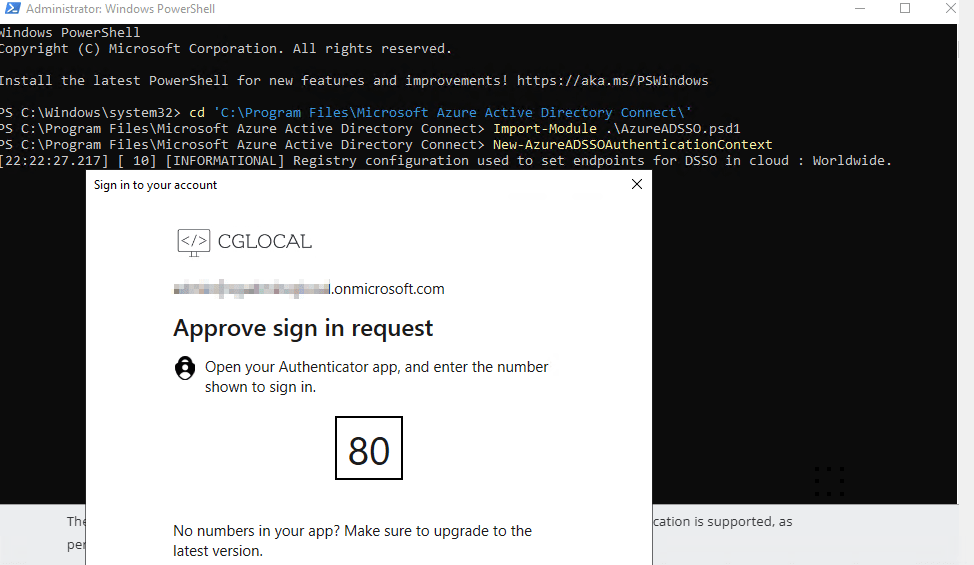
In case you have multiple Active Directory forests which synchronize to the same Microsoft Entra Tenant, you can use the below command which you can view the list of Active Directory forest that have Seamless SSO enabled. So, in my case :
Get-AzureADSSOStatus | ConvertFrom-Json
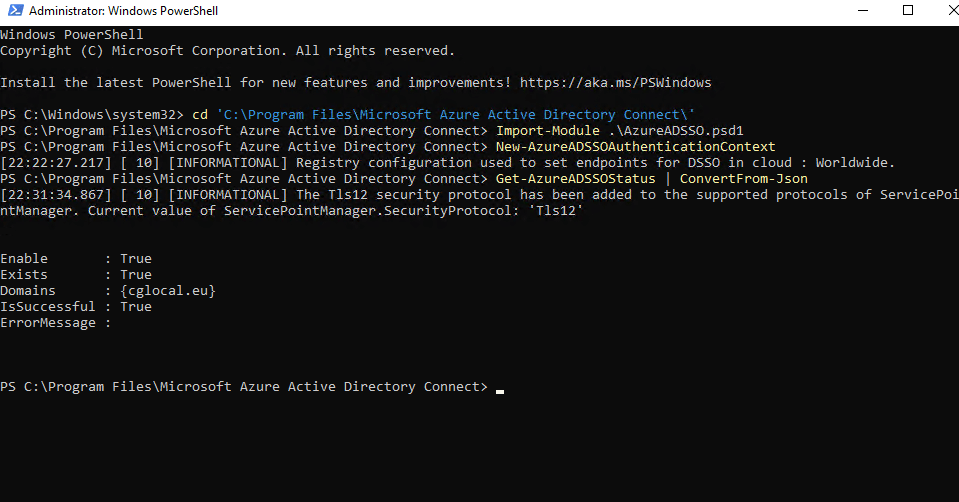
4. Run the below command to update the Kerberos Decryption Key for the target forest. It pops up a window and you will put in your On-Premise Domain Administrator account credentials.
Update-AzureADSSOForest
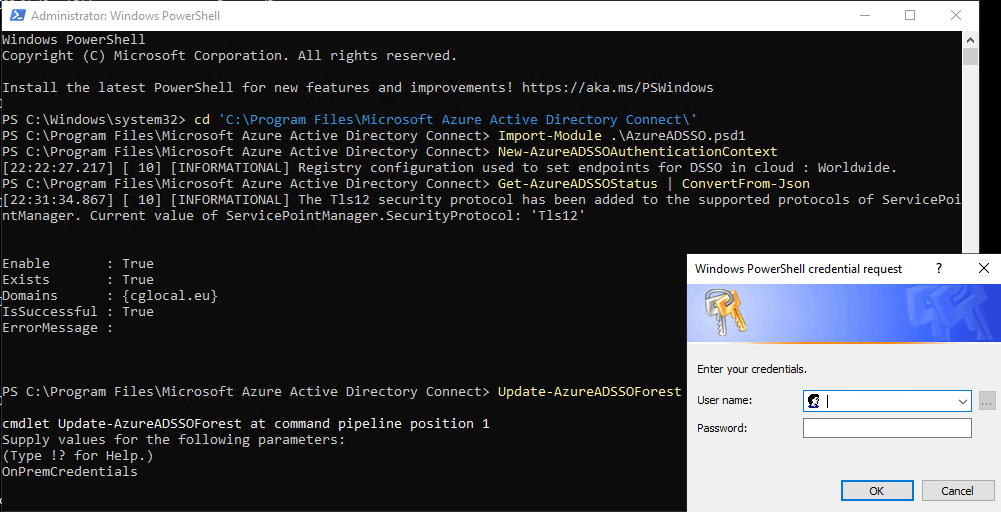
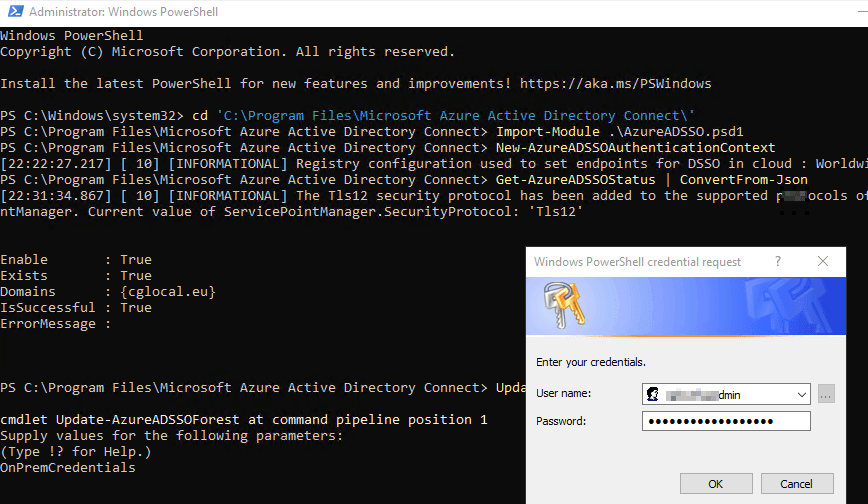
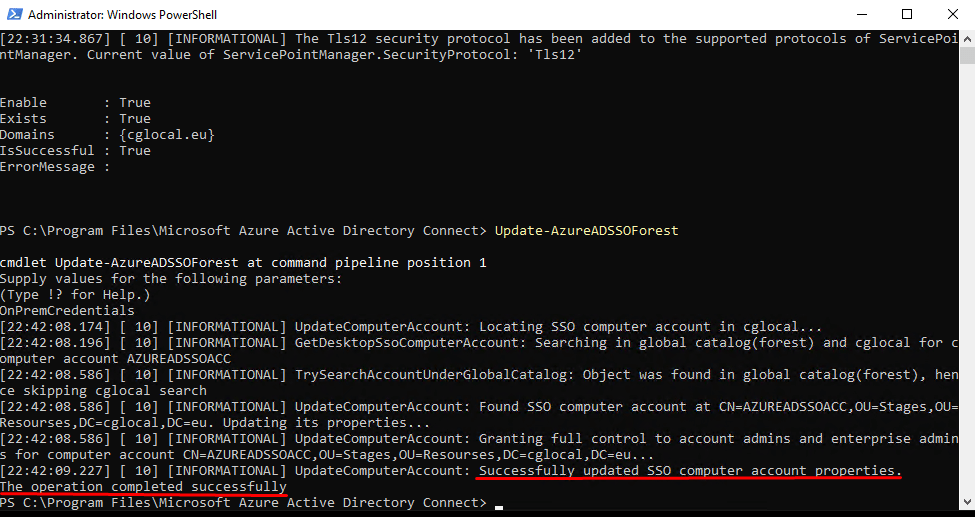
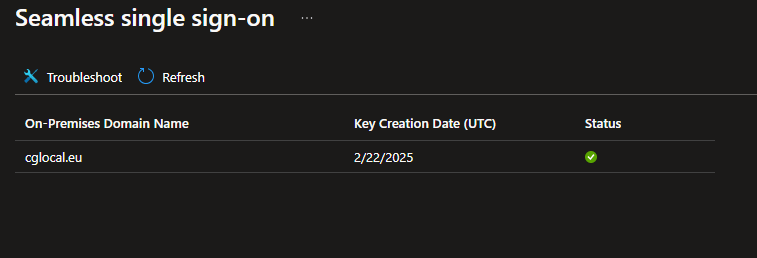
After you finish the above steps, the status of the Seamless SSO configuration will be updated.
Conclusion
The AZUREADSSOACC computer account is created during the activation of seamless single sign-on (SSO) in Microsoft Entra Connect, facilitating automatic sign-ins for users on corporate networks. It requires secure management by Domain Administrators, with regular updates of the Kerberos decryption key recommended every 30 days to ensure security.
I hope you enjoyed it and found it useful!!!