Charalambos Geronikolas Reading Time : 5 minutes Active-Directory
LDAP stands for Lightweight Directory Access Protocol. It’s a way to access and manage information in a directory over a network. Think of LDAP as a large phone book for a network, helping computers find and manage details about users, groups, and devices.
By default, LDAP communications between client and server applications are not secure. This means that someone could use a network monitoring tool to see the data being exchanged between LDAP client and server computers. This is particularly risky when using LDAP simple bind because the credentials (username and password) are sent over the network without encryption. This could easily lead to the credentials being compromised.
You can keep LDAP information private and secure by using SSL/TLS technology. To do this, you need to set up LDAP over SSL (LDAPS) by installing a special certificate from a trusted source, like Microsoft or another certification authority.
In my scenario, I will create a new VM which it will be the Certification Authority (CA) for my lab.
How to add the role of the Certification Authority.
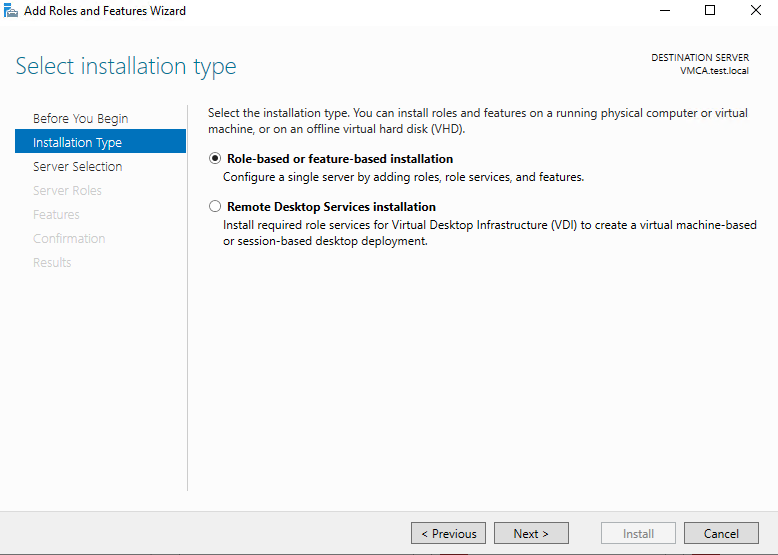
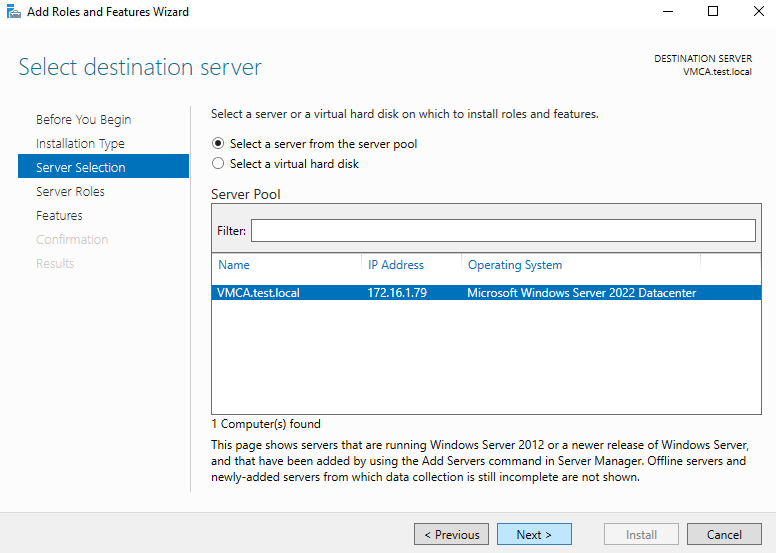
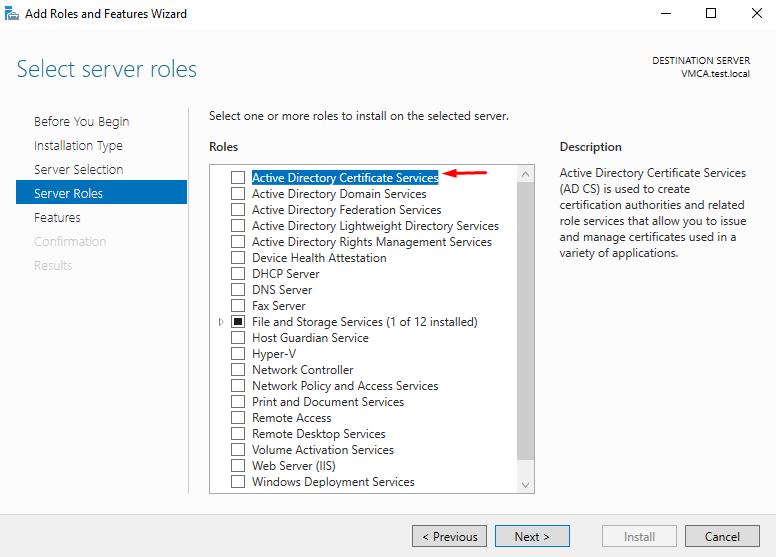
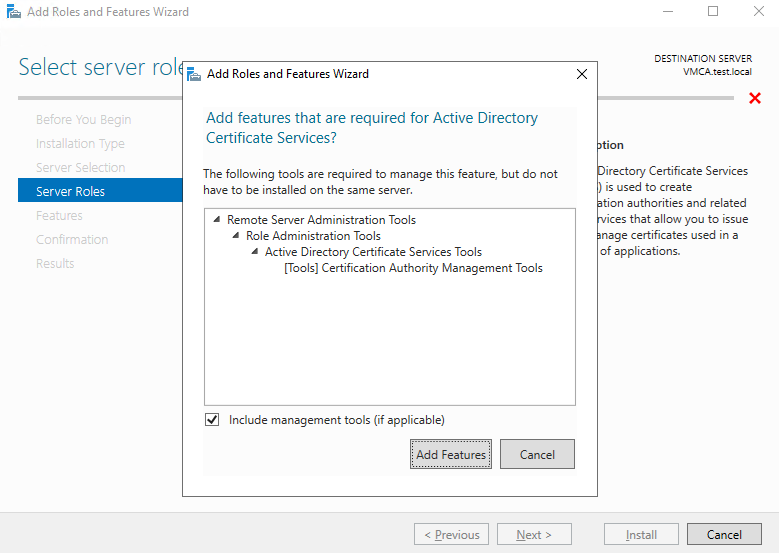
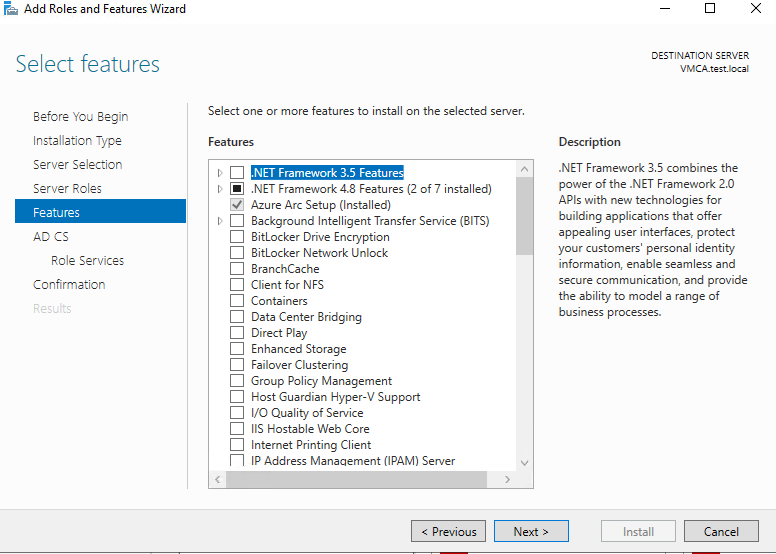
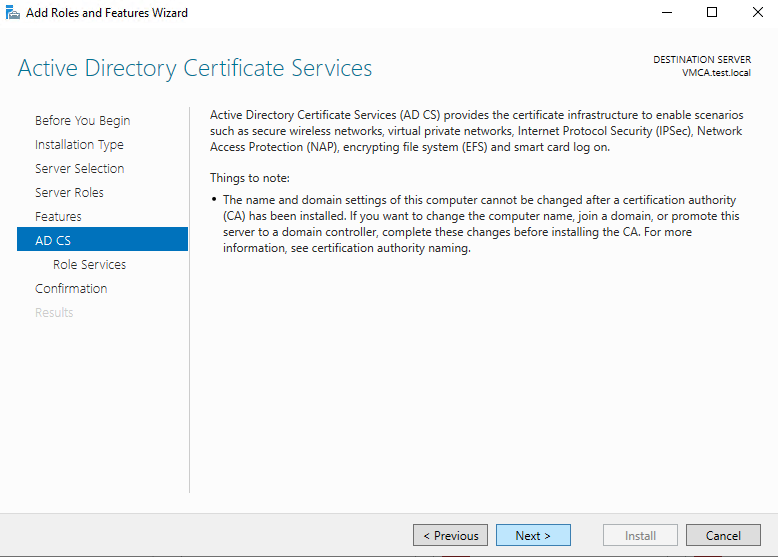
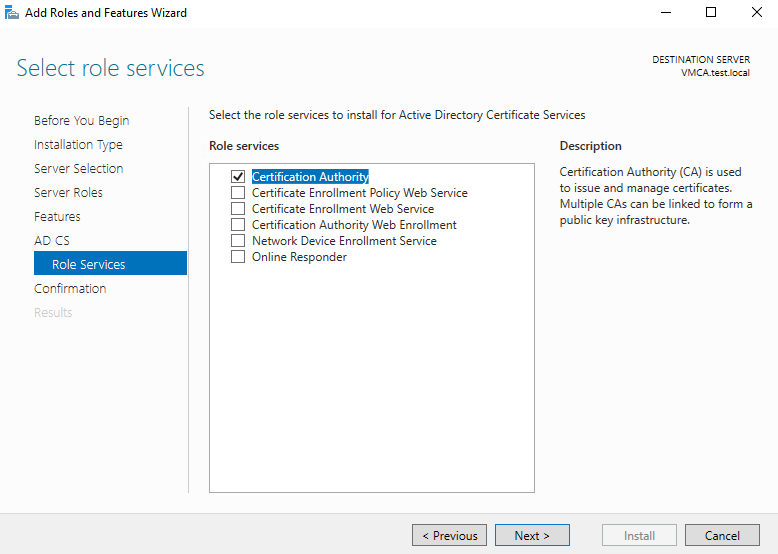
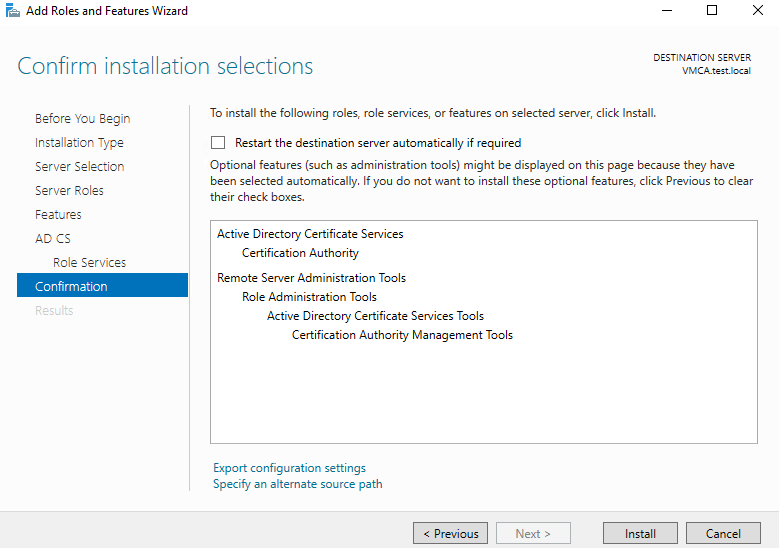
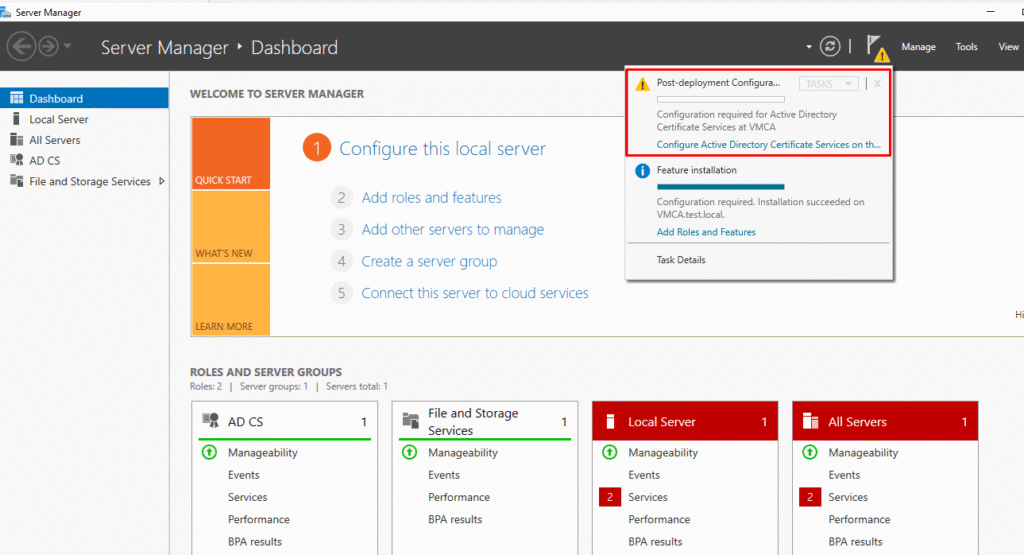
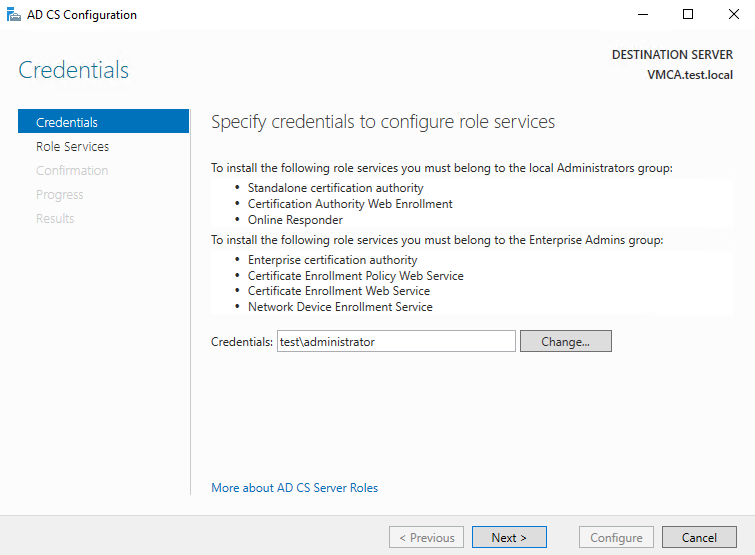
Set up the Active Directory Certificate Services. If you use the local admin credentials it will not show you the option to choose the Enterprise CA.
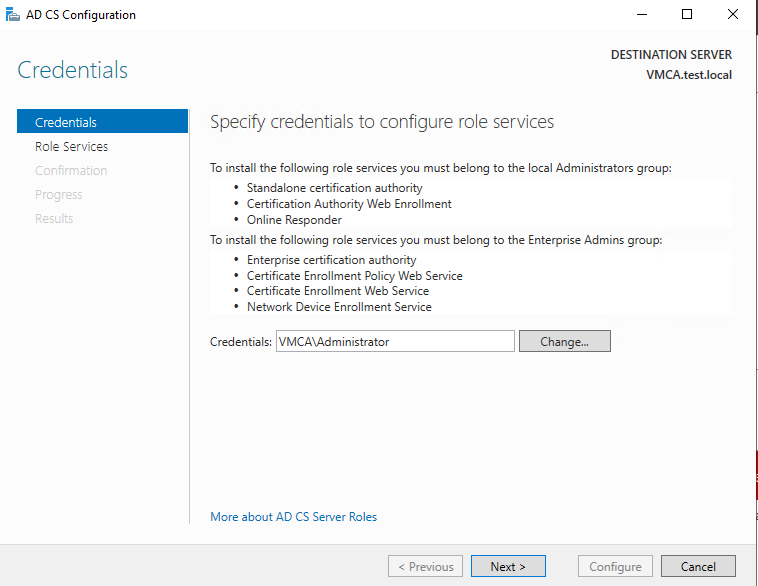
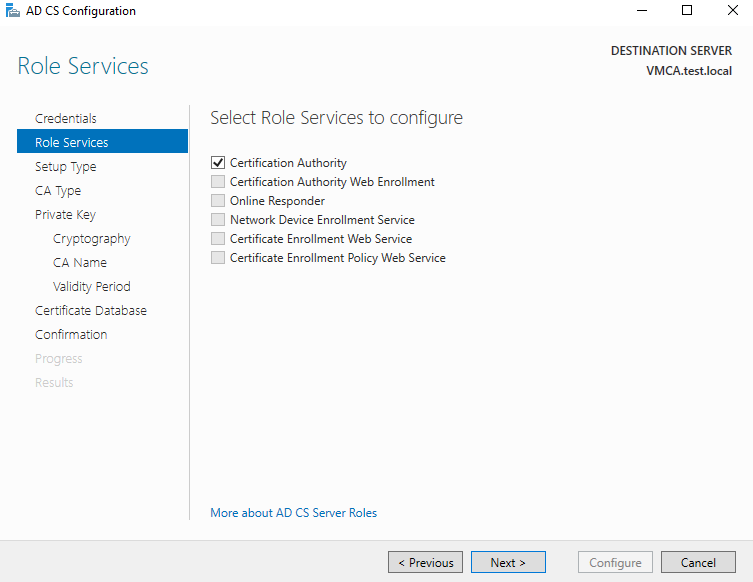
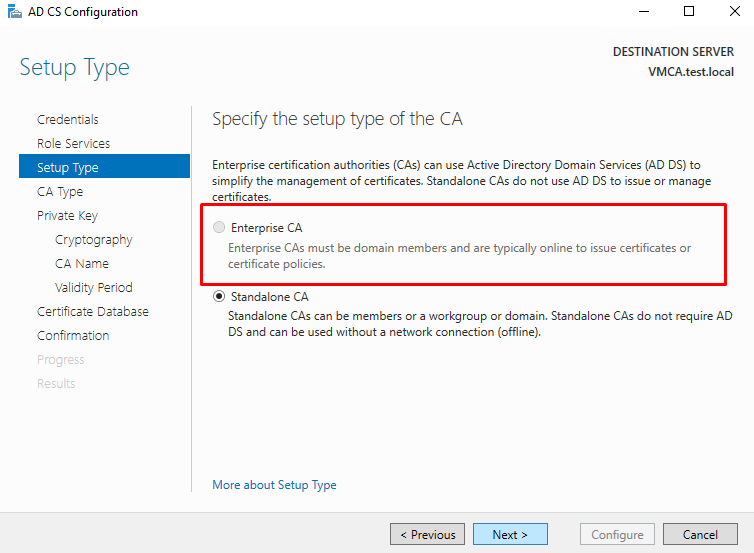
If you use the domain admin credentials you will have access to select the Enterprise CA.
The differences between the Enterprise CA and Standalone CA are the below :
Enterprise CA
- Seamless Integration with Active Directory: When you set up an Enterprise CA (Certification Authority) in an Active Directory (AD) forest, it automatically connects with AD. This means every member of the AD forest can easily request certificates from the CA.
- Certificate Templates: Certificate templates help standardize the certificates issued based on their use. Administrators set up these templates with the necessary settings and make them available for issuance. Users don’t need to manually create requests; the system will automatically generate and submit the correct request, and retrieve the issued certificate. If any request details are incorrect, the CA will adjust them based on the template or AD settings.
- Certificate Autoenrollment: This is a standout feature of Enterprise CA. Autoenrollment allows certificates to be automatically issued for configured templates without any user interaction. Everything happens automatically once the initial setup is done.
- Key Archival: Although often overlooked, key archival is a valuable feature for backing up user encryption certificates. If a private key is lost, it can be recovered from the CA database. Without this, you would lose access to your encrypted data.
Standalone CA
- No Certificate Templates: Without certificate templates, every request must be manually created and include all necessary information for the certificate. While an Enterprise CA might only need key information and can automatically fill in the rest, a Standalone CA requires a fully complete request since it doesn’t have an information source.
- Manual Certificate Request Approval: Because Standalone CAs don’t use certificate templates, each request must be manually reviewed by a CA manager to ensure it doesn’t contain any harmful information.
- No Autoenrollment or Key Archival: Standalone CAs don’t rely on Active Directory, so features like autoenrollment and key archival are not available for this type of CA.
To summarize the above, Enterprise CAs are ideal for issuing many certificates quickly and cheaply to users and devices. Standalone CAs are better for special, high-security situations.
In my scenario, I will choose the Enterprise CA.
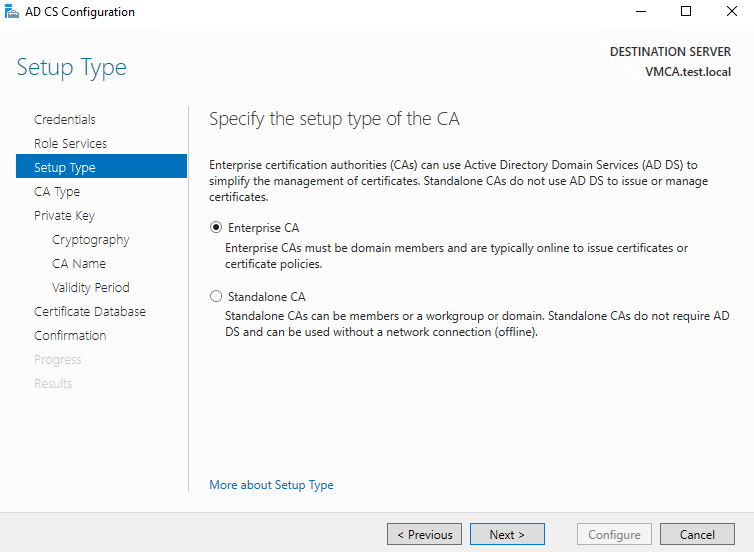
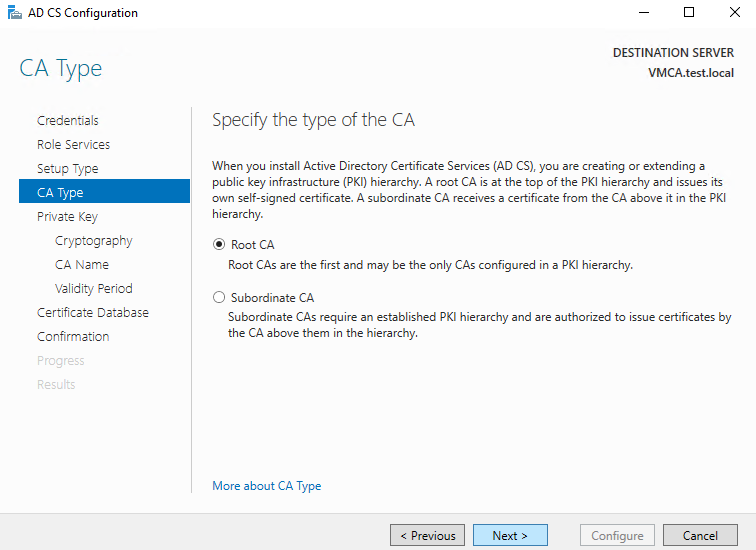
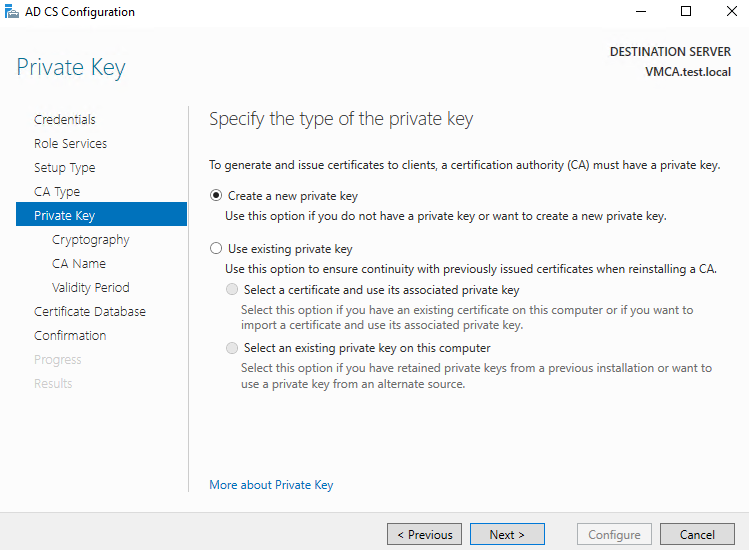
I will create a new private key. In case you have already a private key, you can choose “Use existing key”.
In my scenario, I will choose the 4096 key length for better security as well as SHA512 algorithm.
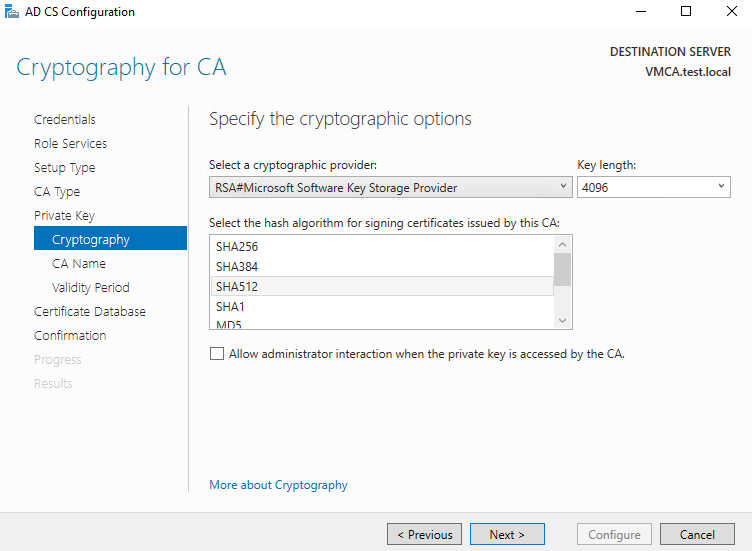
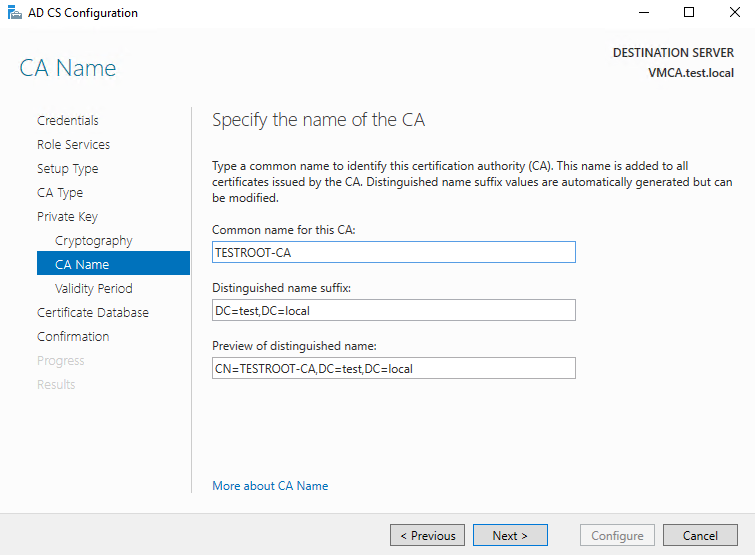
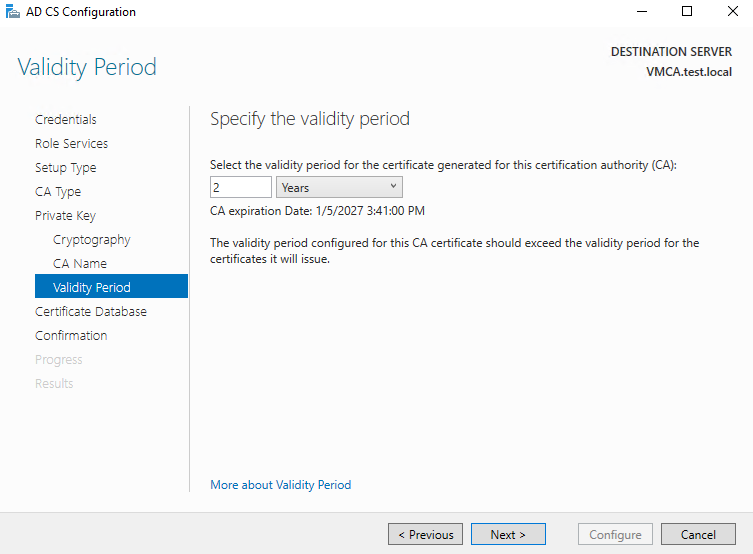
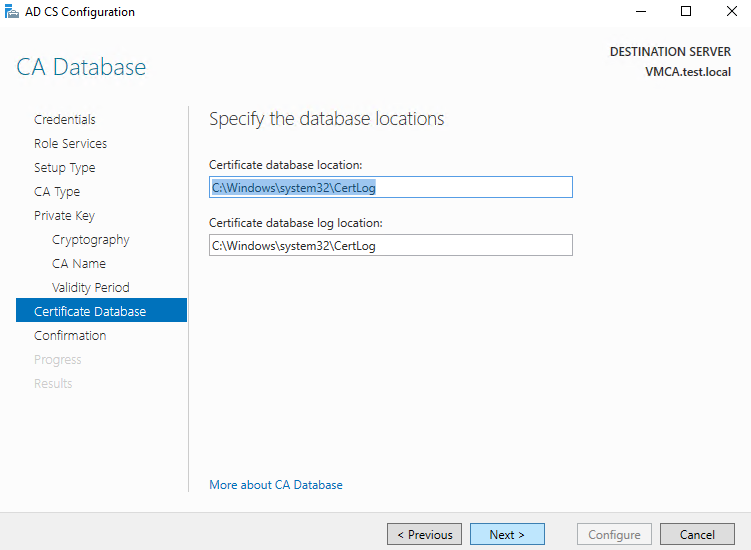
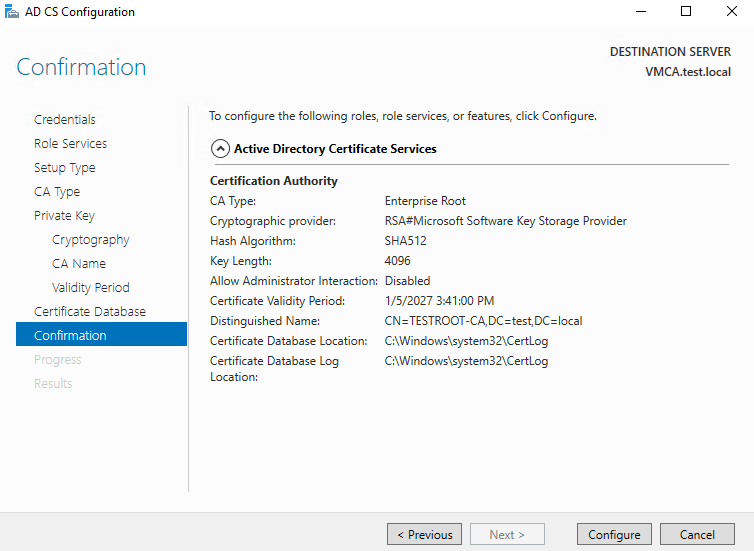
For more information for Guidance Certification Authority, please visit here
Verify LDAP Communication
Go to the search bar and type the ldp.exe.
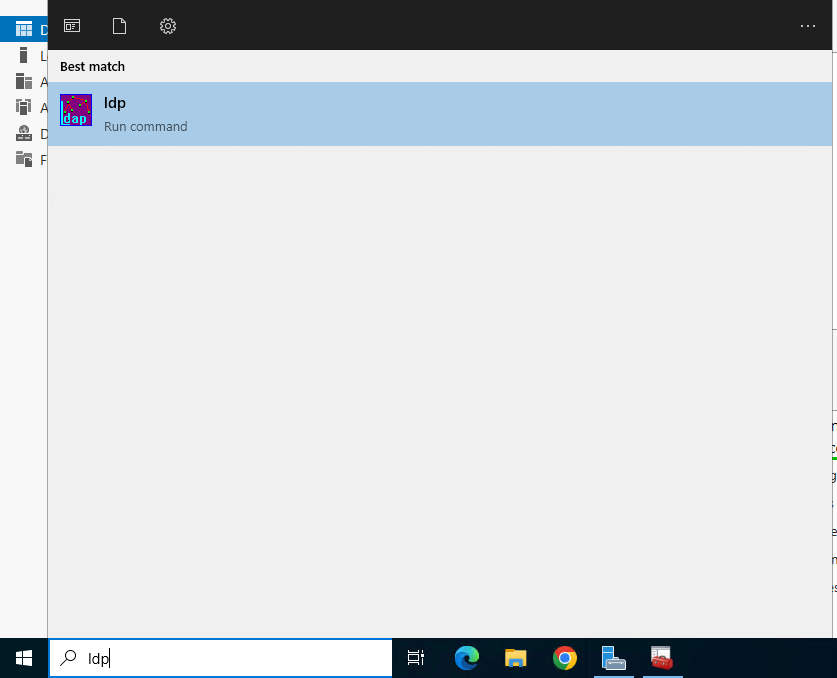
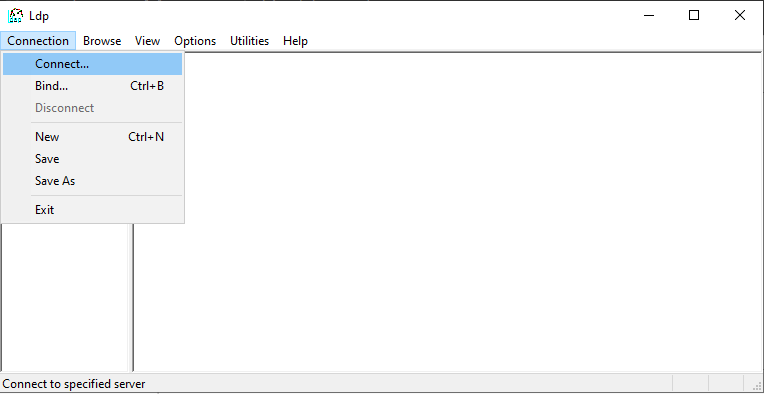
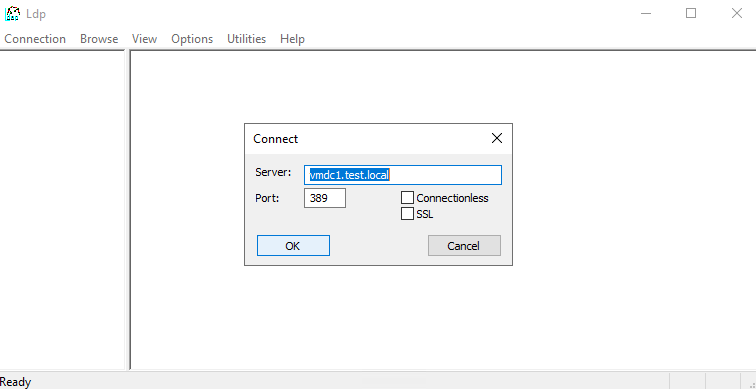
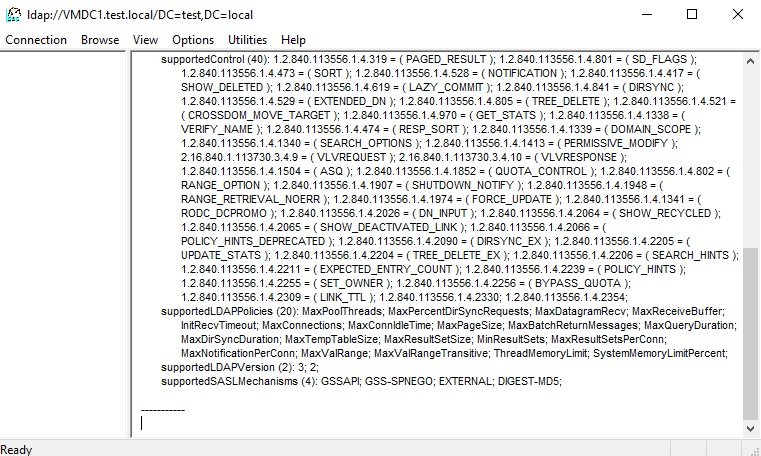
Let’s bind to see if it can verify the account.
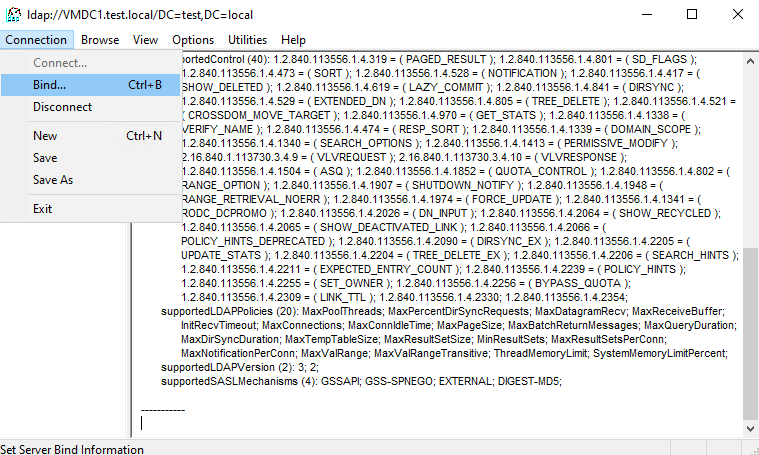
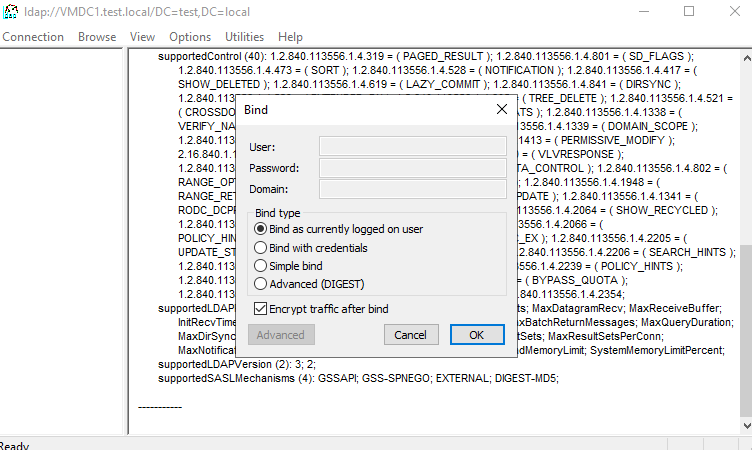
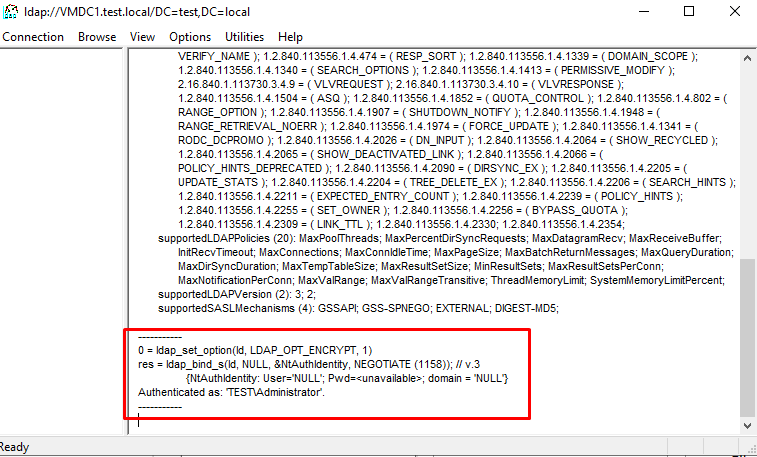
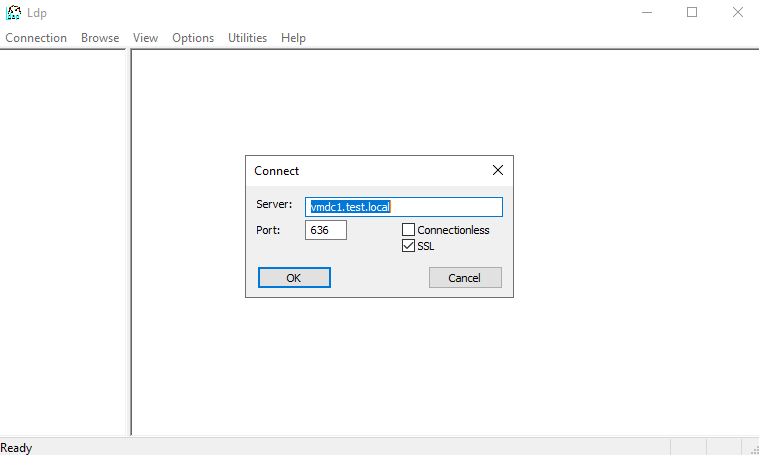
Let’s try to connect to the port 636 and enable the SSL check box.
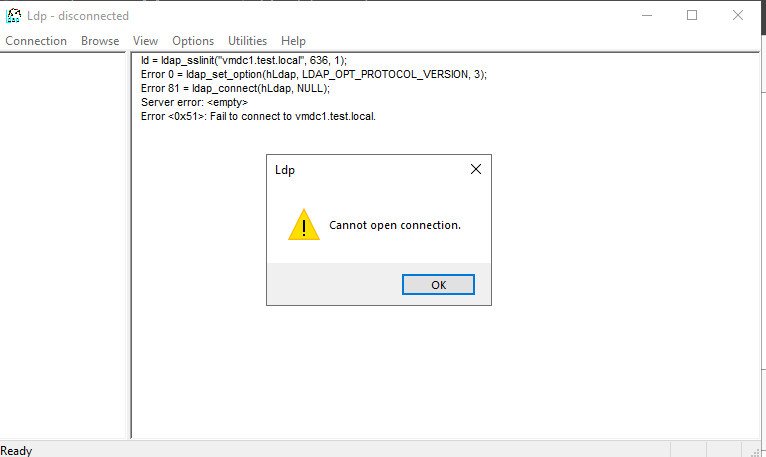
Also, with below command you can see the certificates of the local computer. In my case it is empty
certlm.msc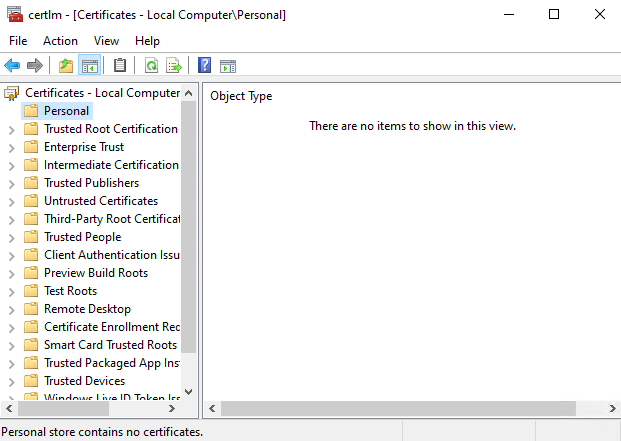
Concerning the above, it is not possible to open the connection because you need to restart your domain controllers to generate a certificate from the Certification Authority.
After I restarted the domain controllers, the CA generate the certificates for the domain controllers.
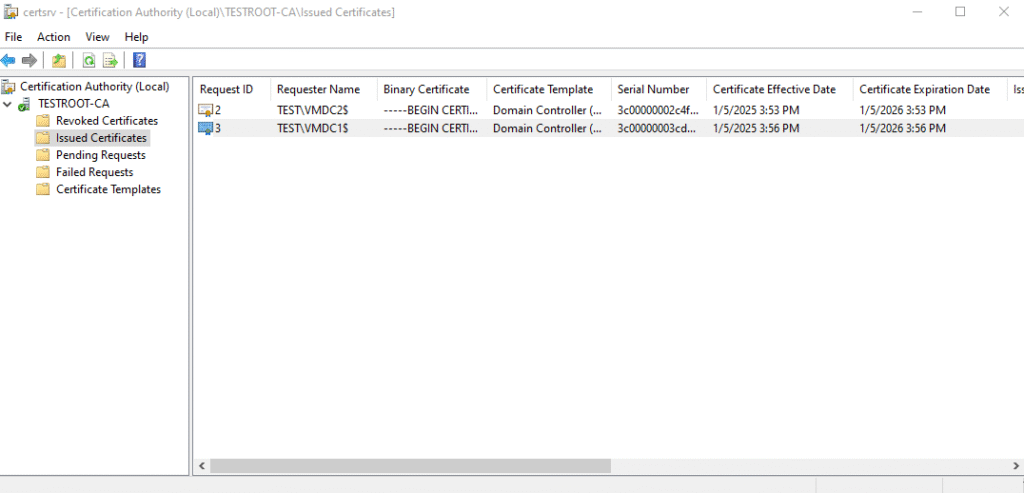
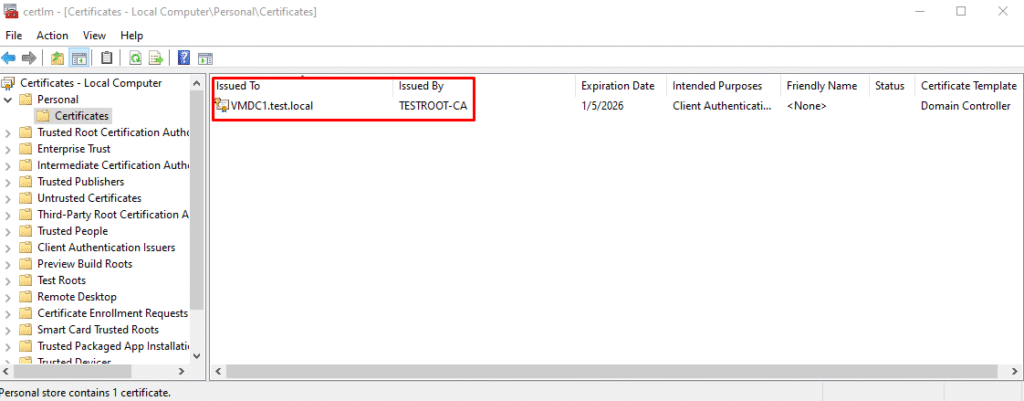
Let’s try again to see if the LDAP over SSL is enabled.
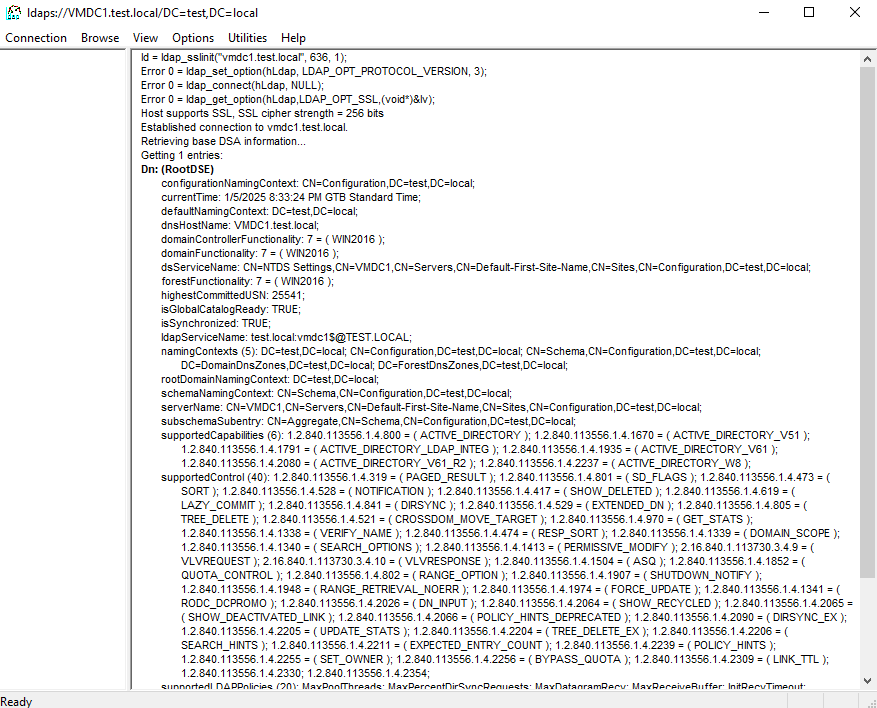
It looks like my LDAP connection is successfully establishing an SSL connection to my domain controller on port 636. The error messages you provided all show “Error 0,” which typically means there are no errors for those specific operations. Here’s a breakdown of what each line indicates:
- ld = ldap_sslinit(“vmdc1.test.local”, 636, 1);
This initializes an SSL connection to the servervmdc1.test.localon port 636. - Error 0 = ldap_set_option(hLdap, LDAP_OPT_PROTOCOL_VERSION, 3);
This sets the LDAP protocol version to 3, and “Error 0” means this operation was successful. - Error 0 = ldap_connect(hLdap, NULL);
This establishes the connection to the LDAP server, and “Error 0” indicates success. - Error 0 = ldap_get_option(hLdap, LDAP_OPT_SSL, (void)&lv);*
This retrieves the SSL option settings, and “Error 0” means it was successful. - Host supports SSL, SSL cipher strength = 256 bits
This confirms that the host supports SSL and the cipher strength is 256 bits, which is good. - Established connection to vmdc1.test.local.
This indicates that the connection to the server was successfully established. - Retrieving base DSA information
This is the next step in the process, where the client is attempting to retrieve directory information.
Let’s also bind a connection with my credential.
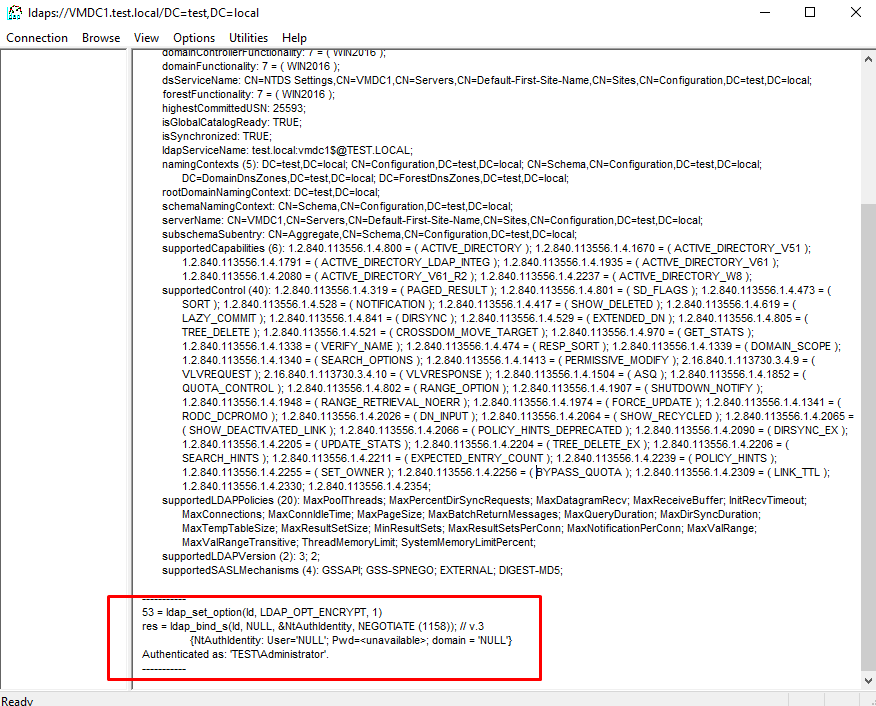
So in my scenario, LDAP over SSL has been successfully enabled. In my next article, I will show how you can enable LDAP over SSL from a third-party Certification Authority.
Stay tuned.
Hope you are enjoying my article.