Charalambos Geronikolas Reading Time : 3 minutes Active Directory
Introduction
In today’s corporate environments, data security is not optional—it’s a necessity. One of the most common yet underestimated risks comes from USB storage devices. While these devices offer convenience for transferring files, they also present significant security threats, including malware infections, data leakage, and unauthorized access to sensitive information.
For organizations that handle confidential data or operate under strict compliance frameworks such as GDPR, ISO 27001, or HIPAA, unrestricted USB access can lead to severe consequences. Blocking USB ports is a proactive measure that helps mitigate these risks by preventing unauthorized devices from connecting to company systems.
This article will guide you through how to block USB access using Group Policy in Windows environments, ensuring your organization maintains a strong security posture without compromising operational efficiency
How to implement?
In my case scenario, I handled the situation by creating security groups that will be used for block, read, and write access.
Create Security Group
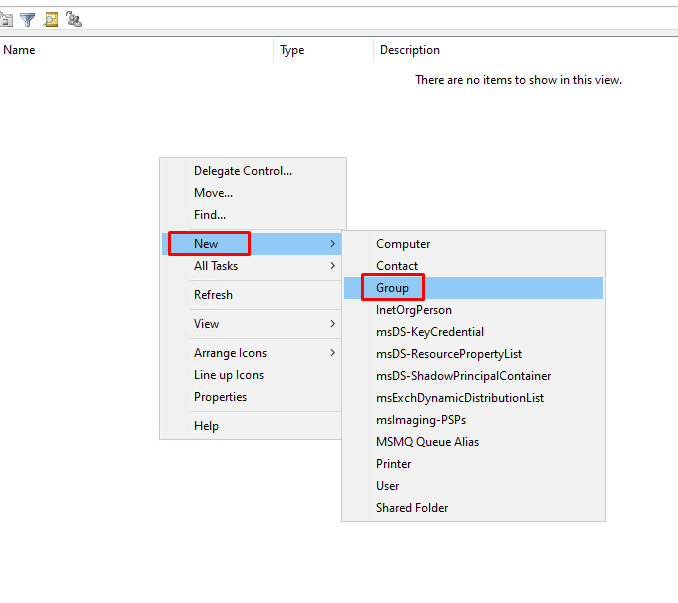
- SG_USB_BlockAccess
In this group, you will need to add the users which it will block the USB Access - SG_USB_RW_Access
In this group, you will need to add the users which it will have read and write access at the USB
Create the Group Policy on the Security Group
Follow the steps below for the creation of GPO’s
- Open the Group Policy management console.
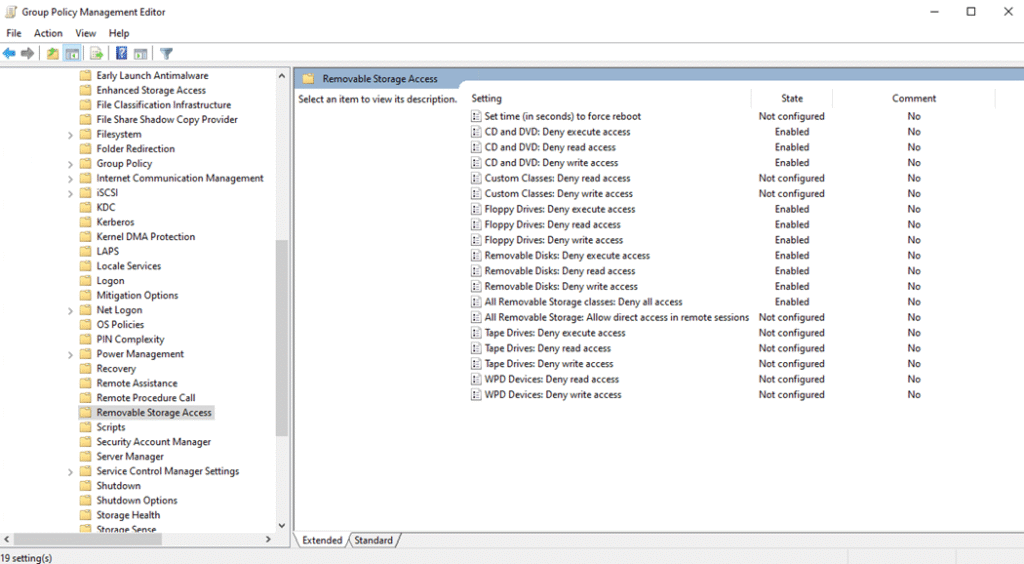
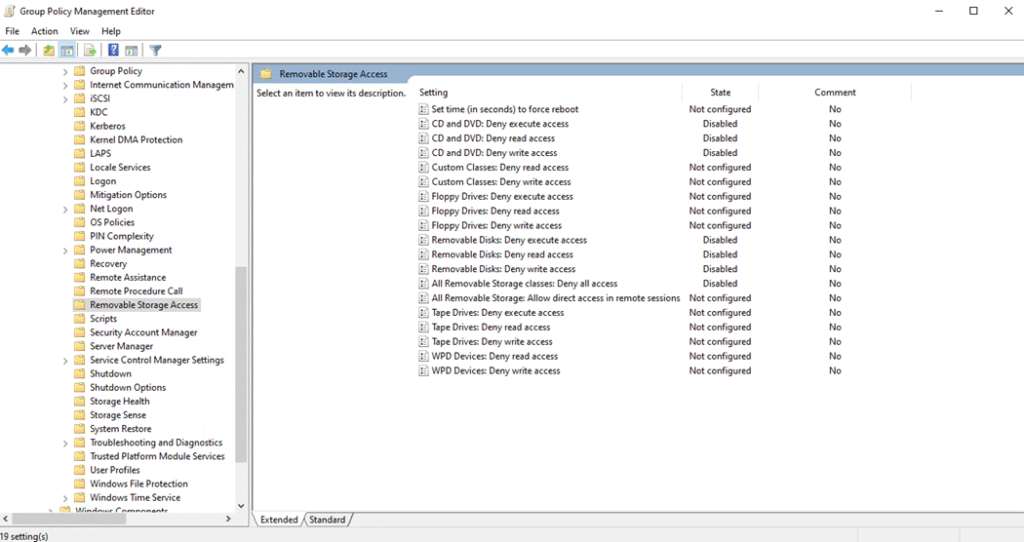
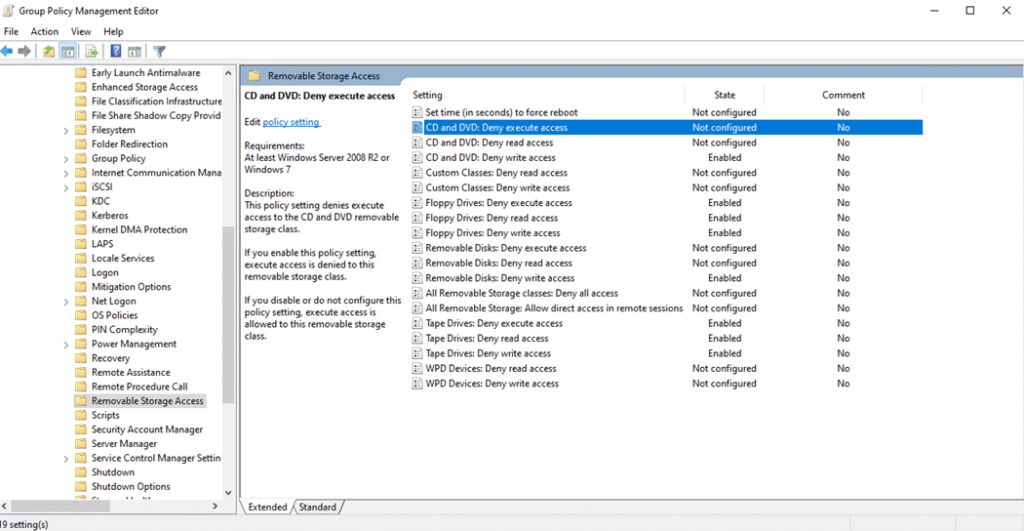
- Go to Computer Configuration → Administrative Templates → System → Removable Storage Access.
- For the SG_USB_BlockAccess add the below settings.
- For the SG_USB_RW_Access add the below settings.
For the SG_USB_ReadAccess, add the settings below.
How to attach the Security Groups to the GPO Policy
To implement the group policy you have created, navigate to the delegation tab and add the security group that was established.
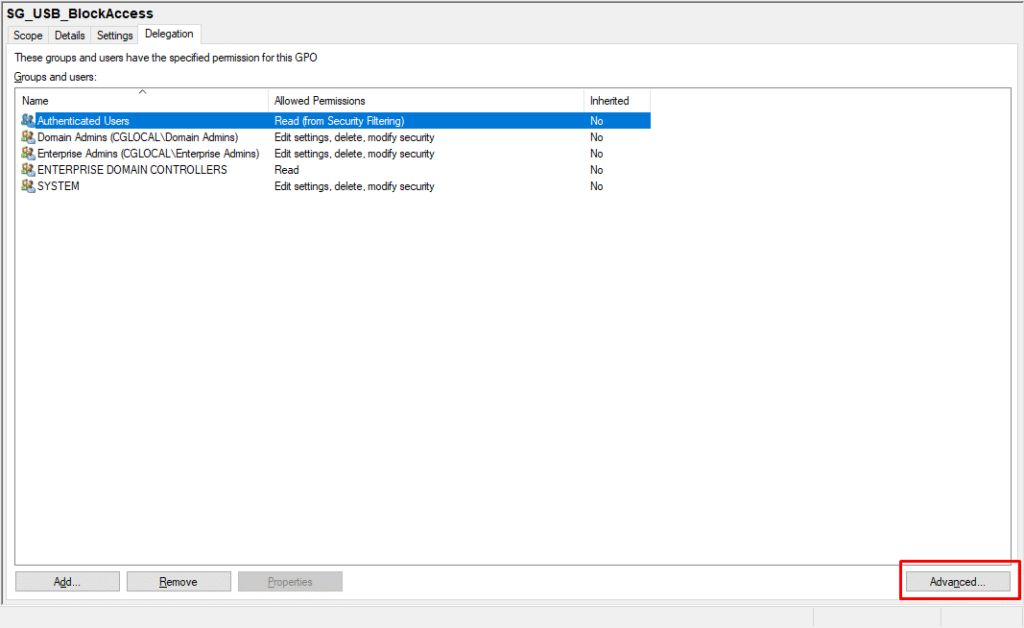
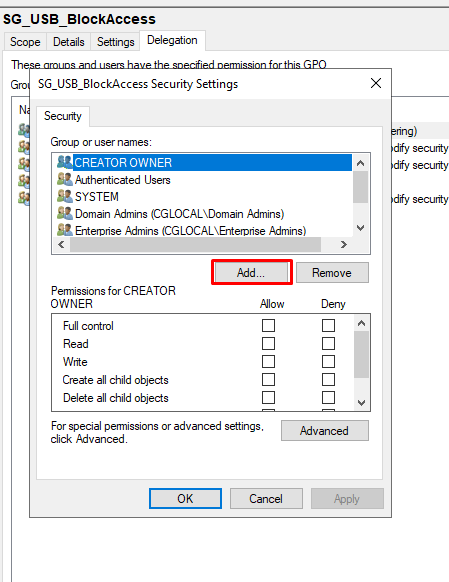
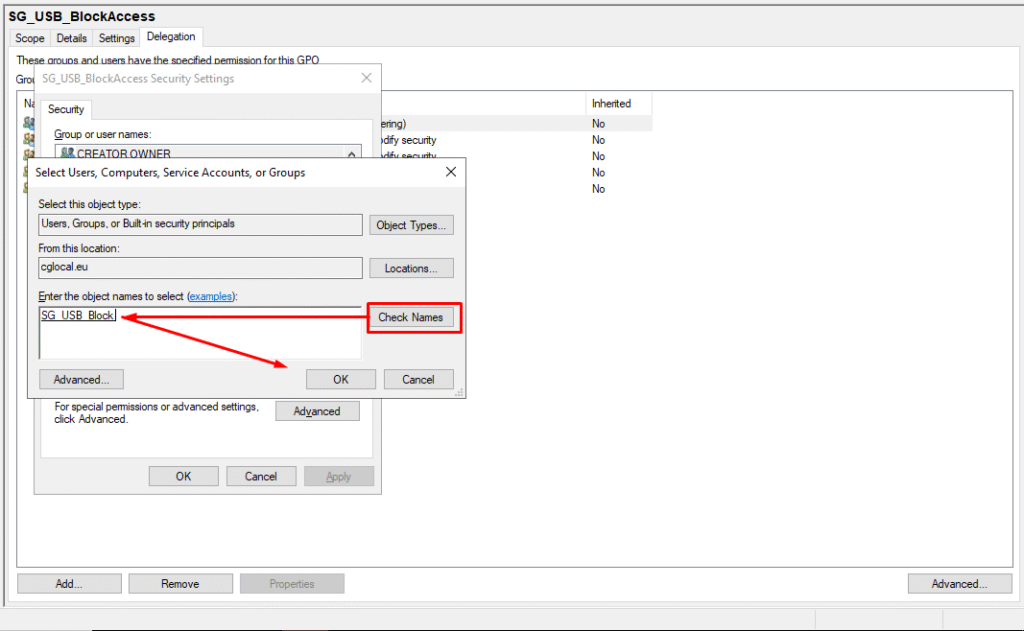
You will need to implement this policy for this group and also ensure that the “apply” option is unchecked for Authenticated Users.
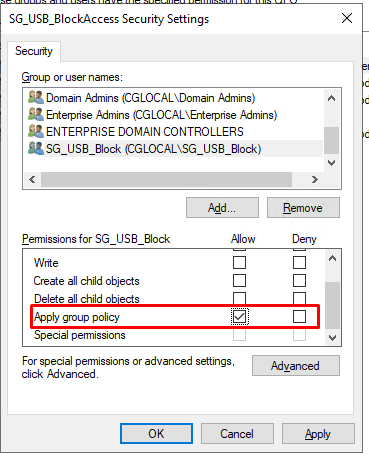
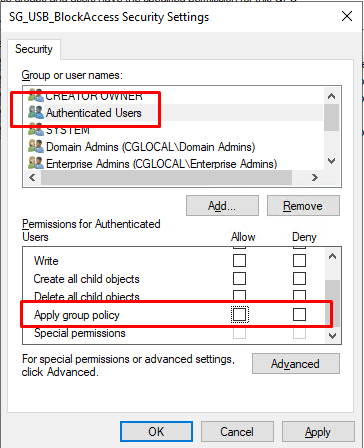
This method allows you to implement this policy exclusively for a designated group, which will consist of specific users, for example.
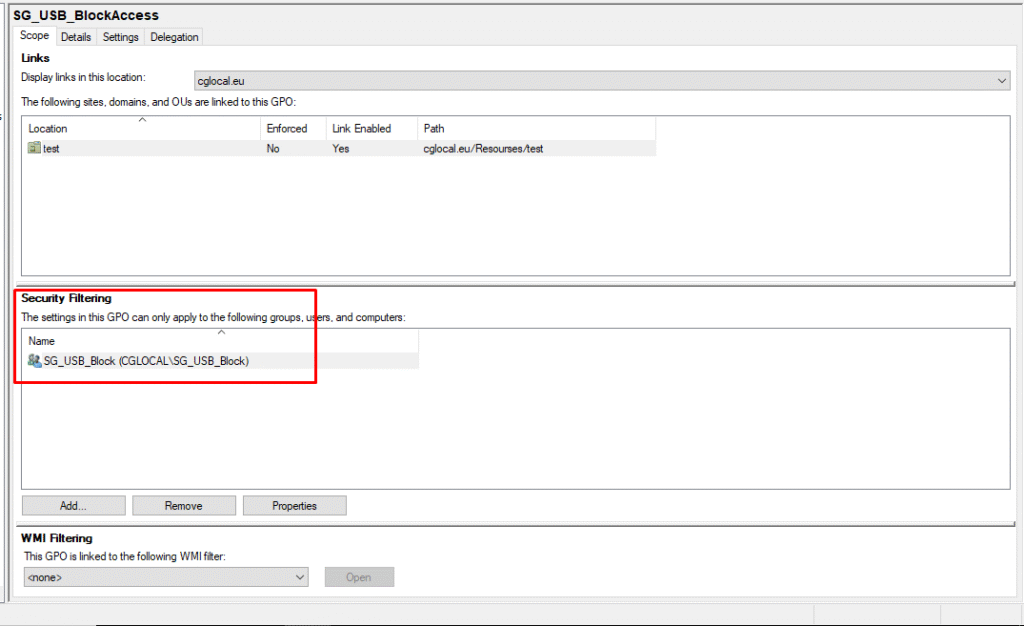
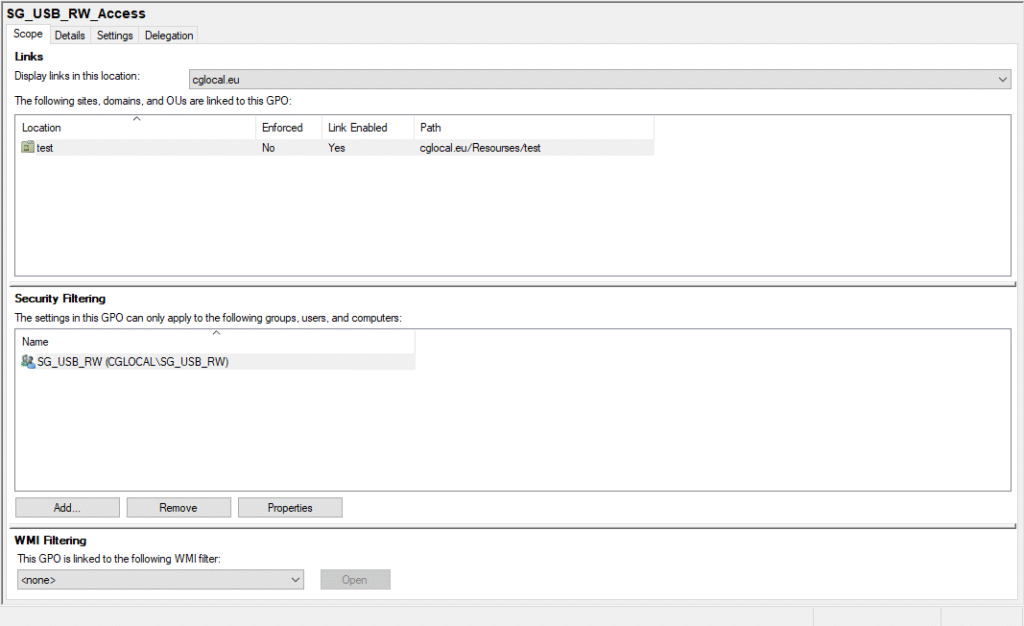
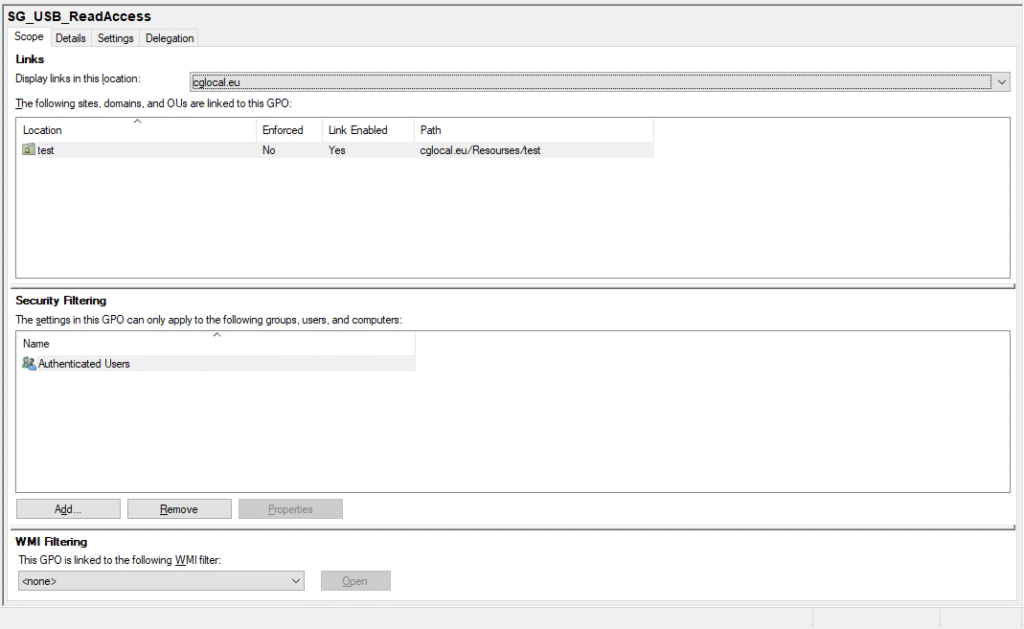
These policies will be implemented to the Organization Unit as following ordering at the GPO:
- SG_USB_BlockAccess
- SG_USB_RW_Access
- SG_UBB_ReadAccess
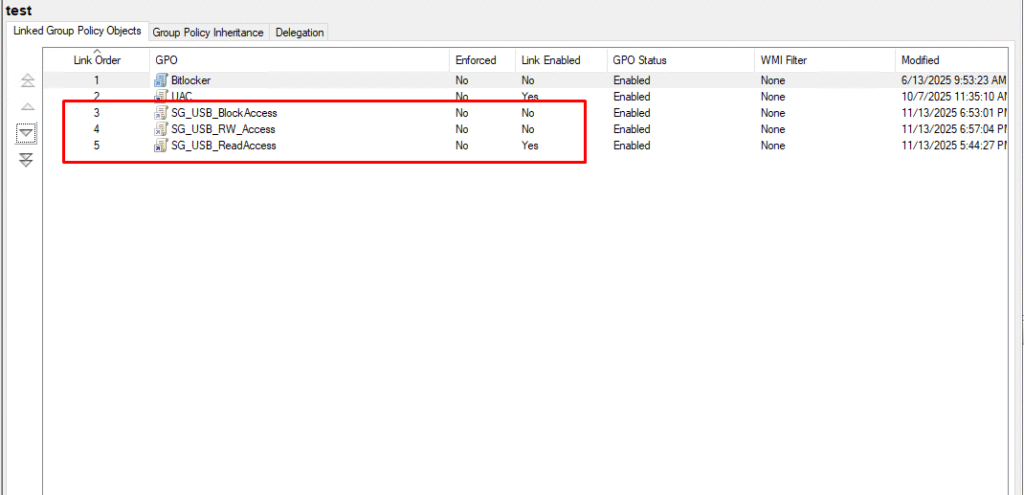
By default, the SG_USB_ReadAccess policy is applied to all users, allowing read-only access to USB devices. If a user requires write access, you must add them to the security group SG_USB_RW. For urgent cases where USB access must be completely blocked, we have created an additional policy called SG_USB_BlockAccess.
Steps to Enable the Block Policy
To activate the USB block policy, follow these steps:
- Add the user to the SG_USB_Block security group.
- Enable the policy SG_USB_BlockAccess in Group Policy.
Important Note
When the policy is applied to the user’s machine, it will take precedence based on the GPO link order. The highest priority GPO will apply first.
Conclusion
I hope you found this article helpful and insightful. USB access control is a critical step toward securing your organization’s data and preventing potential threats. By leveraging Group Policy and properly managing security groups, you can implement a robust solution that balances security with operational needs.
If you enjoyed this guide, stay tuned for more practical security tips and best practices. Your feedback is always welcome—let me know what topics you’d like to see next!
[…] Navigate to Devices > Configuration and select the Profile Type: Settings Catalog. From there, you can apply the same policies that you would typically configure in your on-premises Active Directory environment. For more details, check out my previous article. here. […]